
in progress_Errors Loading and Configuring RiCoder Containers in Docker
1. Error Loading Containers in Docker
This section describes errors related to loading and running RiCoder containers in Docker.
Error text: Containers are not running or are stopped
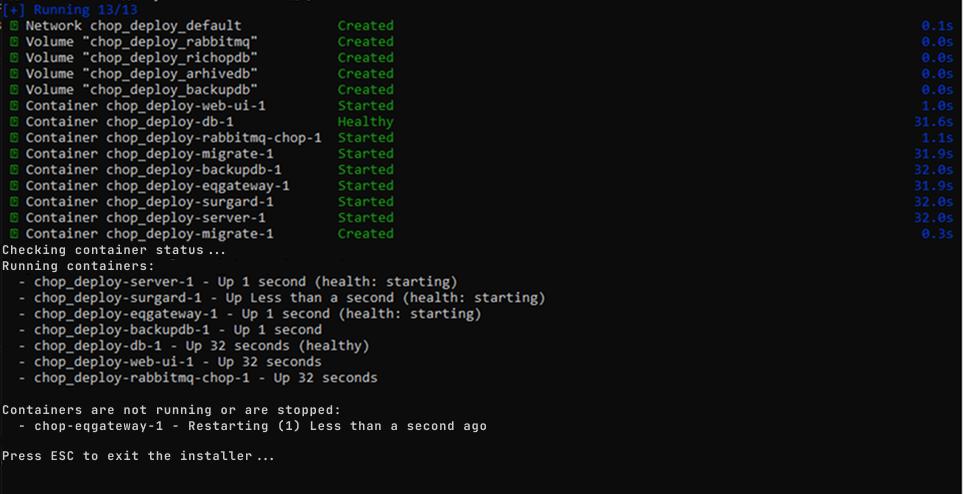
Docker Desktop screen: Containers
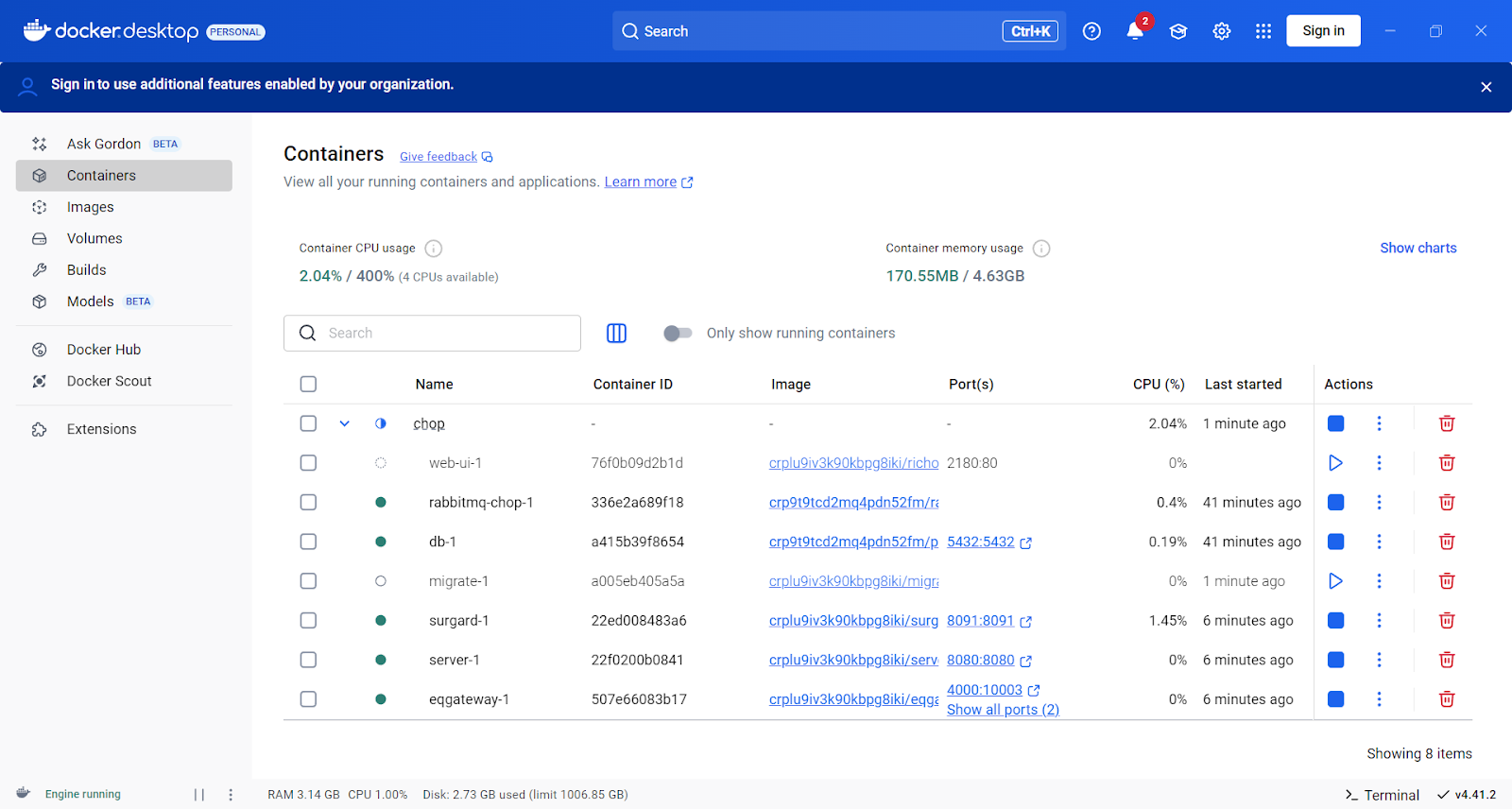
Case 1. RiCoder Containers Did Not Start in Docker
Solution for Windows OS
Start the containers manually in Docker Desktop:
1. Open the Containers panel in Docker Desktop.
2. In the Containers panel, under the Actions column, click Start (triangle icon) for any containers that are not running. Upon successful start, the container status changes to running (square icon).
Exception – the migrate-1 database container. It should be loaded – status Created or Exited, but it may not be running.
3. Restart the server. This is a mandatory condition for successfully loading the containers.
4. Open Docker Desktop -> Containers panel -> the container status should change to Started.
Delete the containers from Docker Desktop and repeat the RiCoder installation.1. Open the Containers panel in Docker Desktop.
2. In the Containers panel, under the Actions column, click Stop -> Delete for the RiCoder containers (chop).
3. Restart the server.
4. Open Docker Desktop or ensure it is running.
5. Launch the RiCoder installation wizard and go through the dialog steps again.
Detailed container status diagnostics via command line:
1. Open the command prompt.
2. Enter the command docker ps – displays a list of running Docker containers and their key parameters.
3. The current container state is indicated in the STATUS column.
Solution for Linux OS
RiCoder containers are not starting, crashing, cannot see files, services are not coming up, etc.
Check that Docker is working by entering the command:
docker run hello-world1. Docker is not working: A message appears saying "Cannot connect to the Docker daemon". Docker is not running or you do not have permission to run Docker.
# Start the Docker daemon
sudo systemctl start docker
# Enable autostart so Docker starts automatically on system boot
sudo systemctl enable docker
# Add the user to the docker group
sudo usermod -aG docker $USER
# Log out and log back in or reboo
reboot
2. Docker is working: A welcome message appeared.
The cause of the container startup failure is related to the RiCoder images or their configuration.
2.1 Check the status of RiCoder containers:
docker ps -aIf the status is:
- Exited (1), Exited (127) etc. — the container crashed upon startup,
- Created — created but not started,
- Restarting — attempting to restart
docker start <chop_container_name>2.3 Restart the Docker daemon
sudo systemctl restart dockerCase 2. Docker cannot load containers due to insufficient resources
The error occurs due to a lack of memory, CPU, or disk space on the server.
Solution for Windows OS
- Check the allocated resources in Docker Desktop.
- Go to Settings -> Resources.
- Increase the RAM/CPU limits or stop unnecessary containers that are not related to the chop containers.
- Go to the Container panel.
- Restart the chop containers. Click Stop -> Start for the corresponding containers.
- Restart the server if necessary.
Solution for Linux OS
1. Check the allocated system resources (RAM, CPU).
Run the command:
htopУбедитесь, что у системы достаточно свободной памяти и CPU. Требования к ресурсам для RiCoder.
2. Если ресурсов не хватает, остановите лишние контейнеры (не относящиеся к RiCoder).
# Посмотрите список всех контейнеров Docker
docker ps
# Остановите лишние:
docker stop имя_контейнера
# Перезапустите контейнеры RiCoder
docker restart <chop_имя контейнера> <chop_имя контейнера> <chop_имя контейнера>
# Перезапустите Docker
sudo systemctl restart docker
Case 3. Network Issues
Docker cannot download container dependencies due to firewall or proxy blocking. To verify network settings, perform the authentication procedure for the Yandex Docker Registry (Container Registry) using a service account.
Ensure that the registry authorization key file is located in the /CHOP_DEPLOY/ directory. If the file is missing from the specified folder, network troubleshooting will be incorrect, and instead, an error related to lack of access rights to the Yandex repository will occur.
Perform network problem diagnostics.
Solution for OS Windows
Docker cannot pull containers due to firewall or proxy blocking.
1. Ensure that your computer can access the Yandex Docker Registry. Open the Command Prompt.
2. Enter the command:
ping cr.yandex1. If the ping fails → there is an issue with the internet connection or DNS.
2. Temporarily disable the firewall and antivirus. Sometimes the firewall blocks Docker. Open Control Panel → Windows Defender Firewall → Advanced settings.
3. Disable the firewall for both private and public networks.
4. Try launching Docker Desktop.
If Docker starts working, configure exceptions in the firewall for docker.exe.
5. Check what proxies are configured in the system:
Open PowerShell and enter the command:
netsh winhttp show proxyIf a proxy is required, configure it in the ~/.docker/config.json file.
Solution for OS Linux
1. Check the connection to the Yandex registry. Enter the command:
docker pull cr.yandex/crp9t9tcd2mq4pdn52fm/ chop-deploy-eqgateway-1
# cr.yandex - адрес реестра Яндекс
# crp9t9tcd2mq4pdn52fm - идентификатор проекта (“id” в json файле ключа авторизации.
# chop-deploy-eqgateway-1 - имя образа контейнера
2. If you receive an error like no such host - Docker cannot find the Yandex registry host. There is a network or DNS issue.
level=info msg="Error logging in to endpoint, trying next endpoint" error="Get \"https://cr.yandex/v2/\": dial tcp: lookup cr.yandex: no such host"

Get "https://cr.yandex/v2/": dial tcp: lookup cr.yandex: no such host
3. Check the connection to the Yandex repository. Run the command:
ping cr.yandex- DNS и сеть работают - видите ответы, например: 64 bytes from...
- Проблема с DNS или интернетом - видите ответы ping: unknown host или 100% packet loss
4. Дополнительно проверьте DNS. Введите команду:
- DNS and network are working - you see replies, for example:
64 bytes from... - DNS or internet issue - you see replies like
ping: unknown hostor100% packet loss
4. Additionally check DNS. Enter the command:
nslookup cr.yandex.ruIf there is an error - the problem is with the network, DNS, or proxy.
5. Check if the firewall is blocking the connection. Ubuntu uses UFW (Uncomplicated Firewall) by default. Run the command to check UFW status:
sudo ufw status6. Temporarily disable UFW for testing:
sudo ufw disable7. Try again:
docker pull hello-world- If it works — it means the firewall was blocking Docker.
- If not — the problem is not with the firewall.
8. Аfter testing, re-enable UFW:
sudo ufw enable9. Allow Docker through the firewall:
sudo ufw allow out 443/tcp    # HTTPS (для Docker Hub)
sudo ufw allow out 53         # DNS
Other less common Docker errors related to network connectivity may also occur. For more details, see the official Docker documentation.
Case 4. Docker Desktop Bug. GUI Error
1. Restart Docker Desktop.
2. Update to the latest version.
2. Docker cannot establish a connection with the RiCoder host
Docker cannot bind the container port to a specific IP address and port on the server where the RiCoder software is being deploy.
Error text: Error response from daemon: ports are not available: exposing port TCP 192.168.1.4:2180 -> 127.0.0.1:0: listen tcp4 192.168.1.4:2180: can't bind on the specified endpoint
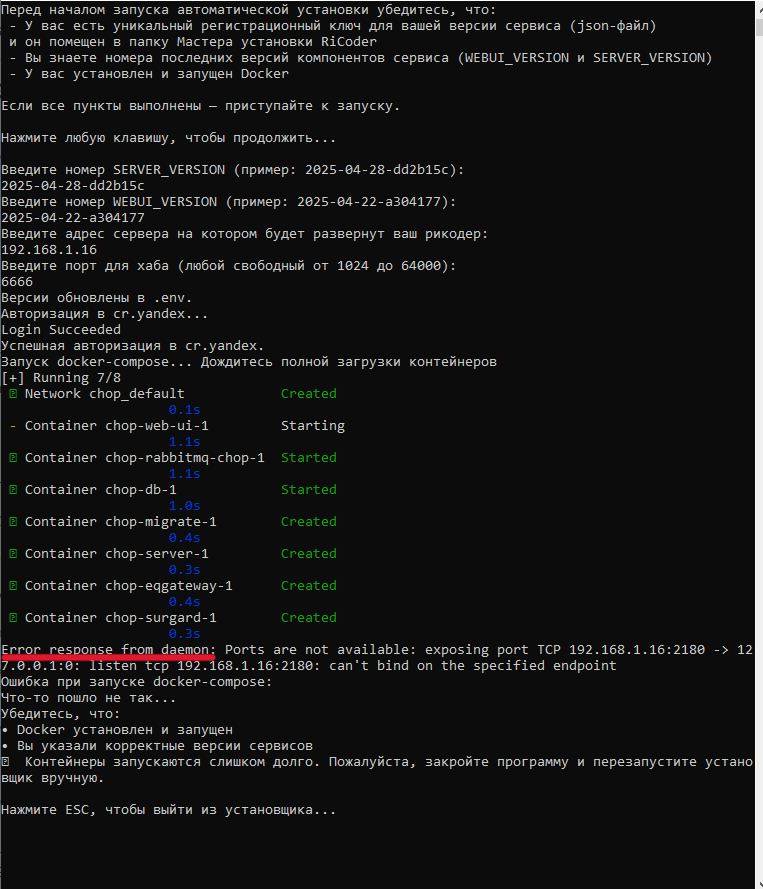
Cause of the error
The server IP address for the RiCoder installation was entered incorrectly.
Solution
Solution for Windows OS
1. Close the installation wizard.
2. Launch the installation wizard again and proceed through the dialog steps.
3. Enter the correct server IP address.
How to find the server IP address in the local network in Windows 10/11?
Via the command line:
1. Open the Command Prompt and enter the command:
ipсonfig2. Find the line with IPv4 Address (in the Ethernet or Wi-Fi section) – this is the server IP address.
Via network settings:
- Open Windows Settings → Network & Internet.
- Select Ethernet or Wi-Fi → Connection properties.
- Find the IPv4 address line – this is the server IP address.
Solution for Linux OS
1. Close the installation wizard.
2. Launch the installation wizard again and proceed through the dialog steps.
./launcher_linux3. Enter the correct server IP address.
How to find the server IP address in the local network in Linux?
1. Open the terminal and enter the command:
ip a2. Find the line with inet – this is the server IP address.
3. Docker cannot establish a connection with the RiCoder port
When attempting to launch RiCoder containers, a network-related error occurred. The system cannot assign a port to the container because it is already in use by another process or a running container.
Error text: Error response from daemon: failed to set up container networking: driver failed programming external connectivity on endpoint chop-eqgateway-1 (a215fcac0b259cd7f15e50939ce5456a62f6707a526204307847ac88a3133bd0): Bind for 0.0.0.0:8080 failed: port is already allocated
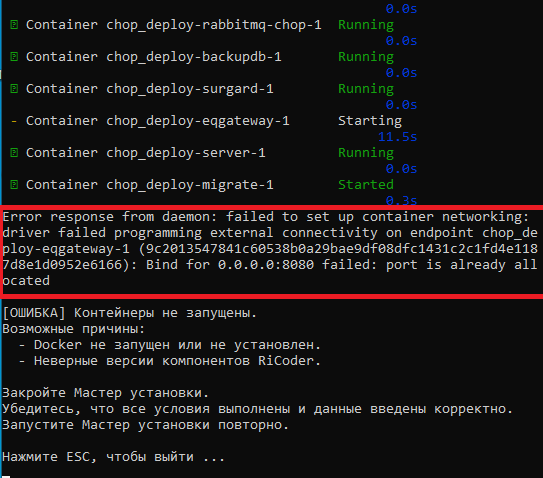
Causes of the error
Cause | Solution |
1. Incorrect port entered. The port is occupied by another process. 2. Insufficient access rights. For example, when attempting to bind a port below 10000. | 1. Close the installation wizard. |
How to identify the process occupying the specified port in Windows?
1. Close the installation wizard.
2. Open PowerShell.
3. Check which process is using the port, for example, 10101. Enter the command:
netstat -ano | findstr :10101
# 10101 - порт, указанный при установке RiCoder.
4. Launch the installation wizard again.
5. Proceed through the dialog steps and specify a free port in the range of 10000 to 65535.
How to check server port statuses in Windows?
1. Open PowerShell.
2. Enter the command:
netstat -an3. Check the list of ports. Ports with the status LISTENING are occupied.
4. Select a free port that does not appear in the list or is not used by another service for the RiCoder installation. This guarantees a successful launch of RiCoder without conflicts.
How to identify the process occupying the specified port in Linux?
1. Close the installation wizard.
2. Check which process is using the port, for example, 10101:
sudo lsof -i :101013. Launch the installation wizard again
./launcher_linux4. Proceed through the dialog steps and specify a free port in the range of 10000 to 65535.
How to check server port statuses in Linux?
1. Enter the command:
sudo ss -tulnp
# или
sudo netstat -tulnp
2. Check the list of ports. Ports with the status LISTEN are occupied.
3. Select a free port that does not appear in the list or is not used by another service for the RiCoder installation. This guarantees a successful launch of RiCoder without conflicts.
4. Docker is not running
The installation wizard cannot install RiCoder containers because Docker is not running.
Error text: unable to get image 'cr.yandex/crplu9iv3k90kbpg8iki/server-prod:2025-04-28-dd2b15c': error during connect: in the default daemon configuration on Windows, the docker client must be run with elevated privileges to connect: Get "http://%2F%2F.%2Fpipe%2Fdocker_engine/v1.49/images/cr.yandex/crplu9iv3k90kbpg8iki/server-prod:2025-04-28-dd2b15c/json": open //./pipe/docker_engine: The system cannot find the file specified.
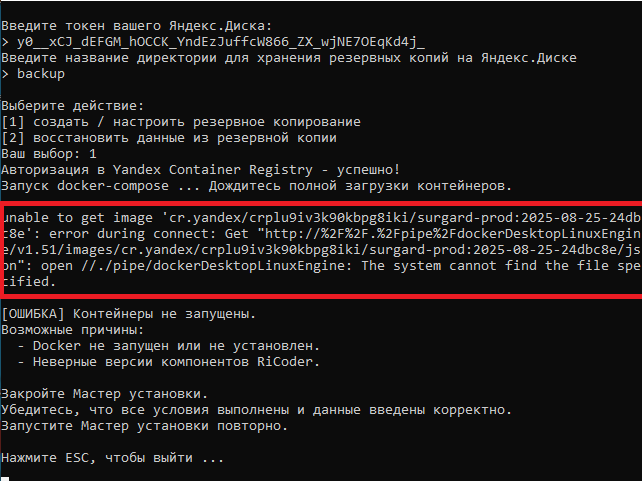
Cause of the error
Docker Desktop is not running. Docker must be running during the installation and operation of RiCoder – this is a mandatory requirement.
Solution for Windows OS
- Close the installation wizard.
- In the Windows notification area (bottom right corner of the screen), find the Docker icon (white whale logo).
- If the icon is displayed – Docker is running.
- Launch the installation wizard again and proceed through the dialog steps.
You can also check the Docker Engine status via the Docker Desktop interface. In the Docker Desktop menu (whale icon in the bottom left corner of the screen), the status should be – Engine running.
Solution for Linux OS
1. Close the installation wizard.
2. Check the Docker status:
systemctl start docker3. If Docker is not running, start it
./launcher_linuxHow to check Docker status?
Run the command in the terminal:
sudo systemctl status docker- If the status is active (running) – Docker is up and running.
- If the status is inactive (dead) – Docker is stopped and needs to be started.
5. Update error with Docker and RiCoder running
The installation wizard cannot correctly install the RiCoder update. A message appears stating that the port is busy, while the following conditions are met:
- Docker is running;
- RiCoder is launched in the browser and is operational.
Error text: Error response from daemon: ports are not available: exposing port TCP 192.168.1.16:2180 -> 127.0.0.1:0: listen tcp4 192.168.1.4:2180: can't bind on the specified endpoint
Cause of the error
Improvements to the update mechanism are currently under development. Changes to fix this error will be included in the next version of the installation wizard.
Solution
Download the latest release of the installation wizard from the official website and try performing the update again.
Update date: 07.08.2026
No comments to display
No comments to display