
Setting up rights for the object owner
Configure only the alerts and rights that are actually needed for the owner user. This will reduce the flow of unnecessary information for the owner, eliminate his interference in the security work and help maintain a balance: the owner will be aware of the important things, and the private security company will have full control of the facility.
Before setting up access rights for the owner user, it is important to remember: all restrictions on notifications and house management must be set by a private security company employee, and not by the owner of the property.
Before you start setting up rights, make sure that the owner user:
- installed the RiDom mobile application. More details...
- registered in RiDom.
- invited to manage the house.
Recommended rights for the object owner. The owner user can:
- View events in the log;
- Receive push notifications in the mobile application;
- Arm and disarm an object.
1. Setting up notifications for the owner
Follow the following steps in the private security company employee’s mobile application to set up push notifications that the owner of the property will receive.
1. On the main screen of the mobile application, select the desired house.
2. Go to home settings. Select  in the upper right corner of the screen.
3. Select the item  Home users.
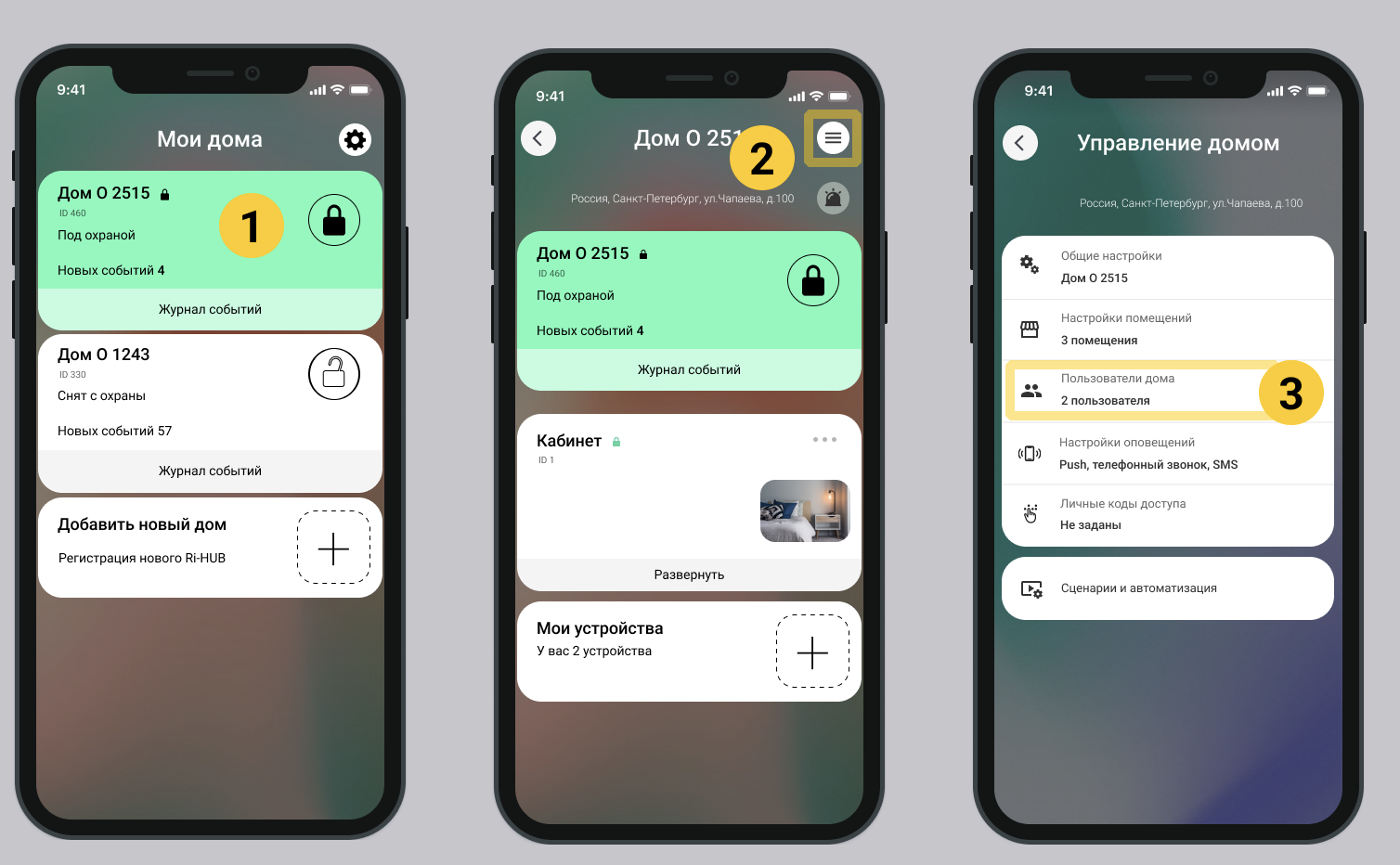
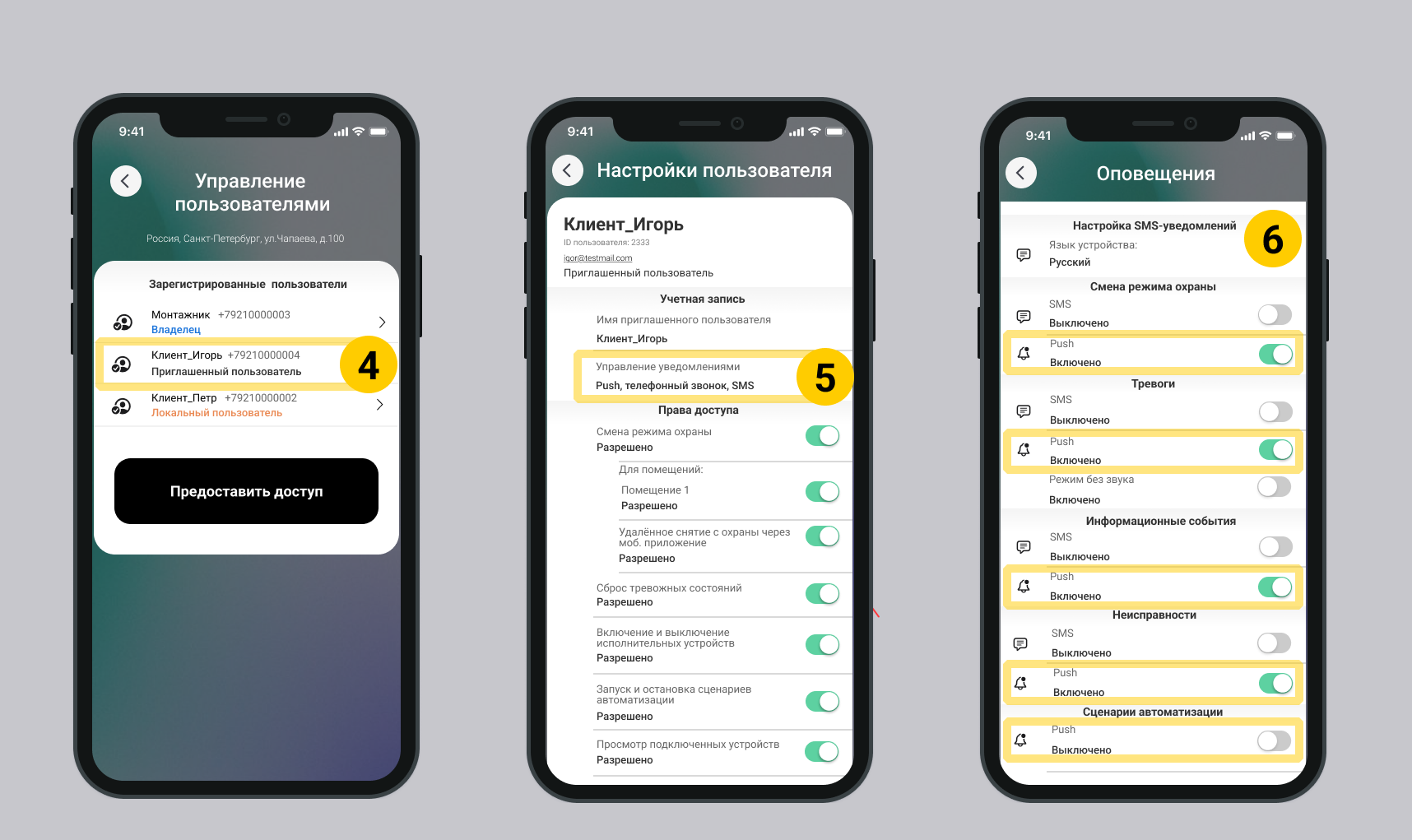
4. On the screen Manage users select the owner user in the list Registered users.
5. Select Manage notifications.
6. Configure only push notifications.
Alerts | Recommendation | Description |
Changing the security mode | Enabled | Notifications about turning the security system on or off. For example, “Armed”, “Disarmed”. More details in [directory events](https://wiki.ridom.ru/books/instructions-in-english/page/directory-of-events-in-the-mobile-application#bkmrk-1.-%D0%A1%D0%BC%D0%B5%D0%BD%D0%B0-%D1%80%D0%B5%D0%B6%D0%B8%D0%BC%D0%B0-%D0%BE%D1%85%D1%80%D0%B0). |
Alarms | Enabled | Urgent alerts about sensor activation: burglary, fire, gas leak or flooding, as well as the activation of an alarm button and loss of communication with the control center. More details in [event directory](https://wiki.ridom.ru/books/instructions-in-english/page/directory-of-events-in-the-mobile-application#bkmrk-3.-%D0%A2%D1%80%D0%B5%D0%B2%D0%BE%D0%B3%D0%B8). |
Information events | Disabled | Notifications about recovery from alarms and faults, object and user management, technical and service events, re-arming, siren and relay control. More details in [directory events](https://wiki.ridom.ru/books/instructions-in-english/page/directory-of-events-in-the-mobile-application#bkmrk-4.-%D0%98%D0%BD%D1%84%D0%BE%D1%80%D0%BC%D0%B0%D1%86%D0%B8%D0%BE%D0%BD%D0%BD%D1%8B%D0%B5-%D1%81%D0%BE). |
Faults | Enabled | Messages about hardware problems: low battery, loss of communication with the sensor, update errors and system crashes. More details in [directory events](https://wiki.ridom.ru/books/instructions-in-english/page/directory-of-events-in-the-mobile-application#bkmrk-2.-%D0%9D%D0%B5%D0%B8%D1%81%D0%BF%D1%80%D0%B0%D0%B2%D0%BD%D0%BE%D1%81%D1%82%D0%B8). |
Automation scenarios | Enabled | Notifications about scripts: creation/deletion, loading and checking scripts in Ri-HUB, script execution, script execution errors. More details in [directory events](https://wiki.ridom.ru/books/instructions-in-english/page/directory-of-events-in-the-mobile-application#bkmrk-6.-c%D1%86%D0%B5%D0%BD%D0%B0%D1%80%D0%B8%D0%B8-%D0%B0%D0%B2%D1%82%D0%BE%D0%BC%D0%B0%D1%82%D0%B8). |
2. Setting up owner user rights
Perform the following steps in the mobile application of a private security company employee to limit the rights of the owner user.
1. On the main screen of the mobile application, select the desired house.
2. Go to home settings. Select in the upper right corner of the screen.
3. Select the item Home users.
4. Turn on the switches for the rights according to the recommendations in the table.
Permissions | Recommendation | Description |
Changing the security mode | Allowed | Notifications when the security system is turned on or off. For example, “Armed”, “Disarmed” |
Resetting alarm conditions | Prohibited | The right to acknowledge and disable active alarms. For example, turning off the alarm after an alarm is triggered. |
Turning on and off actuators | Prohibited | Device control: security sensors, lighting sensors, sockets, relays. Manually turn on or off. The right applies to all devices connected to RiDom; it is not possible to assign security sensors to a separate group and prohibit them from being controlled. |
Start and stop automation scripts | At the discretion of the private security company | Ability to manually activate or pause automatic scripts. For example, "Morning" or "Leaving home." |
View connected devices | Prohibited | Access to a list of all devices connected to the RiDom smart home system, displaying their current status. |
View the event log | Allowed | The right to view the history of events: arming, sensor activation, user actions, etc. All events will be displayed, even those for which **push** -notifications do not arrive. Read more about the full list of events in [event directory](https://wiki.ridom.ru/books/instructions-in-english/page/directory-of-events-in-the-mobile-application) . |
Changing access rights for yourself and other users | Prohibited | Ability to edit your own or someone else's rights. Add or restrict features to other users. |
Configuring the system and automation scripts | At the discretion of the private security company | Full access to setting up equipment, adding, removing devices, creating or editing automation scripts. |
Configuring the notifications you receive | Prohibited | Ability to choose which events will be reported **push** -notifications: change of security mode, alarm, information events, faults, automation scenarios. More details in section Setting up notifications for owner. |
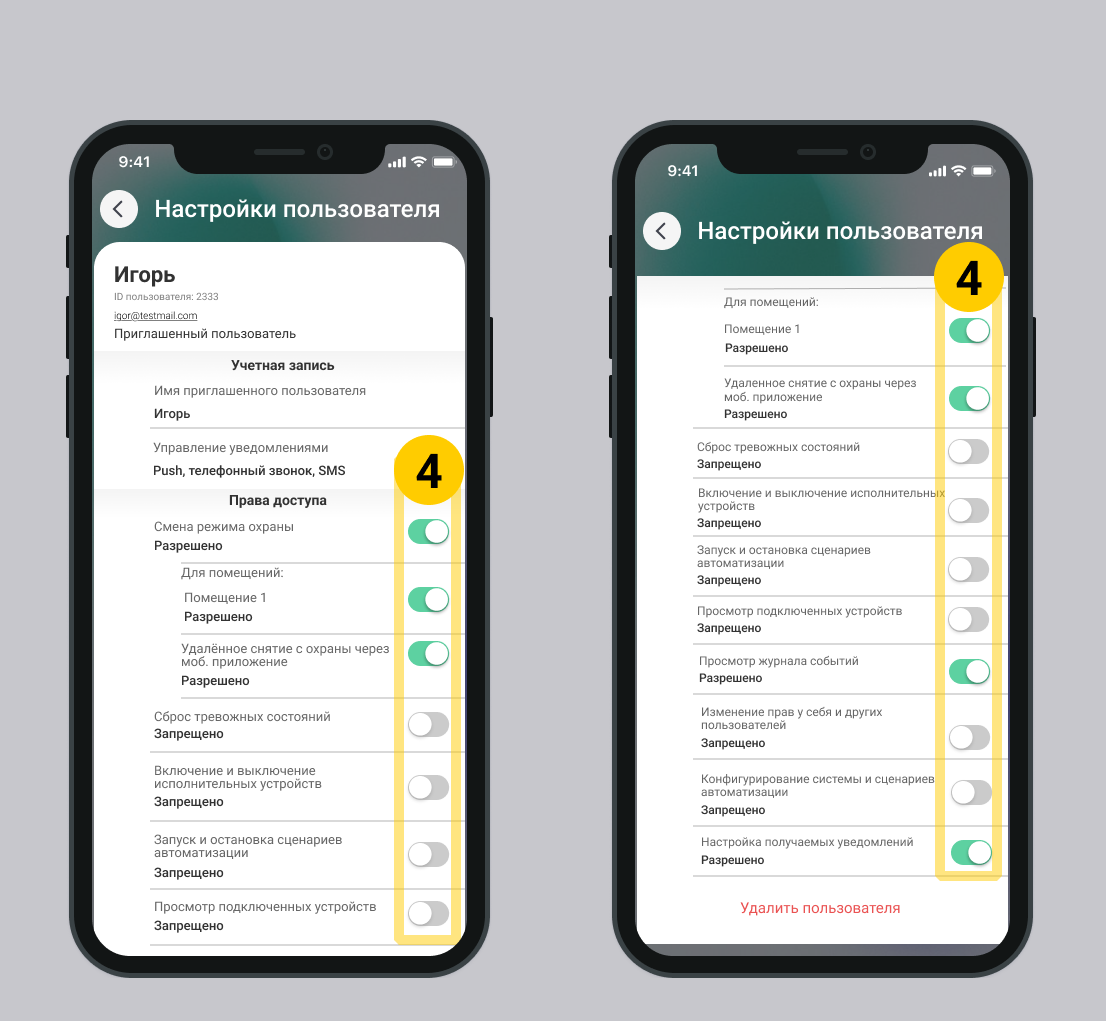
5. Owner user rights are configured, return to the desired previous screen to continue.
Update date: 06.10.2026
No comments to display
No comments to display