
Docker Does Not Start on Windows 10/11 OS
При запуске Docker Desktop в окне приветствия появляется сообщение: Virtual Machine Platform is not enabled. Так же появляется системное уведомление в панеле уведомлений Windows о том, что произошла ошибка при запуске WSL.
When launching Docker Desktop, a message appears in the welcome window: Virtual Machine Platform is not enabled. A system notification also appears in the Windows notification panel stating that an error occurred while starting WSL.
Examples of errors: Docker Desktop Diagnostics Window
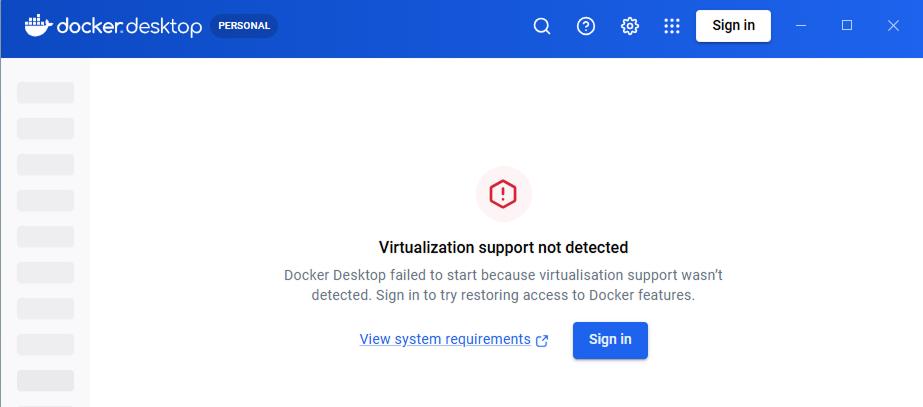
Possible causes of the error:
- Windows components providing infrastructure for virtual machines and Docker containers (Hyper-V, WSL 2, and Virtual Machine Platform) are disabled or unavailable, leading to a Docker startup error.
- Virtualization system conflict.
- Use of Windows 10 or 11 Home editions, which have limited Hyper-V support, although WSL 2 works in them.
Diagnostics of Virtualization Support
It is necessary to check if virtualization is enabled and available at both the hardware and software levels of the server.
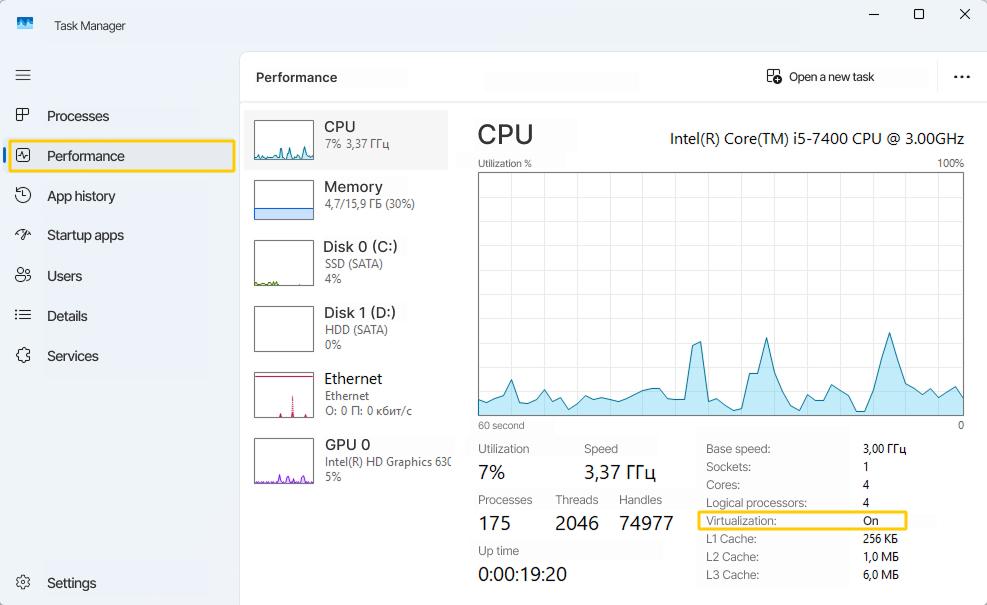
1. Is virtualization enabled in BIOS/UEFI?
1.1. Open Task Manager (Ctrl + Shift + Esc).
1.2. Go to the Performance tab → CPU.
1.3. Look at the Virtualization line.
- If it says Enabled – virtualization is enabled at the hardware level.
- If it says Disabled – you need to enter BIOS/UEFI and enable virtualization.
Screenshot of Task Manager
2. Поддерживает ли процессор виртуализацию?
2. Does the processor support virtualization?
2.1. Press Win + R (the Run window will open).
msinfo322.2. In the opened System Information window, find the Processor line. The full processor model is indicated there (e.g., Intel Core i7-1165G7 CPU @ 2.80GHz).
2.3. Find information on the official Intel or AMD websites to see if the processor model supports virtualization technology (Intel VT-x or AMD-V).
If the processor does not support these technologies, check another server for installing RiCoder that supports virtualization technologies. Review the minimum system requirements for RiCoder.
If the processor does not support these technologies, check another server for installing RiCoder that supports virtualization technologies. Review the minimum system requirements for RiCoder.
3. Are the Windows components providing infrastructure for virtual machines and Docker containers (Hyper-V and Virtual Machine Platform) enabled?
3.1. Press Win + R, and enter the command:
optionalfeatures3.2. The Windows Features window will open. Check if the boxes next to the following components are ticked:
- Hyper-V
- Windows Subsystem for Linux
- Virtual Machine Platform
Screenshot of Windows Features
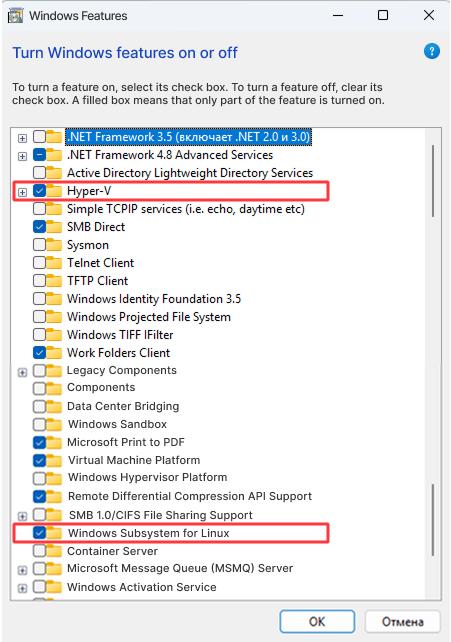
- If these components are selected – the components are enabled; try restarting the server and launching Docker.
- If these components are not selected – check the boxes next to the components, restart the server, and launch Docker.
Solution
1. Enabling virtualization in BIOS/UEFI
1.1. Restart the computer and enter BIOS/UEFI settings. Press Del, F2, F10, or F12 during Windows startup.
1.2. Find the virtualization option. Look for words like Virtualization, VT-x, AMD-V, VTX, SVM and enable them.
1.3. Exit BIOS/UEFI and boot the system in normal mode.
2. Checking virtualization enablement in Windows
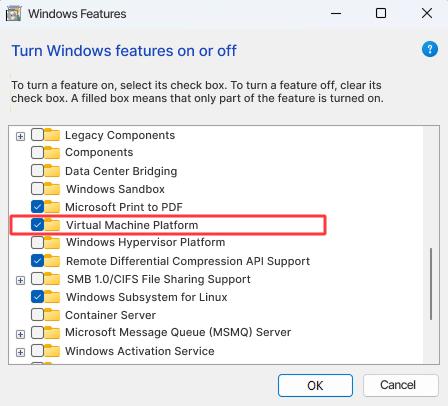
2.1. In the Start menu search, type Windows Features. Open Windows Features and ensure that the box next to Virtual Machine Platform is checked.
Screenshot of Windows Features
2.2. Launch Docker or Docker Desktop.
3. Enabling Hyper-V and Virtual Machine Platform
Option 1: In PowerShell
1. Open PowerShell as administrator.
2. Enable the Hyper-V hypervisor. Enter the command:
Enable-WindowsOptionalFeature -Online -FeatureName Microsoft-Hyper-V -All3. Activate the Virtual Machine Platform component. Enter the command:
Enable-WindowsOptionalFeature -Online -FeatureName VirtualMachinePlatform -AllOption 2: In the Windows Features window
1. Press Win + R, and enter the command
optionalfeatures2. The Windows Features window will open. Check the boxes next to the following components:
- Hyper-V Subsystem (or just Hyper-V)
- Windows Subsystem for Linux
After changing settings, restart the server and launch Docker.
If Docker Desktop has launched and is working correctly, the system message can be ignored. Close this message in the Windows notification panel.
Update Date: 06.19.2026
No comments to display
No comments to display