
No Connection Between RiCoder and Ri-HUB
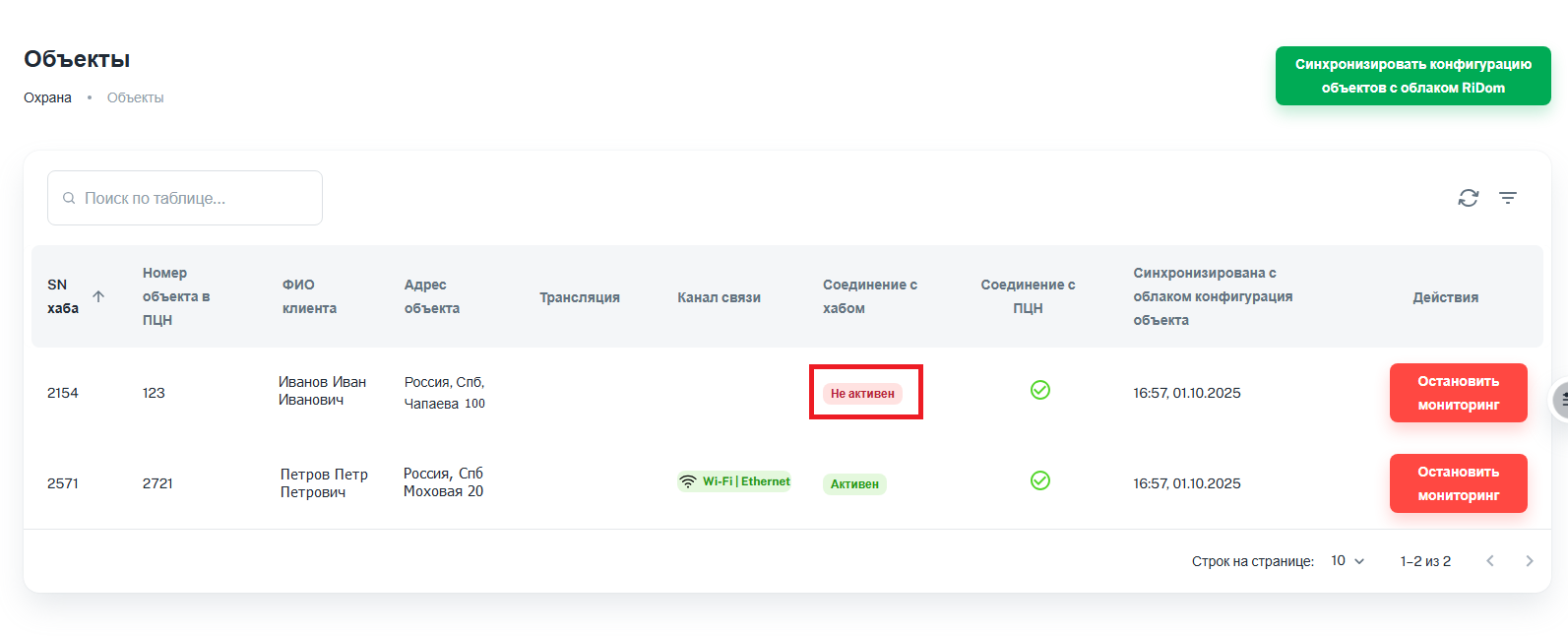
If the connection between RiCoder and Ri-HUB is not established, the RiCoder interface shows the Inactive status in the Objects section, in the Hub connection column. Below is a method for diagnosing the causes of no connection with Ri-HUB.
RiCoder screen: Objects
1. Checking the Ri-HUB connection to the Internet
1.1. Checking the physical connection of Ri-HUB to the Internet
1. Contact the Ri-HUB owner and check the physical connection of the control center to the Internet at the object depending on the communication channel used: Ethernet, WI-FI, GSM.
Communication channels | Make sure that: | If there is no connection: |
GSM | 1. The SIM card balance is positive. 2. The mobile connection at the object is stable. 3. The SIM card works. 4. The SIM card is intended for IoT devices. When using a regular SIM card, the connection may be unstable. | 1. Change the SIM card slot. 2. Switch the communication channel to Ethernet or WI-FI. 3. Restart Ri-HUB. |
WI-FI | 1. Ri-HUB is connected to the correct network and there is a corresponding indication on the housing. | 1. Switch the communication channel to Ethernet. |
Ethernet | 1. The patch cord connected to Ri-HUB is working. | 1. Contact RiDom technical support. |
2. Make sure that other devices in the local network where Ri-HUB is located have an Internet connection.
For more information about the first connection of Ri-HUB to the Internet, see the label of the Ri-HUB control center (supplied with the device). The label file for different Ri-HUB models is available on the ridom.ru website.
3. If the physical connection via the WI-FI and Ethernet channels works and raises no doubts, check the local network settings. Learn more ...
1.2. Checking and setting up the network parameters of the object's local network
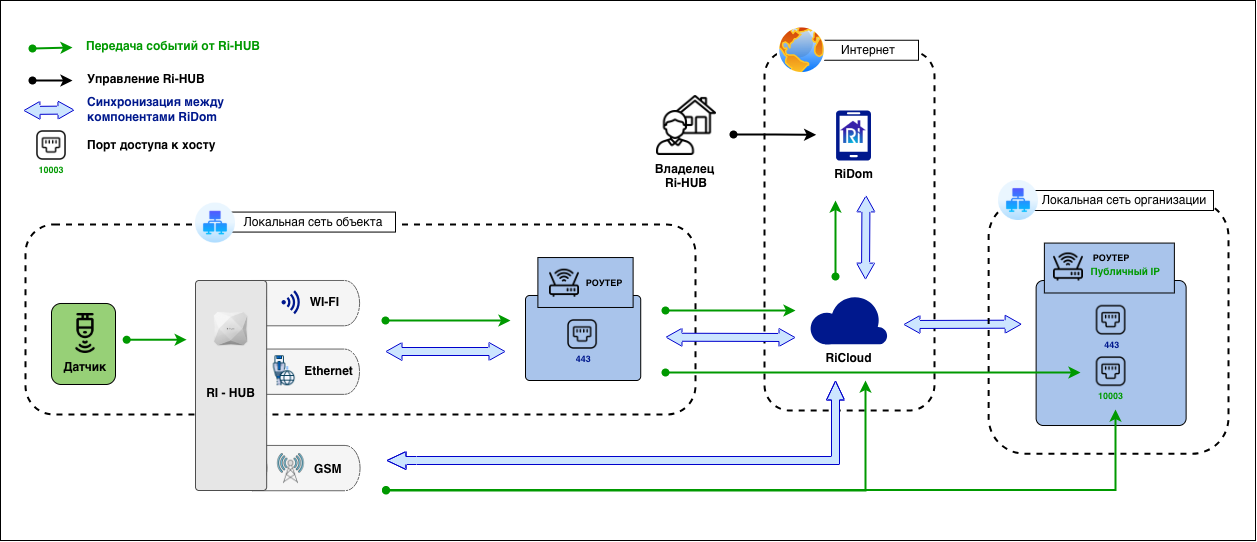
1. Make sure that the router settings allow access to cloud.ridom.ru and to the public address of the local network where the CMS is deployed. See the diagram below.
2. A DHCP server (automatic assignment of IP addresses within the local network) is configured and working.
Where is the DHCP server usually located?
In a home network, the DHCP server is almost always built into the router.
In corporate networks, it is a separate server.
If the DHCP server does not work, Ri-HUB will not receive an IP address in the local network, and connection to the Internet or other devices will be impossible.
Diagram of interaction between Ri-HUB at the object, RiDom components and the CMS
If you have tried all possible connection methods but Ri-HUB still does not go online, the device may be faulty. In this case, contact the warranty department for diagnostics.
2. Checking the network settings in RiCoder and the organization's local network
To organize a broadcast, Ri-HUB first transmits events to RiCoder, and RiCoder forwards them to the CMS. Ri-HUB cannot send events to RiCoder if an incorrect host or port is specified in the RiCoder web panel.
After moving RiCoder or the CMS to a new host, be sure to specify the current host and port in the RiCoder web panel, otherwise the connection with Ri-HUB will be disrupted.
1. Open the RiCoder web panel.
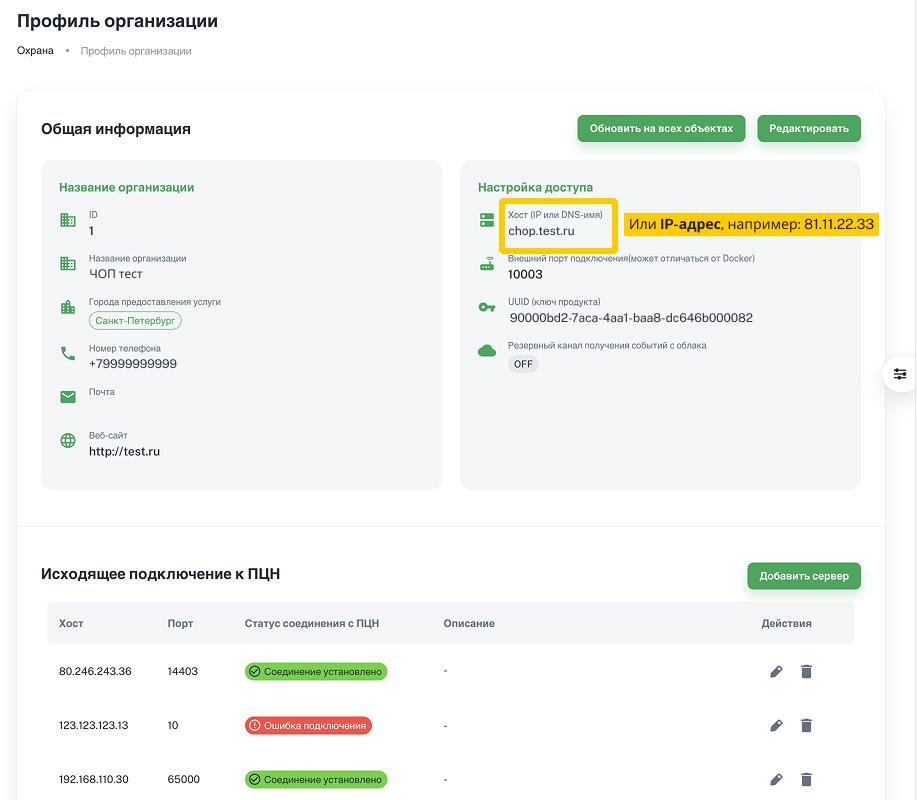
2. In the left side menu, select Organization profile and, in the General information section, view the RiCoder host and port data.
RiCoder: Checking the RiCoder host and port
3. Go to the host where RiCoder is deployed (where the RiCoder Docker containers are deployed) and view the information about the host and port configured to receive events from Ri-HUB.
2.1. Checking the public IP address of the RiCoder host
Option 1. Open the http://myip.ru/ service (or a similar one) in the browser. The IP address on the screen is the public IP.
Option 2. In the router settings, find the WAN IP information. This address must match the IP address of the RiCoder host.
4. Check whether the public IP address matches the data in RiCoder: Organization profile → General information, with the public address for the local network (see step 3 above).
- If the addresses match, you have public access for receiving events from Ri-HUB. Check the port for receiving events from Ri-HUB.
- If not, specify the public IP address of the host in the RiCoder web panel. Learn more ...
2.2. Checking the DNS name of the host in the local network
If addressing to hosts by DNS name is configured in the local network, check that the data is entered correctly.
1. Open the command line.
2. Get DNS data about the host using the data from the previous step.
nslookup <IP address>3. Check whether the public DNS name matches the data in RiCoder: Organization profile → General information
- If the DNS names match, check the port for receiving events from Ri-HUB.
- If not, specify the public DNS name of the host in the RiCoder web panel. Learn more ...
2.3. Checking the port for receiving events from Ri-HUB
You specified this port in the RiCoder installation wizard.
1. Go to the server with RiCoder deployed and open the command line.
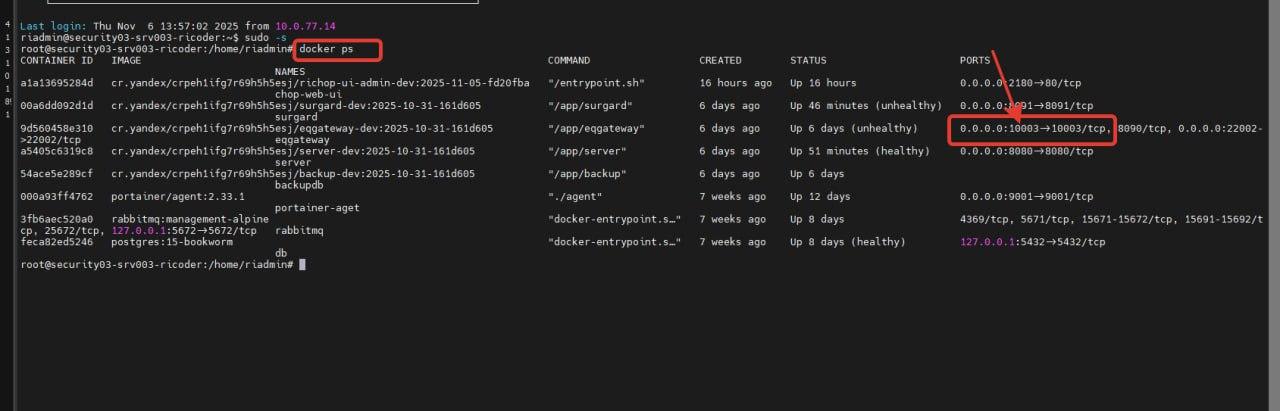
2. Enter the command to list the running Docker containers.
docker ps3. In the COMMAND column, find the row with the /app/eqgateway container. In the PORTS column, at the beginning of the line, see which port after the colon (:) corresponds to /app/eqgateway. This is the port for receiving events from Ri-HUB configured on the host.
Command line screen: Running Docker containers
4. If Docker Desktop is installed, open the Containers section. Find eqgateway-1 in the list of containers and see which port is specified to the left of the colon (:).
Docker Desktop screen: Containers section
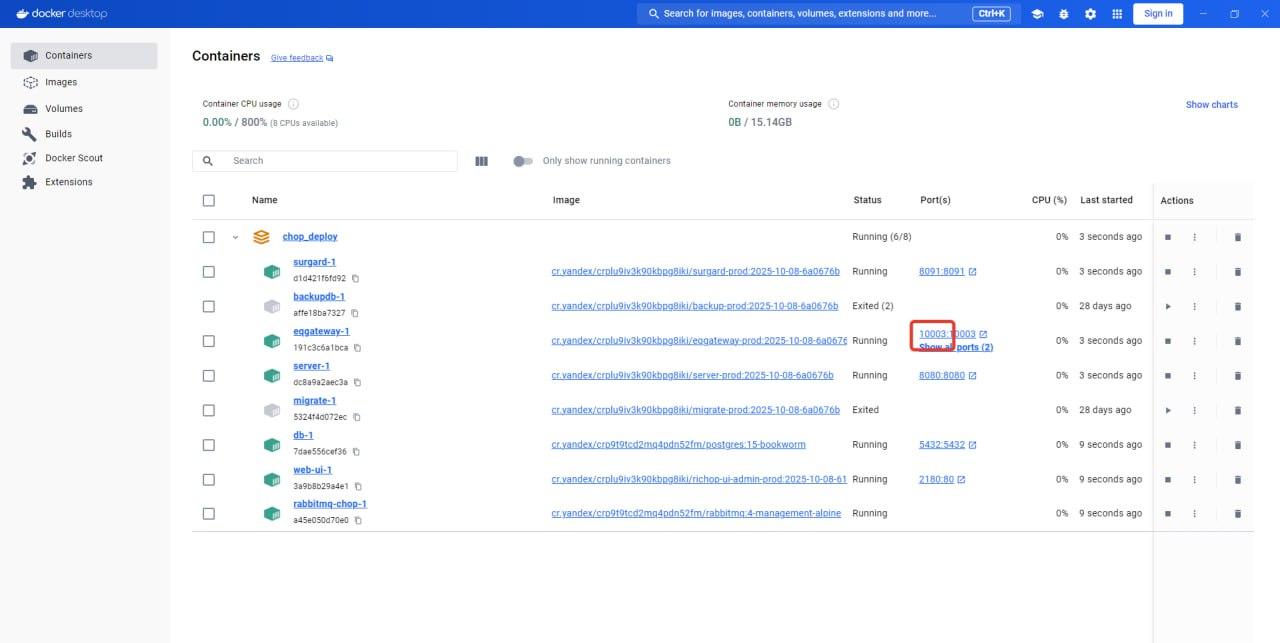
5. Check whether the port for receiving events from Ri-HUB is available from the Internet using the service on the reg.ru website. Enter the public IP address of the RiCoder host and the port:
- if an external IP address is used for the RiCoder host → enter the port specified in RiCoder. RiCoder web panel (Organization profile → General information → External connection port)
- if NAT is used in the router → enter the port forwarded to the RiCoder host.
6. Check in the router settings whether port forwarding is configured for this port.
Router settings:
1. Routing must be configured:
<public IP address / DNS name>:<public port> → <RiCoder host>:<open port for Ri-HUB on the RiCoder host>
2. Access to RiCloud must be allowed: cloud.ridom.ru
EXAMPLES of router settings
6. Configure the router according to the recommendations and specify the correct port settings in the RiCoder web panel. Learn more ...
3. Troubleshooting
3.1. Incorrect port for receiving events from Ri-HUB specified during RiCoder installation
1. If necessary, adjust the router settings using the examples. Learn more ...
2. Open the RiCoder web panel.
3. Select Organization profile in the left side menu.
4. Click Edit in the General information section.
RiCoder screen: General information editing window
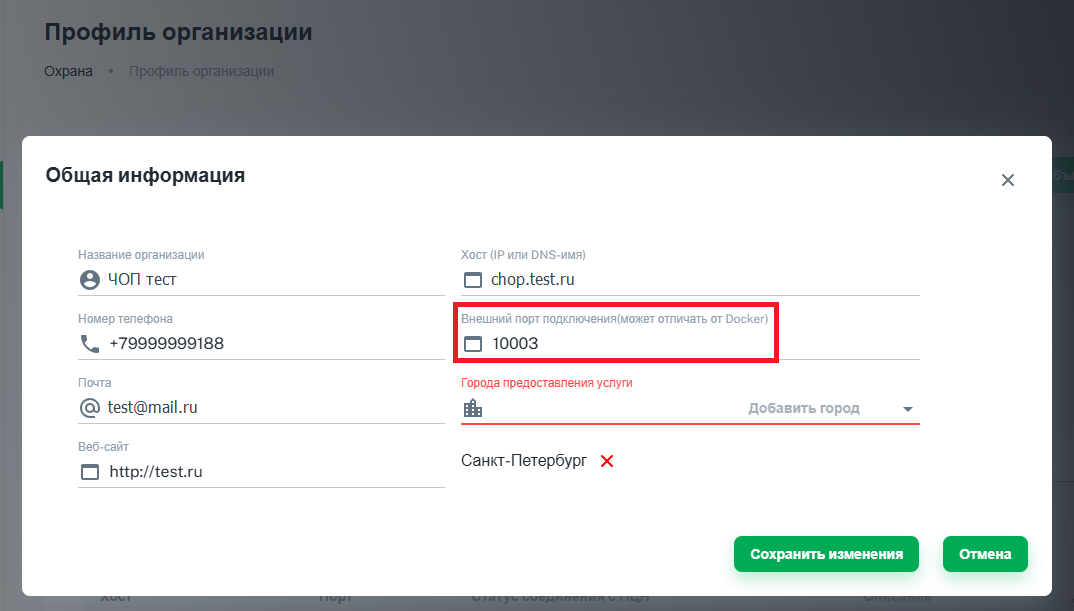
5. Enter the new port and click Save changes. The window will close.
6. Click Update on all objects to synchronize the changes with RiCloud and Ri-HUB.
3.2. Incorrect host (IP address or DNS name) of the server where RiCoder is installed
1. If necessary, adjust the router settings using the examples. Learn more ...
2. Open the RiCoder web panel.
3. Select Organization profile in the left side menu.
4. Click Edit in the General information section.
RiCoder screen: General information editing window
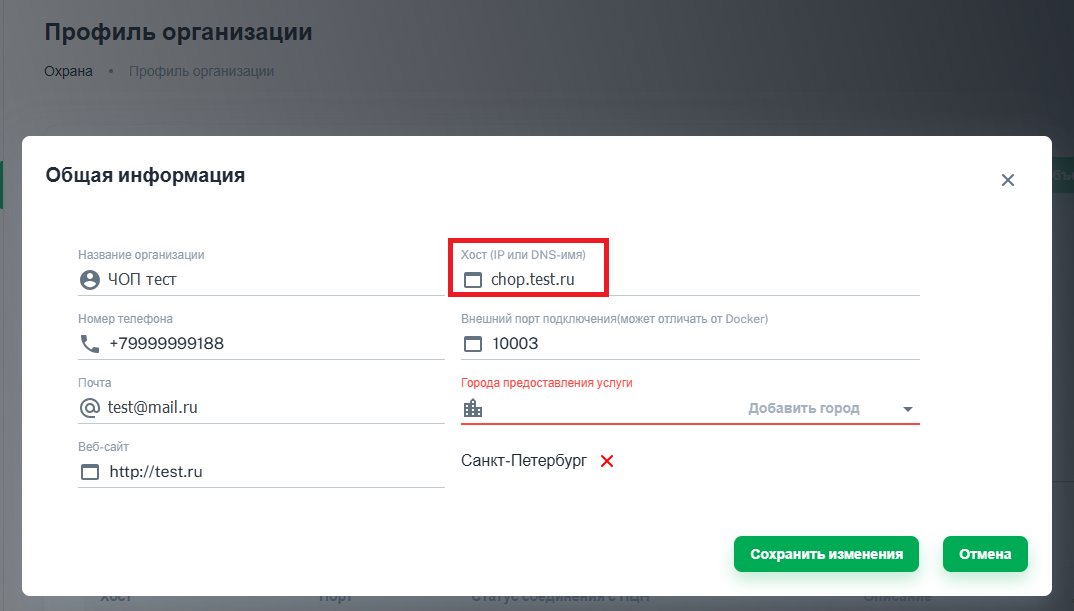
5. Enter the new host (IP address or DNS name) and click Save changes. The window will close.
6. Click Update on all objects to synchronize the changes with RiCloud and Ri-HUB.
4. Analysis of RiCoder container logs
If the network setting errors of the Ri-HUB connection to RiCoder have been fixed but events are still not transmitted, check the logs of the Docker containers responsible for transmitting and processing events. Detailed scenarios of their operation, normal operating modes and typical communication failures are described in the article Analysis of RiCoder container logs.
Last updated: 04/08/2026
No comments to display
No comments to display