
No Connection Between RiCoder and the CMS
1. Example of the error in the RiCoder interface
In the RiCoder web panel, in the Organization profile section, the CMS connection status column shows the Connection error state.
RiCoder screen: Organization profile
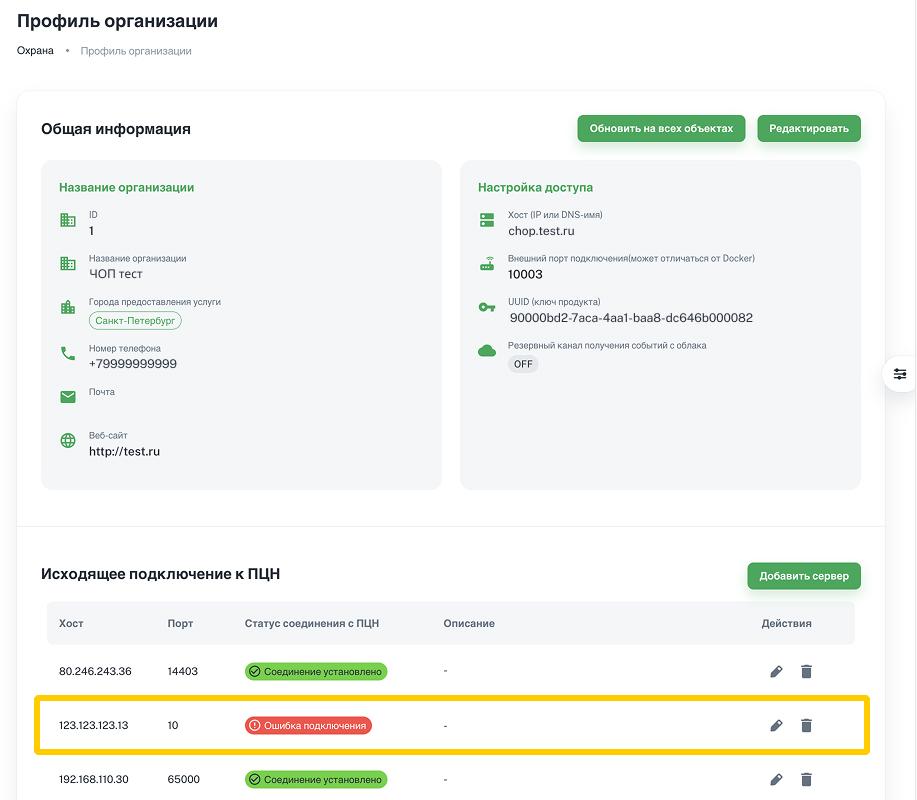
RiCoder cannot send test messages and events to the CMS server to check the connection.
2. Possible causes and solutions for no connection between RiCoder and the CMS
2.1. Incorrect CMS server host and port specified in RiCoder
The connection problem often occurs because the CMS server host or port set in RiCoder does not match the actual settings of the organization's local network.
1. In the RiCoder web panel, in the Organization profile, check the current host and port values of the CMS server.
RiCoder screen: CMS server host and port data
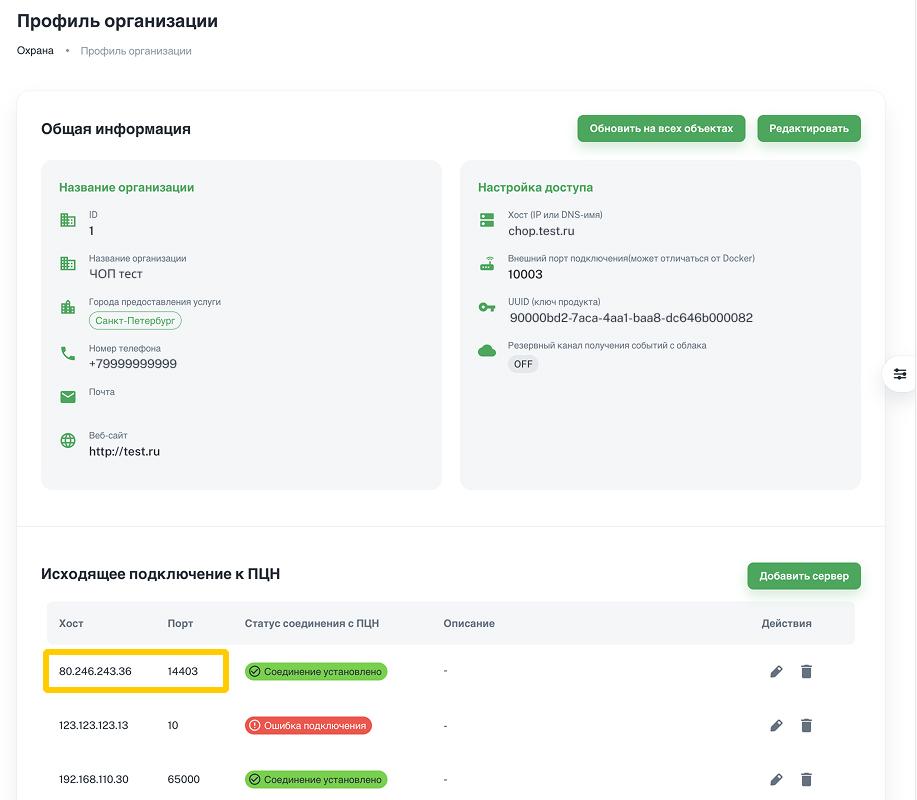
2. In the settings of the organization's local network router, check whether the RiCoder developers' requirements for network settings are met.
Local network setup requirements:
1. A static public IP address is assigned to the local network.
2. A public port is open for connecting Ri-HUB from the Internet to the local network.
3. Port forwarding is configured in the router for receiving events from Ri-HUB:
- Public port for receiving events from Ri-HUB in RiCoder → internal IP address/DNS name of the host with RiCoder deployed.
- Public port for transmitting events from RiCoder to the CMS → internal IP address/DNS name of the host with the CMS installed. If RiCoder and the CMS are located in different local subnets of the organization.
- Public port for access to the RiCoder web panel → internal IP address/DNS name of the server with RiCoder installed. If access to the panel is organized via the Internet.
4. If third-party software (for example, the CMS) is deployed on the same host as RiCoder, the service ports must be different.
5. Access must be allowed:
- to RiCloud: cloud.ridom.ru
- to Yandex.Disk: disk.yandex.ru
- to Yandex Container Registry: cr.yandex.ru
EXAMPLES of router settings
3. Check whether the CMS server host and port specified in RiCoder (see step 1 of this description) are public.
If an internal host (IP address or DNS name) and port are specified in RiCoder (for example, 192.168.x.x, 10.x.x.x or 172.16–31.x.x), Ri-HUB will not be able to transmit events from the Internet to the CMS. Such a host is not public.
- If the host and port are public and the local network setup requirements are met, no additional actions are required. Ri-HUB will be able to connect to the CMS server from the Internet.
- If the host and port are internal, change the local network settings and update the CMS host and port information in RiCoder. Learn more ...
2.2. Port conflict when RiCoder and third-party services are located on the same host
If RiCoder and other services of the organization (for example, the CMS) are deployed on the same host, make sure they use different ports. Otherwise, Ri-HUB may send events directly to another service, bypassing RiCoder, and event broadcasting will be disrupted.
EXAMPLES of local network settings for this case.
2.2.1. Diagnostics
1. In the RiCoder web panel, open the Objects section.
2. Check the Ri-HUB status in the Hub connection column.
RiCoder screen: Objects
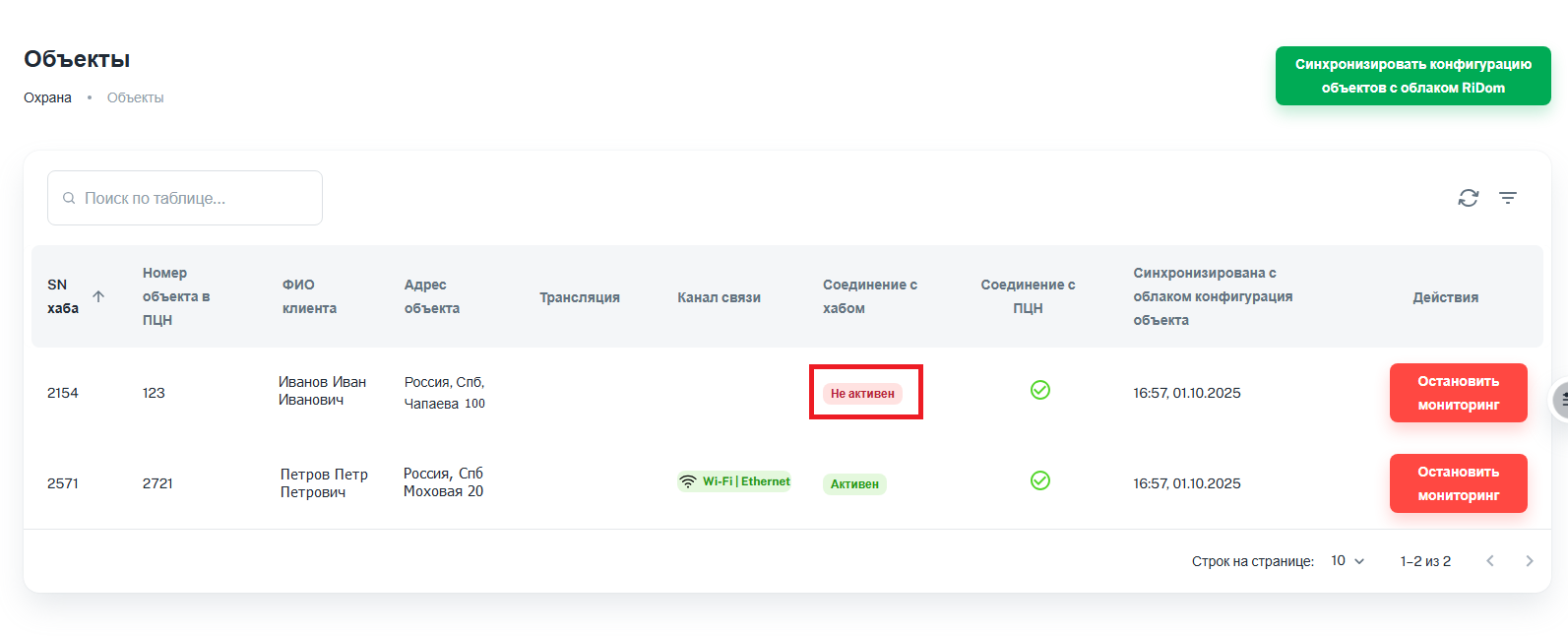
- If the status is Active, check which port is specified for communication with the CMS in RiCoder for the required Ri-HUB (see step 3 of this description).
- If the status is Inactive, you need to restore the connection with Ri-HUB and continue the current diagnostics (see step 3 of this description).
3. See which broadcast the required Ri-HUB is connected to: the Broadcast column shows the broadcast name.
RiCoder screen: Objects
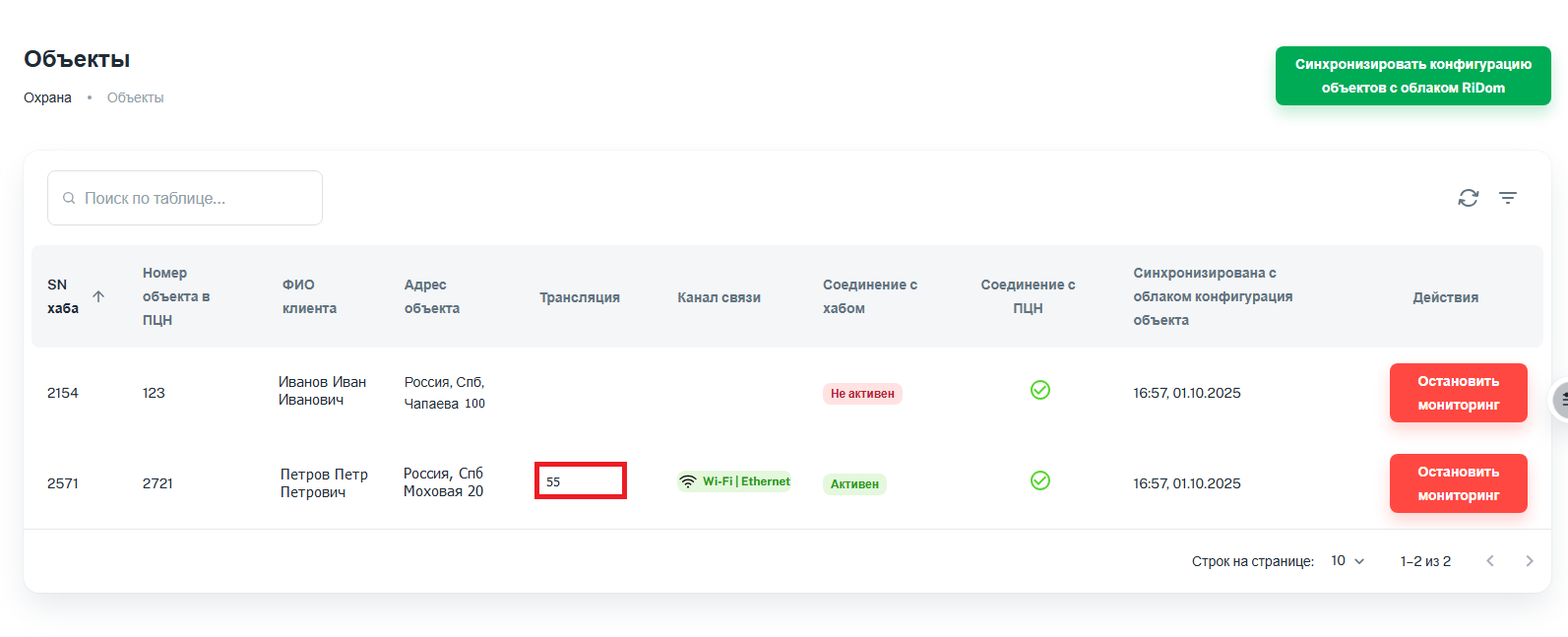
4. Open the Broadcasts section.
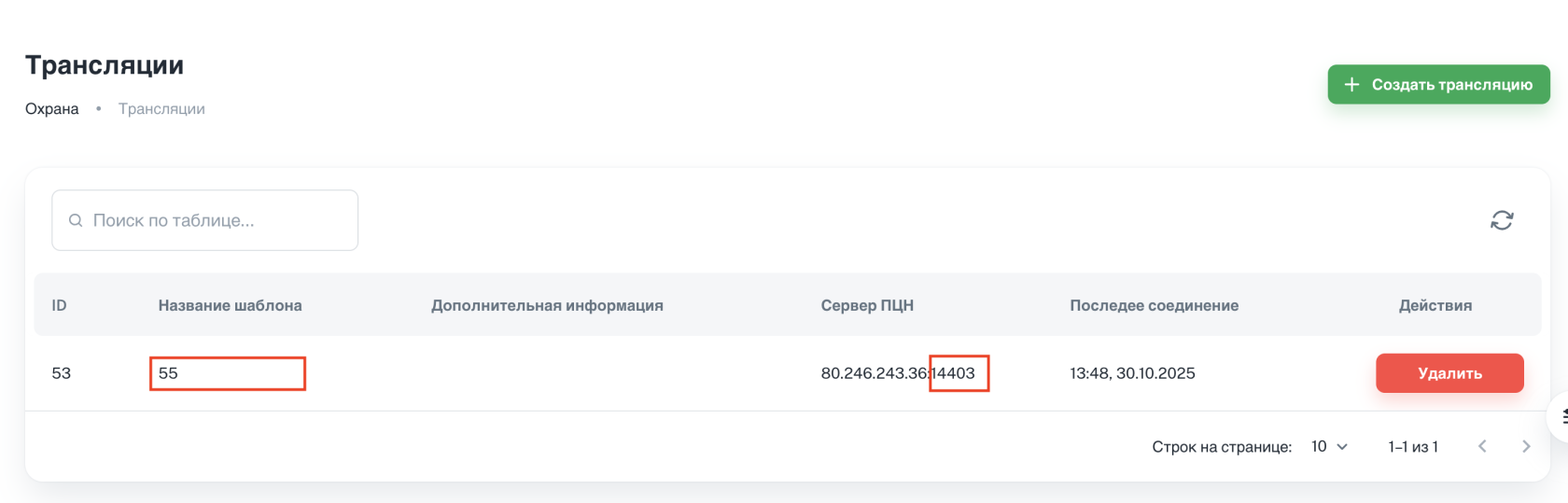
5. In the list, find the required row by the broadcast name in the Template name column. In this row, in the CMS server column, see which port is specified for the CMS server.
RiCoder screen: Broadcasts
6. In the interface of the third-party software (CMS or other), find information about which port this service listens on.
7. If this port matches the CMS port specified in RiCoder, change the network settings so that the ports differ:
- in the third-party software (CMS or other)
- in RiCoder
- in the local network router
2.2.2. Fixing the fault
1. In the local network router settings, configure routing of RiCoder and other services to different ports.
2. If the port for RiCoder has changed, update the data in the RiCoder interface (Organization profile) and on all objects. Learn more ...
3. If the port remains the same but the ports of other services were changed, check whether the CMS receives events from Ri-HUB.
2.2.3. Changing the CMS server host and port settings in the RiCoder interface
1. In the RiCoder web panel, select Organization profile in the left side menu.
RiCoder screen: Organization profile
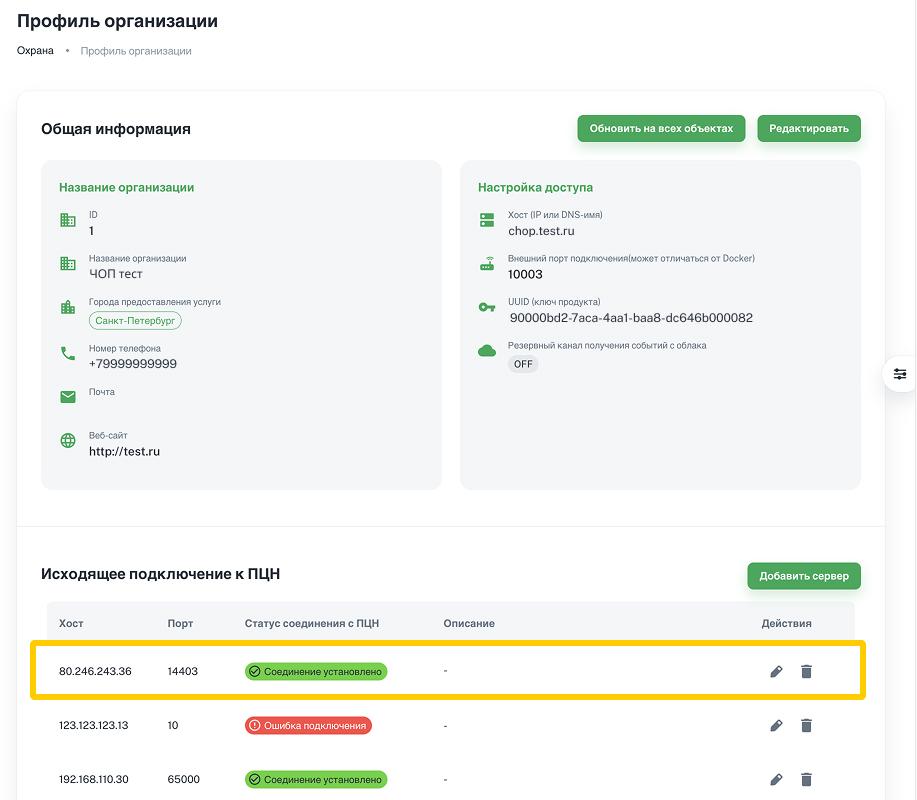
2. Click  in the Action column, in the row with the required server.
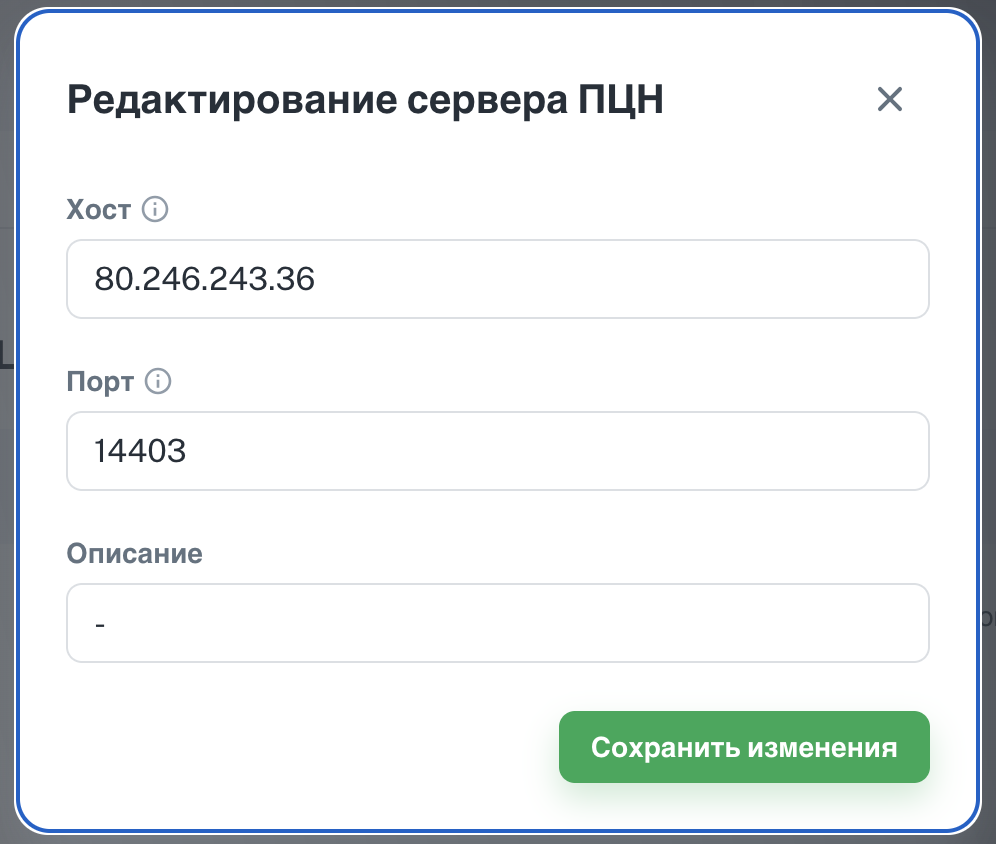
3. Enter the public port in the Port field or the public IP address (DNS name) in the Host field and click Save changes.
RiCoder screen: Organization profile
4. Click Update on all objects in the upper right corner of the screen to run the synchronization immediately. Or wait for the scheduled synchronization (once every 30 minutes).
Last updated: 04/08/2026
No comments to display
No comments to display