
Work Scenarios
The article describes typical sequences of actions for performing tasks in the RiDom admin panel. Working with equipment settings and managing requests are strictly regulated: the control center configuration can be changed only within active service maintenance initiated through a request. Below are step-by-step instructions for creating requests, performing technical work and closing reports, relevant for the Administrator and Engineer roles.
1. Creating a maintenance request
Without creating a request, you cannot edit the object settings.
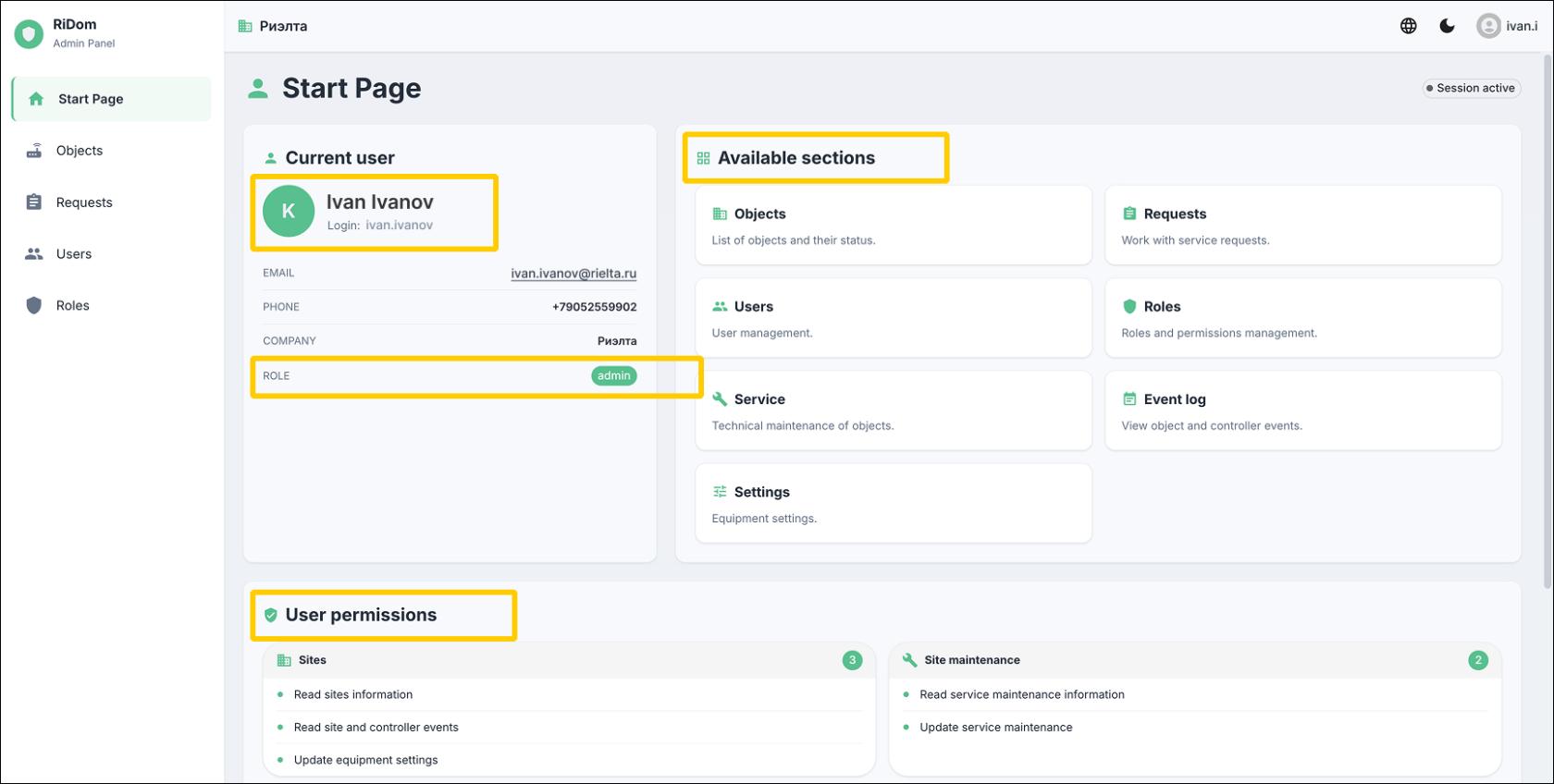
1. Log in to the RiDom admin panel with your login and password. The start page shows your name, role, the set of available sections and the list of permitted operations.
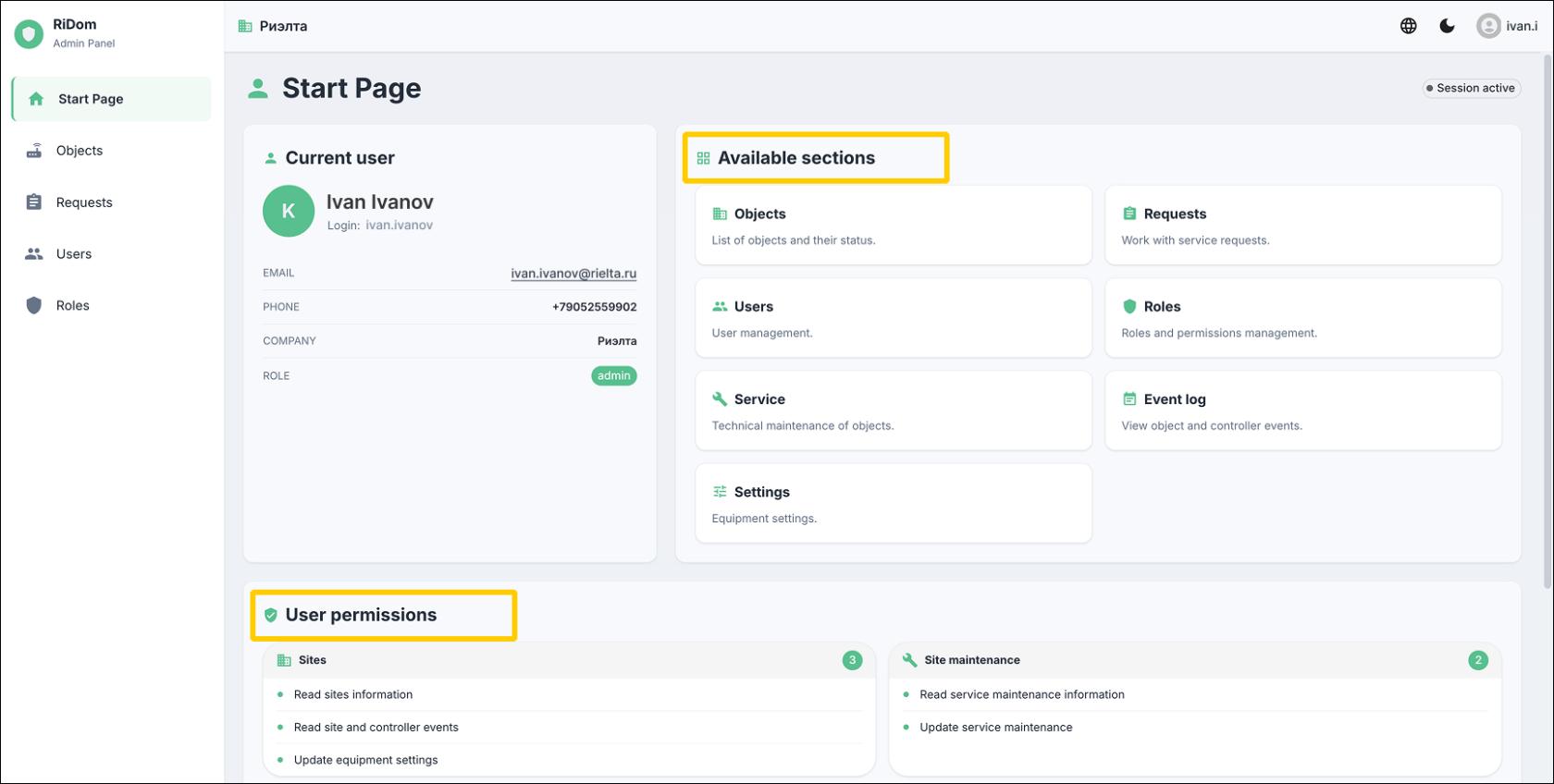
2. Open the Requests section and click Create request.
3. Fill in the required fields and click Create.
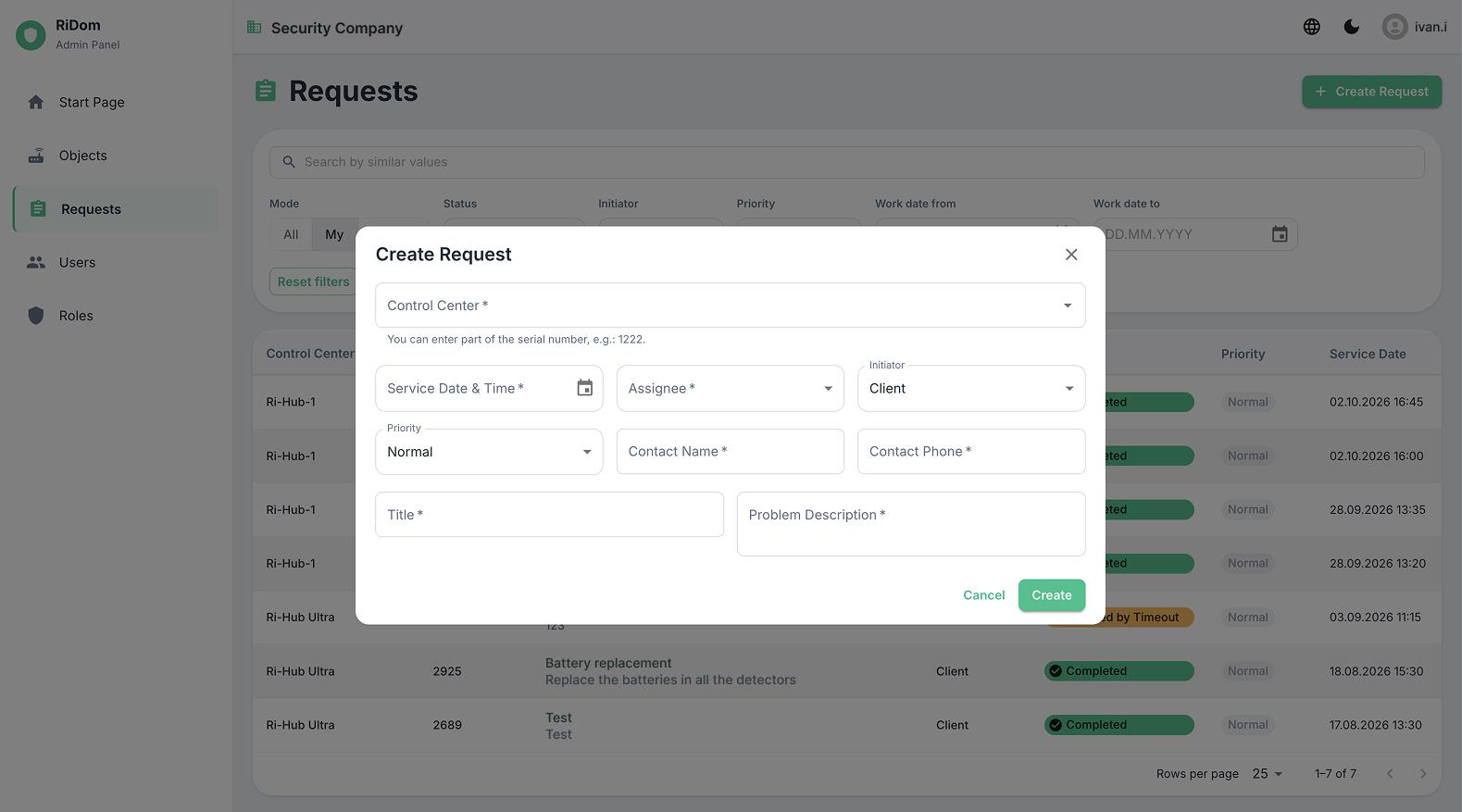
Request parameters
Form field | Explanation |
Control center | List of all control centers monitored by the security company |
Date and time of work | The time is specified in 5-minute steps. A time in the past cannot be specified |
Assignee | The required assignee must be added to the RiDom admin panel. Learn more about how to add a user |
Initiator | Two options are available: Client and Security company. Adding other initiator types is not provided |
Priority | - |
Contact person | The object owner or their representative |
Phone | - |
Title | The title will be displayed in the list of requests. It is important that the title is short and informative |
Problem description | - |
4. The new request appears in the list with the Awaiting confirmation status.
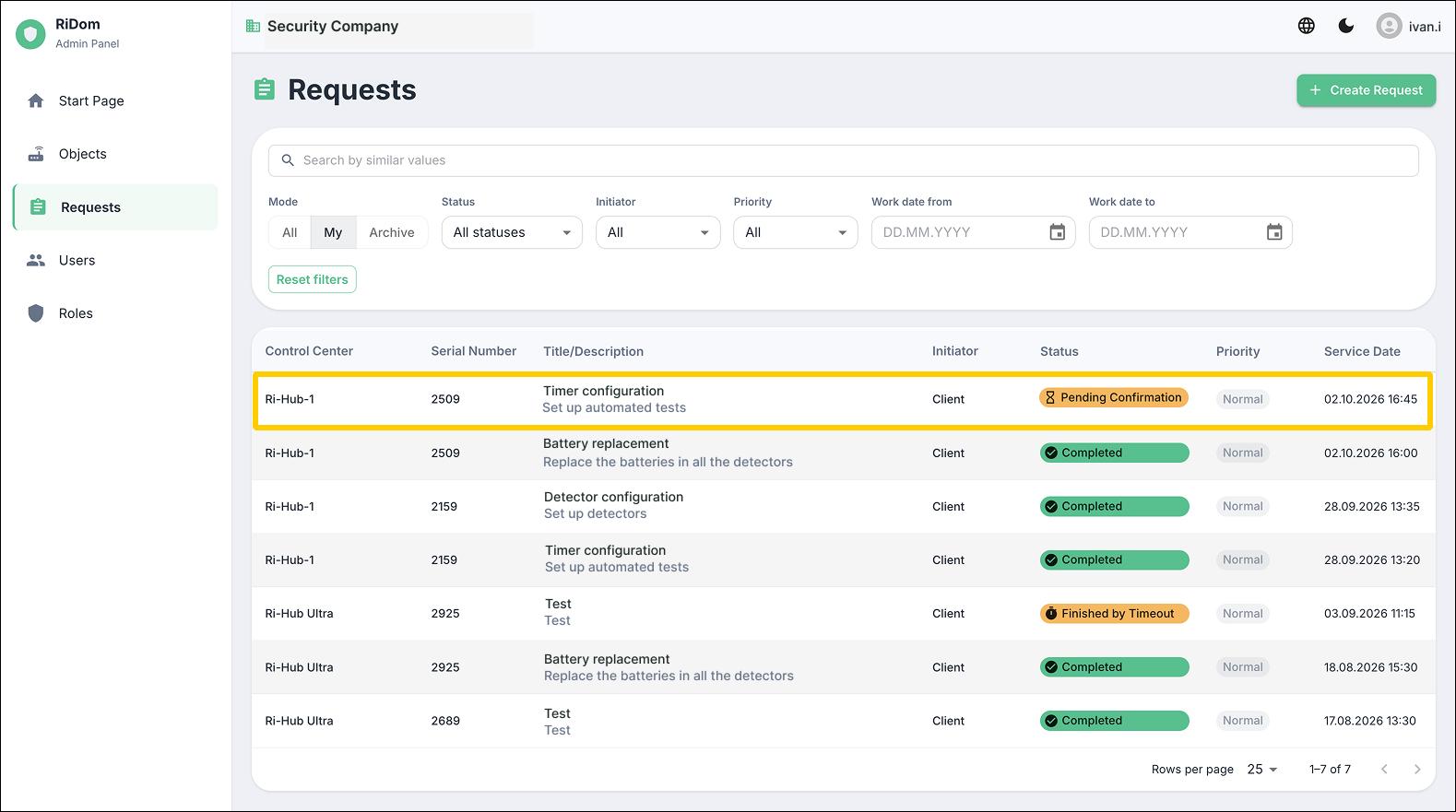
The request has been created but has not yet been taken into work. In this status, it can be reviewed, clarified and reassigned.
2. Editing Ri-HUB settings
This section describes the process of changing the configuration of the Ri-HUB control center. Editing parameters is available only within active service maintenance. At other times, the settings are view-only.
2.1 Starting maintenance
To change the object parameters and make changes to the equipment configuration.
Open the previously created request and click the Start maintenance button within the time of work specified in the request. The system will automatically take you to the settings section of the required object.
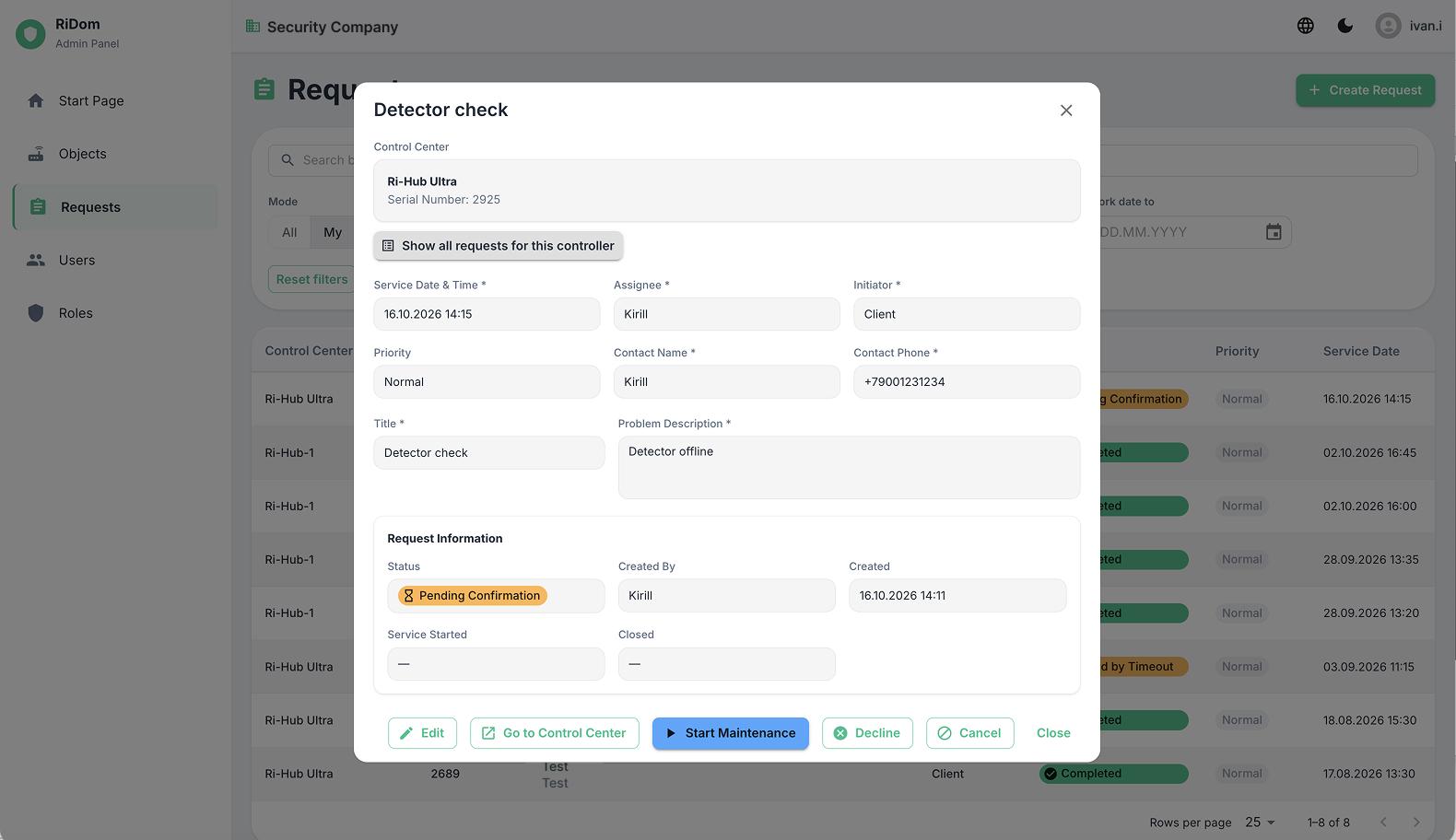
Conditions for the "Start maintenance" button to be available:
The button becomes active only when both conditions are met at the same time:
- The scheduled start time of work has come;
- The object is fully disarmed.
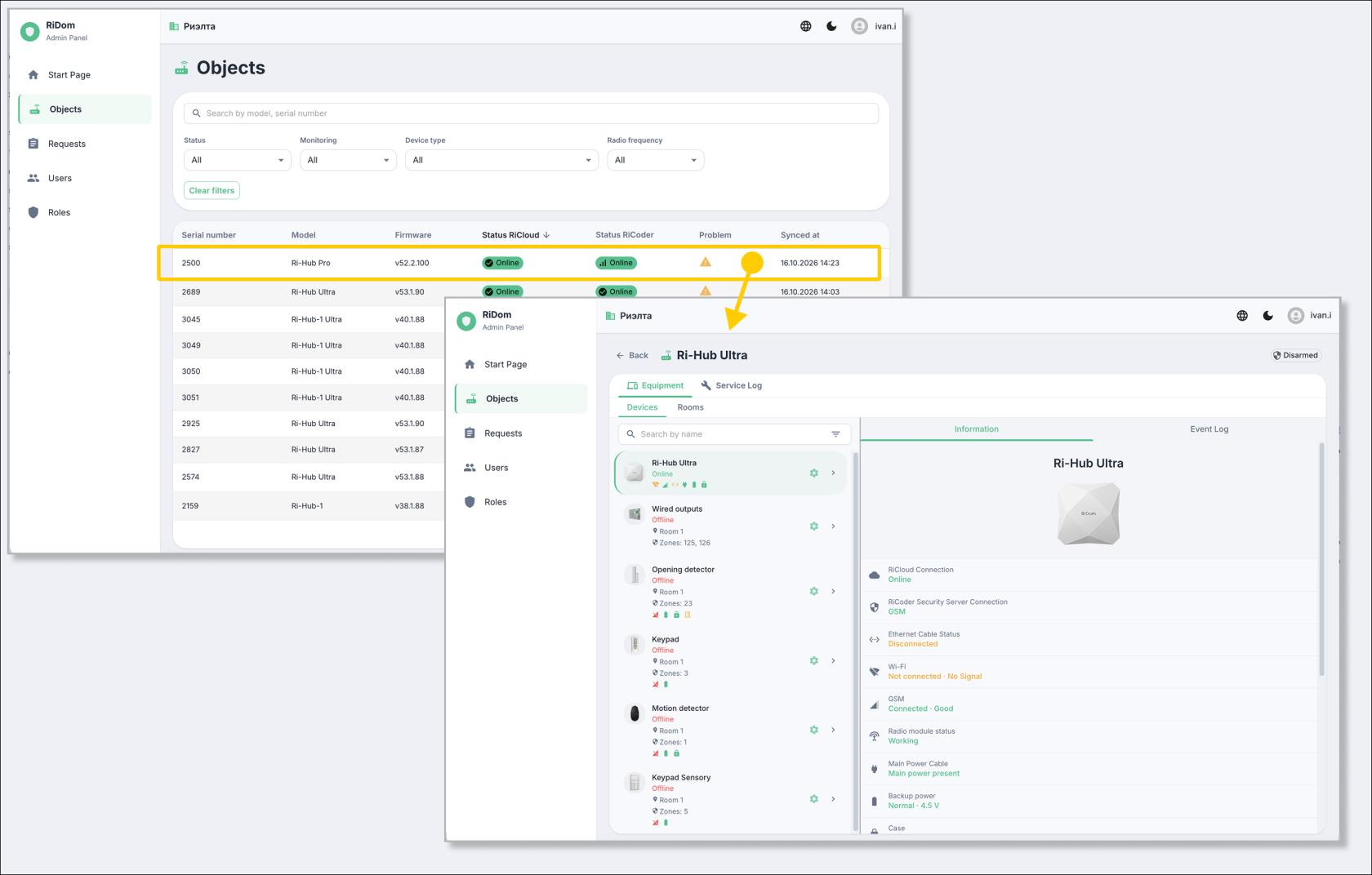
2.2. Making changes
While maintenance is active, the Ri-HUB and device settings fields are unlocked for editing: you can make and save changes, and each saving is logged.
2.3. Completing maintenance
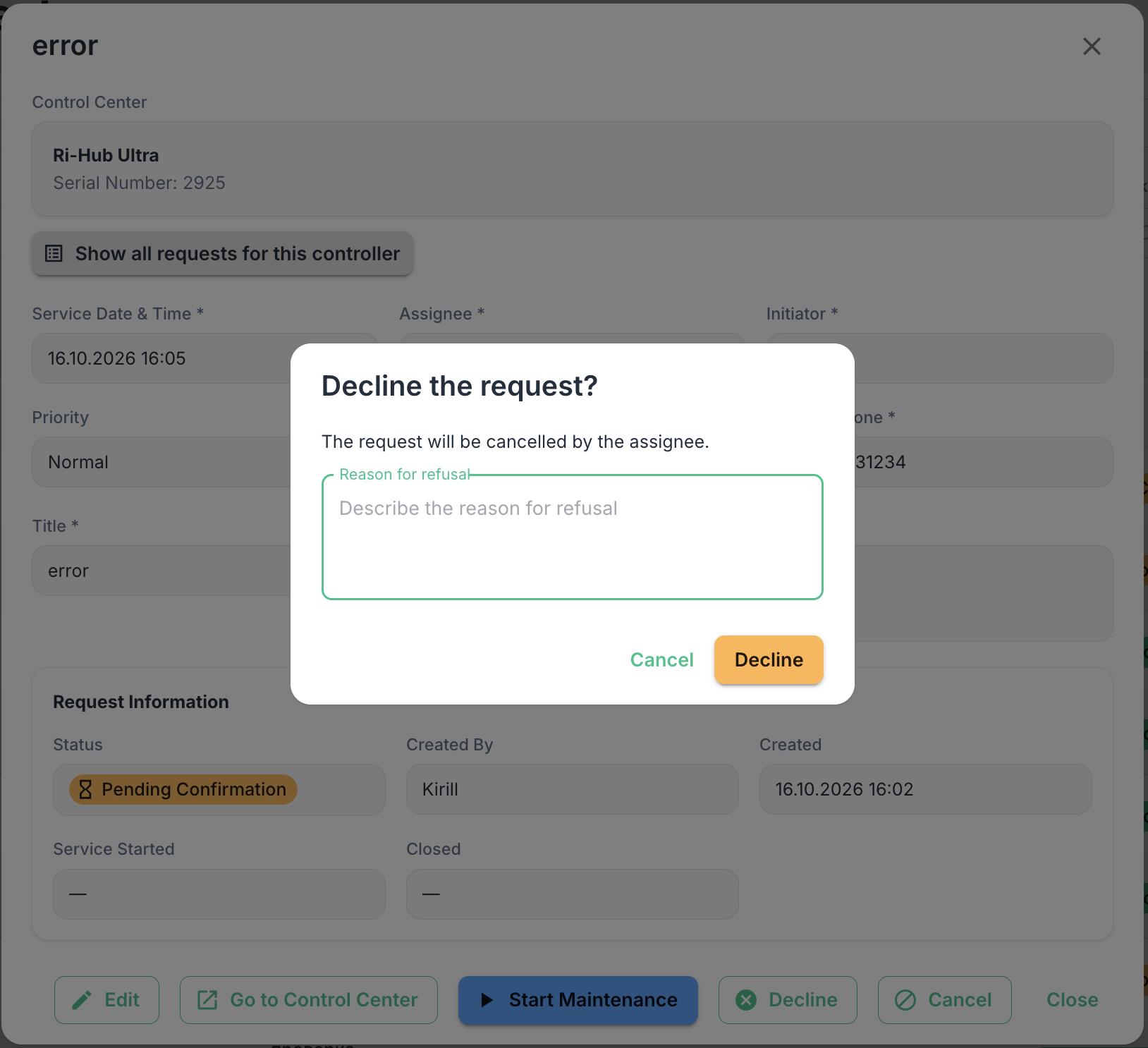
After completing the work, return to the request and click "Complete request", making sure to fill in the "Maintenance report" field. Without a report, the request will not close.
3. Granting access rights to objects to security company employees
This section describes the process of connecting new employees to work in the RiDom system. You will learn how to set up access rights (roles), create accounts and securely hand over logins and passwords.
Main stages of organizing an employee's work:
- Defining a role: selecting a ready-made template (Admin, Operator, Engineer) or creating a custom role with the required set of permissions. Learn more about roles...
- Registering a user: creating an employee card and assigning a role to them.
- Issuing access: handing over the login and password.
3.1. Setting up a role (if required)
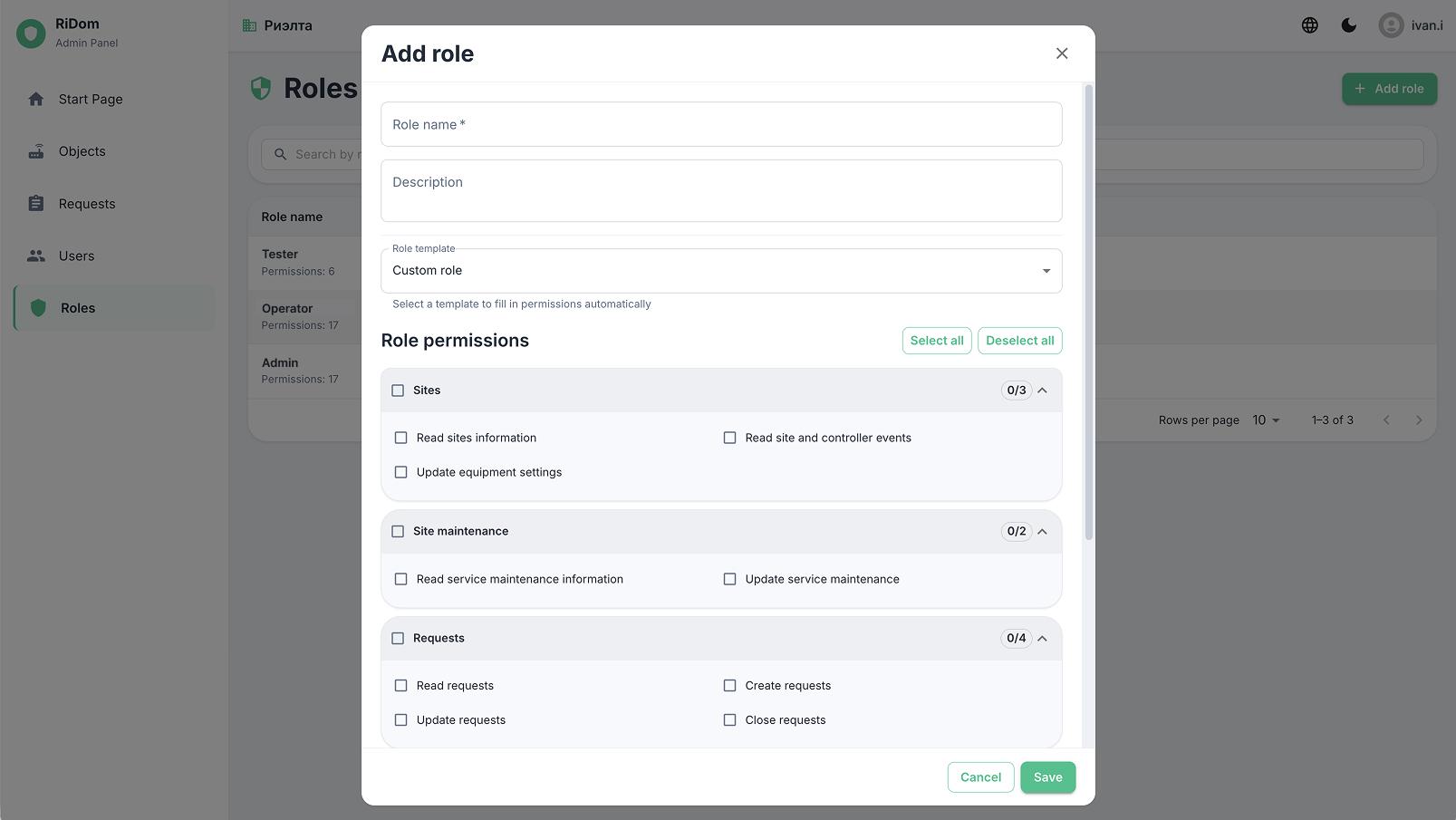
The list of existing roles and their permissions is available in the Roles section. If the standard roles are not enough, create a new one:
- Go to the Roles section and click the Add role button.
- Fill in the Role name and Description fields.
- In the Role template field, select:
- A ready-made template (Admin, Operator, Engineer): the permissions will be filled in automatically.
- Custom role: to select permissions for sections manually (Objects, Service, Requests, etc.).
- Click Save.
When a ready-made template is selected, the list of permissions is checked automatically. You can additionally uncheck or check boxes manually.
3.2. Creating an account
To register a new employee:
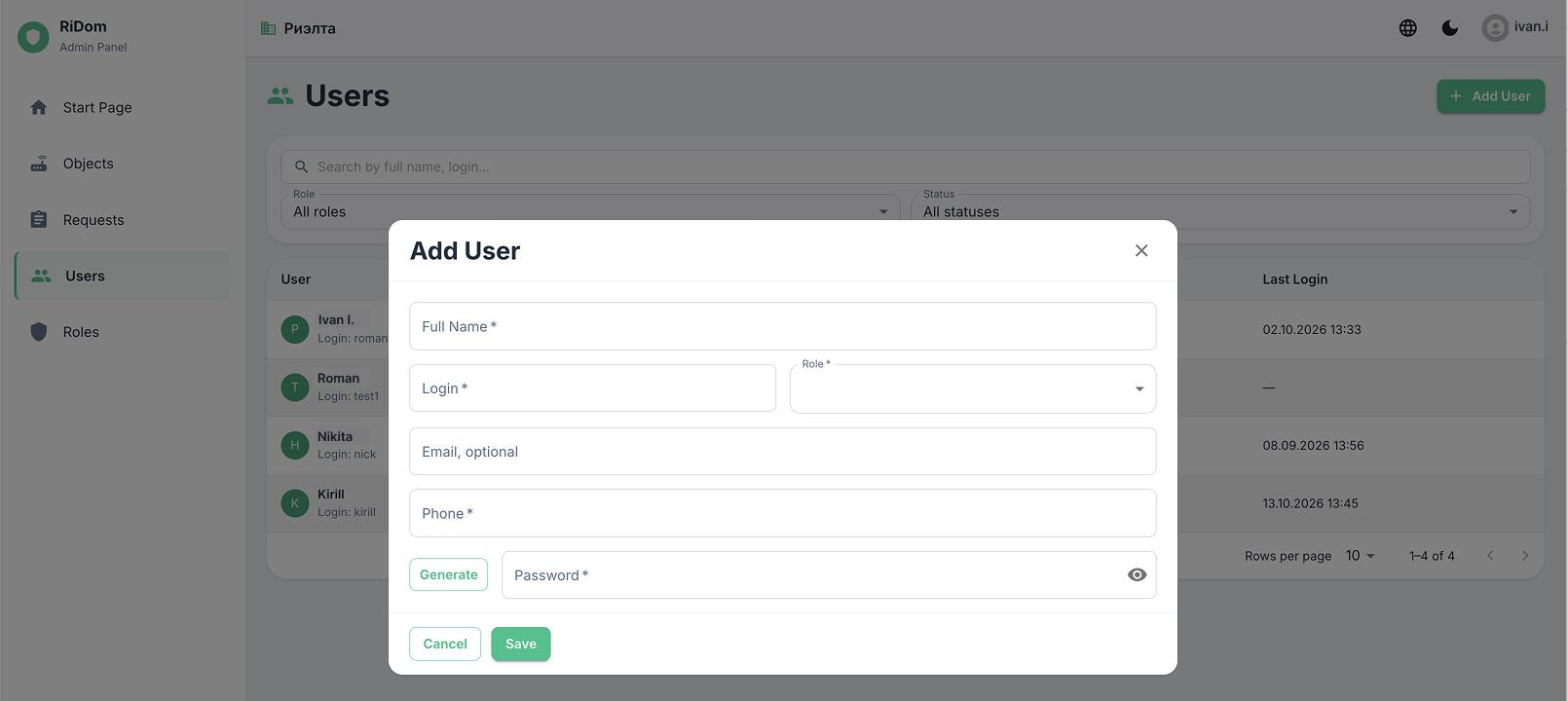
- Open the Users section and click Add user.
- Fill in the required fields: Full name, Login, Phone. The Email field is optional.
- In the Role field, select a previously created or standard role.
- Set a password: enter it manually or click the Generate button.
- Click Save.
Important: Be sure to copy or write down the generated password before closing the window, as the system does not show it again. Hand over the login and password to the employee.
3.3. Employee getting started
After receiving the credentials, the employee can start working:
- Log in to the RiDom admin panel using the issued login and password.
- Review their role and available sections on the start page.
- Start performing tasks in accordance with the assigned permissions (for example, go to the Requests section → Create request, see section 1).
The set of available actions and sections is strictly limited by the permissions configured by the administrator in section 3.1.
3.4. Issuing a new password to an employee
If an employee has forgotten their password or a scheduled replacement is required, the Administrator performs the following actions:
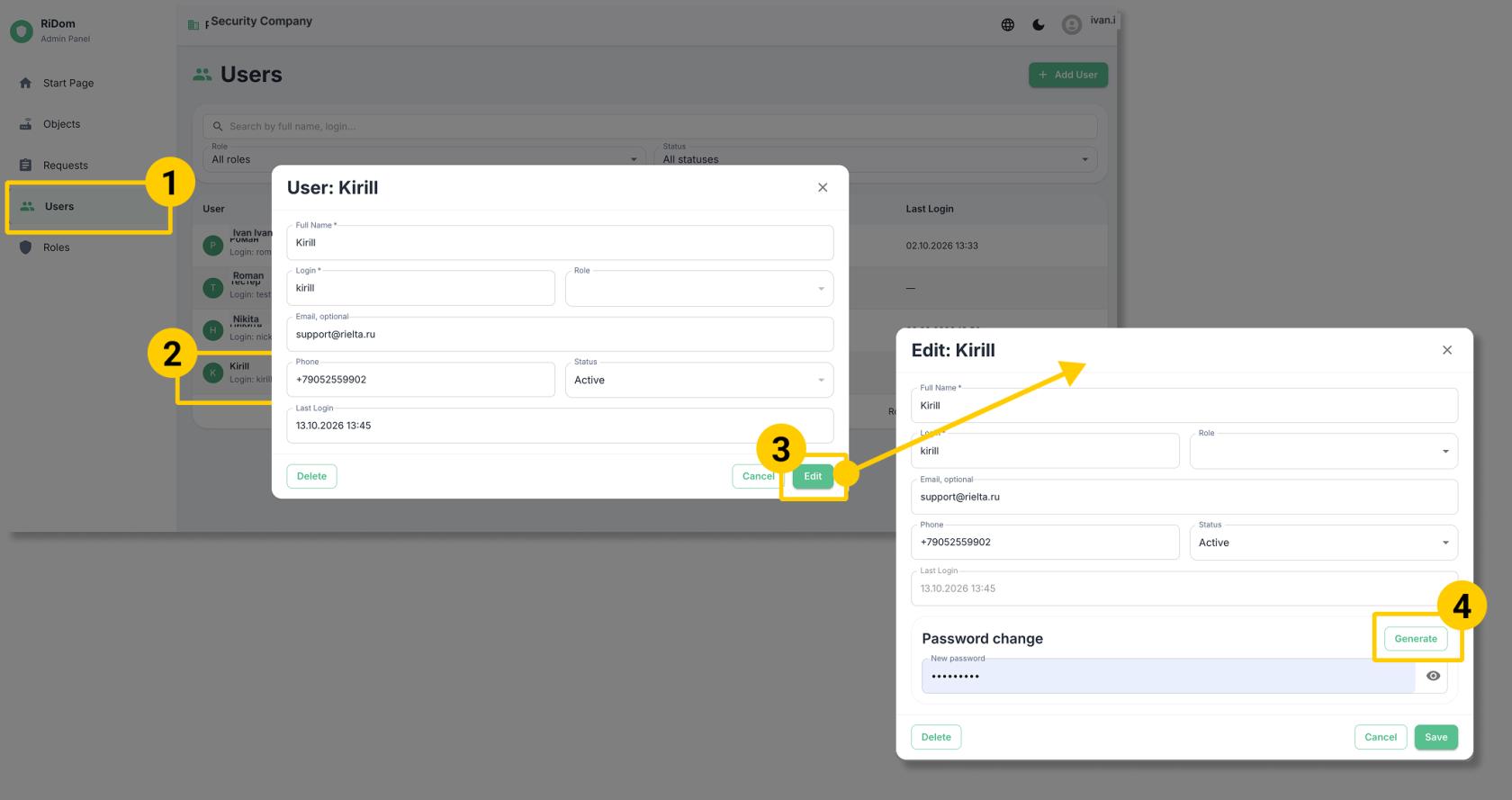
- Go to the Users section.
- Find the required employee in the list and open their card.
- Click the Edit button.
- In the Change password block, enter a new password manually or click Generate.
- Copy the new password (for example, to the clipboard).
- Click Save to apply the changes.
- Hand over the new password to the employee in any secure way.
Important: The system does not store passwords in plain text. If an employee loses their password, the administrator can only reset it and set a new one.
Last updated: 10/16/2026
No comments to display
No comments to display