
Launching RiCoder
For the first launch of RiCoder you will need a UUID (product key), this is a string like 40b3d94f-9d4c-000-b3c2-360b00000000. Contact your manager or customer support to register in the RiCloud registry and receive a product key by email. Without a UUID, RiCoder's functionality is limited. You will not be able to use RiCoder in an organization: receive event broadcasts and connect the monitoring station server.
Open the RiCoder admin web panel in your browser, to do this:
- Copy the link to the RiCoder admin web panel in the installation wizard dialog and paste it into the address bar of your browser.
- Or open the shortcut on your desktop (Windows 10/11 only).
- Or Copy the link http://<IP-адрес>:2180/dashboard, paste it into the browser address bar and replace <IP address> to the IP address of the server on which RiCoder is deployed.
Screen RiCoder Installation Wizard
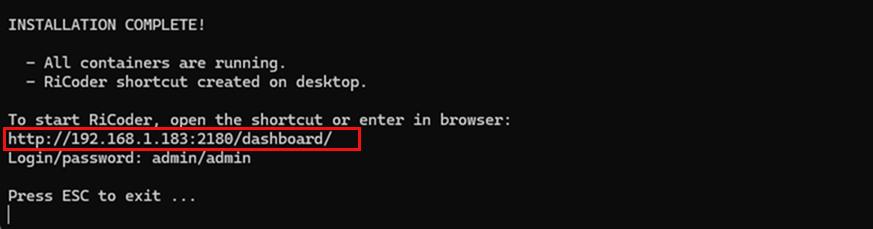
The RiCoder start page appears.
Screen RiCoder home page
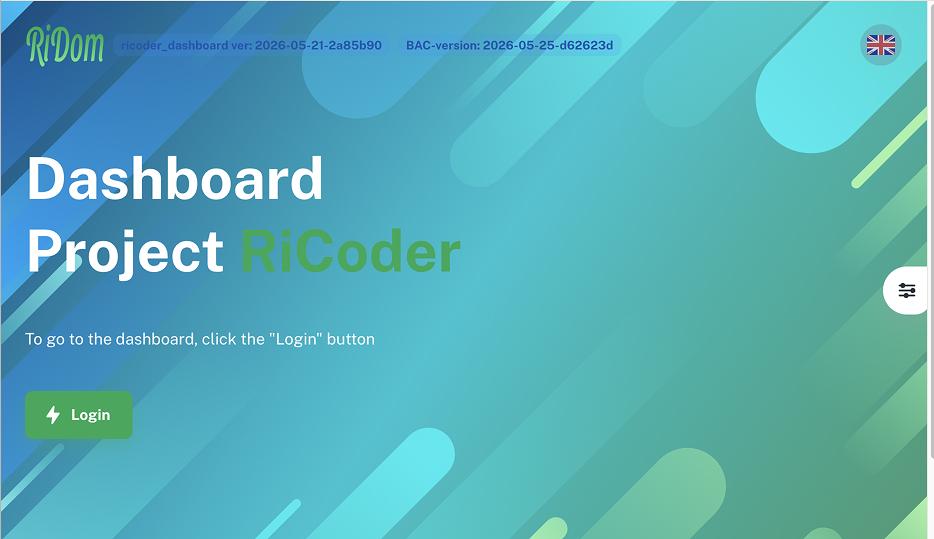
To connect to the server, use only the HTTP protocol (without encryption). If the browser uses the HTTPS protocol by default, then manually enter the address in the format:http://<адрес\_сервера>:<порт>/dashboard/.
1. Click Login on the RiCoder start page.
2. Enter login: admin and password: admin for the first login and click Login. You are logged in to the RiCoder admin web panel.
3. Enter UUID (product key) and click Save Changes. The message Updated successfully will appear in the upper right corner of the screen and the page Organization Profile will appear.
If an incorrect one is entered UUID an error message will appear. You must click Save Changes several times until the message disappears.
Screen RiCoder
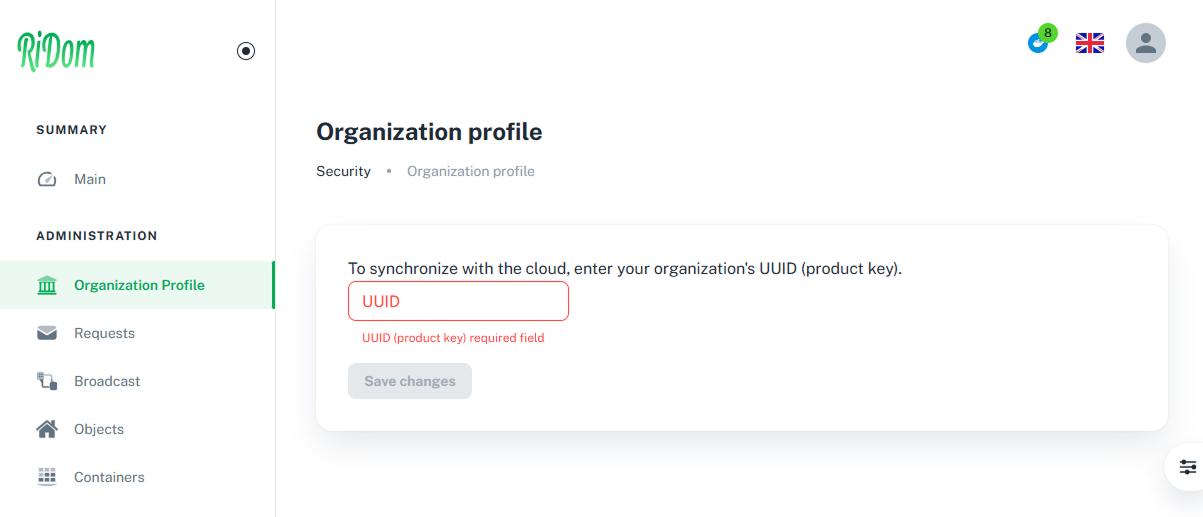
4. On the page Organization Profile enter the necessary information about your organization and start working with RiCoder software.
Screen RiCoder

To edit information about the organization, click Edit in the upper right corner of the page.
Screen RiCoder admin web panel: Organization profile

Enter the current data and click Save Changes.
Update date: 05/28/2026
No comments to display
No comments to display