
Preparing to install RiCoder on Linux OS
To connect RiCoder to the RiCloud cloud service, an authorization key (\*.json file) is required. Contact your manager or customer support to register in the RiCloud registry and receive an authorization key via the email specified during registration.
1. Download the current release of RiCoder from the official site ridom.ru.
Software page screen RiCoder
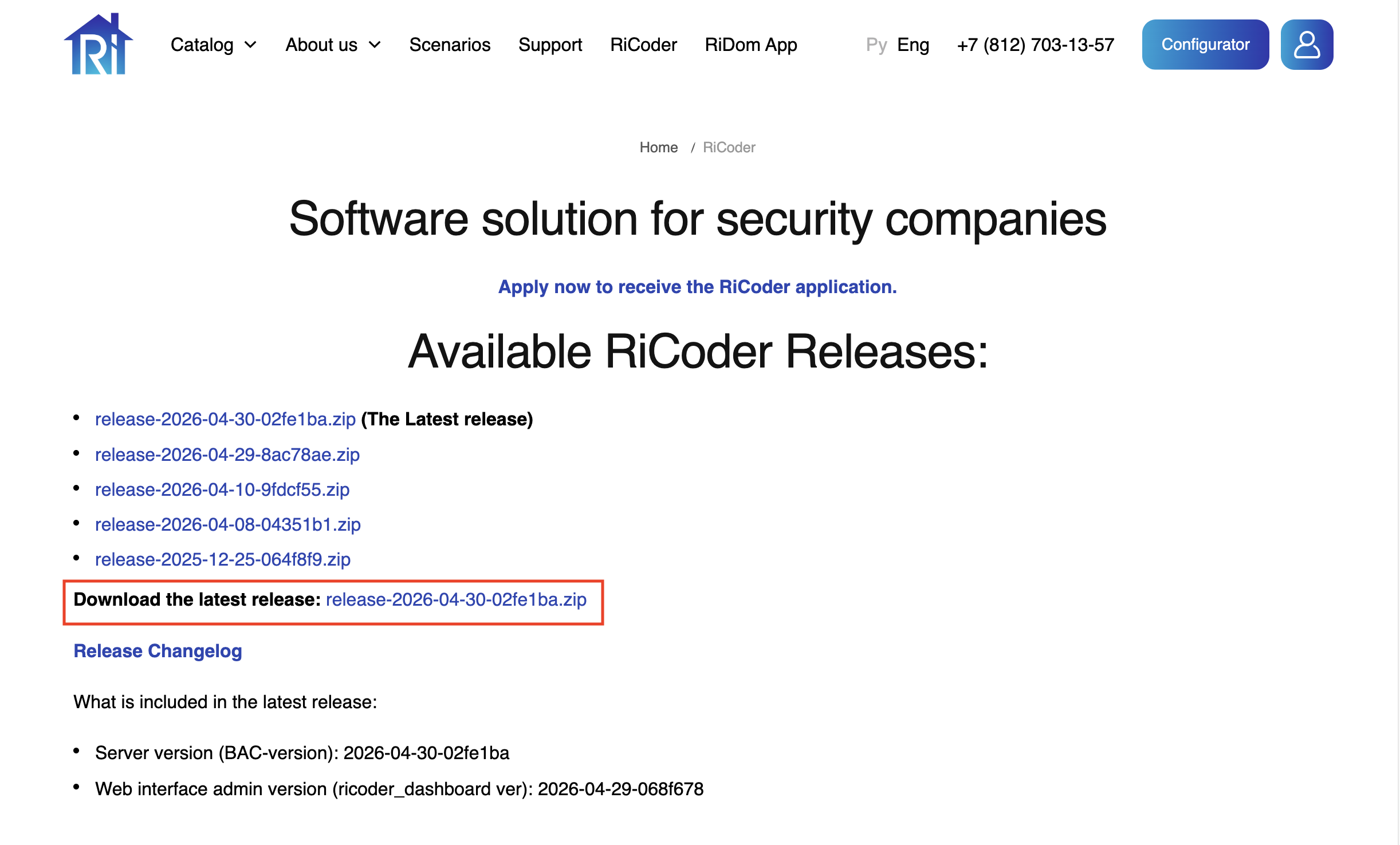
2. Extract the downloaded archive .zip to the desired folder.
4. Place an OAuth token to access Yandex.Disk. The token is required to organize a RiCoder backup. Read more about obtaining a token in the section Obtaining an access token for Yandex.Disk.
5. Prepare information about the RiCoder interface (BAC-version) and server (ricoder_dashboard ver) versions for the installation wizard. More information about version numbers in the section Frequently asked questions.
RiCoder software page screen
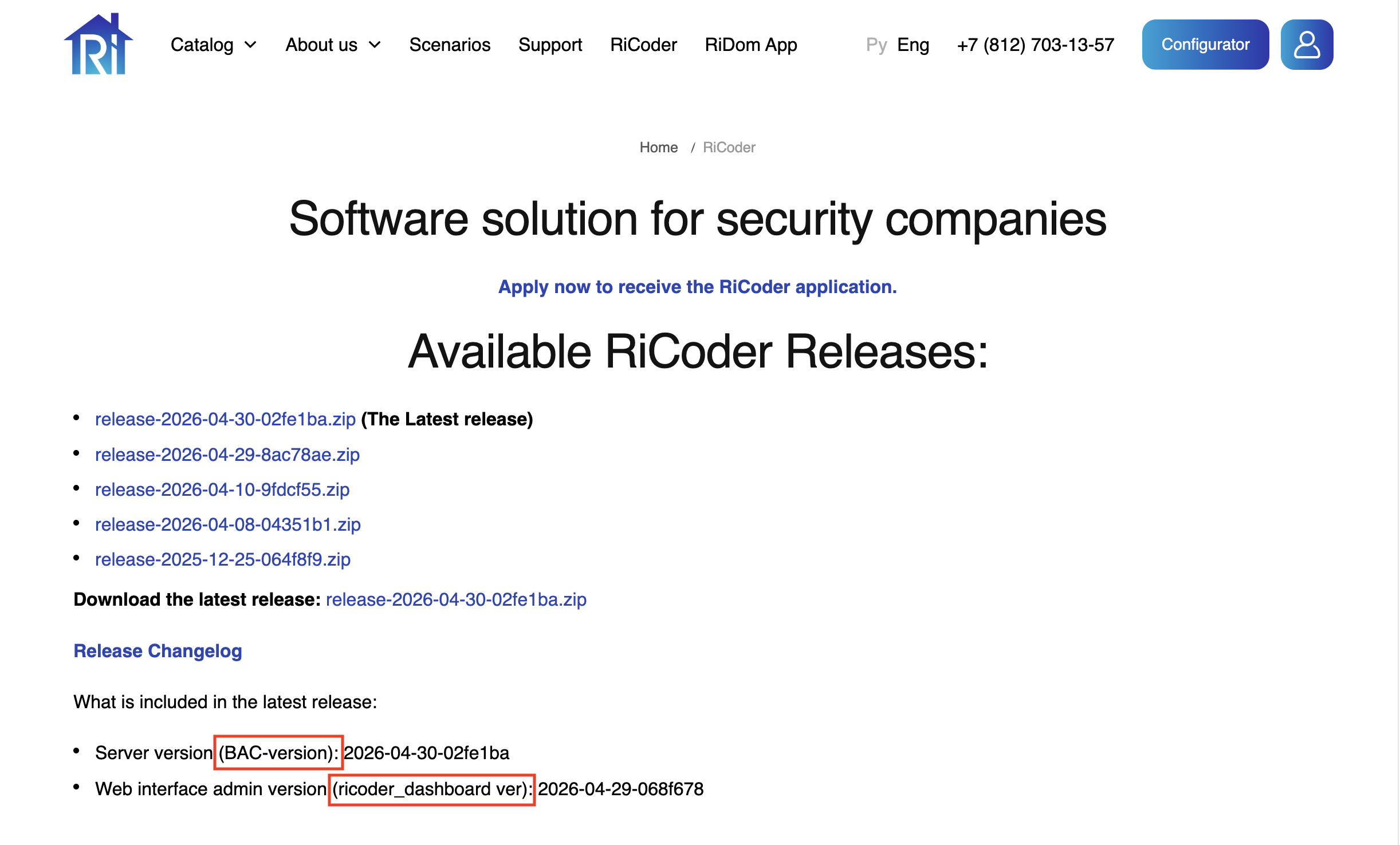
6. Make sure Docker Desktop is running. Open a terminal and enter the command
sudo systemctl status dockerExpected result:
docker.service - Docker Application Container Engine
   Loaded: loaded (/lib/systemd/system/docker.service; enabled; vendor preset: enabled)
     Active: active (running) since Wed 2025-04-05 10:30:45 MSK; 1h 20min ago
 Main PID: 1234 (dockerd)
      Tasks: 12
  Memory: 120.3M
   CGroup: /system.slice/docker.service
             └─1234 /usr/bin/dockerd -H fd://
7. Make sure that the file launcher_linux is executable. View access rights using the command:
ls -l launcher_linuxExpected result:
-rwxr-xr-x 1 root root 12345 Aug 18 12:00 launcher_linuxIf there is at least one in the access rights x (for example, r-x or rwx), the file can be launched.
If the file is not executable, add rights using the command:
chmod +x launcher_linux8. Run the file launcher_linux.
./launcher_linuxThe RiCoder installation wizard has started, follow the dialog. Follow the instructions in the section Working with the RiCoder installation wizard.
Update date: 06.22.2026
No comments to display
No comments to display