
How to transfer access rights to a house to perform installation work on site?
The article describes the procedures for temporarily transferring rights to manage a security object in the RiDom system from the responsible employee of the private security company (administrator of protected objects) to the installer to perform configuration or installation work.
There are 2 procedures for transferring rights:
- From the administrator of protected objects to installer;
- From installer to administrator of protected objects.
1. Users, roles and concepts
1.1. Users
PSC employee is an employee of a security organization responsible for administering facilities with installed RiDom equipment. Has the role - Owner for all serviced houses.
Client is the owner of the object that is placed under the protection of the private security company under the agreement. Has the role - Local user.
Installer - an employee of a security organization or an invited specialist who goes to the site to perform commissioning of equipment. When performing work at a facility, he receives the role - Owner.
1.2. Roles in the RiDom mobile application
Owner - role with maximum capabilities, home administrator.
The owner can:
- Add/remove/change equipment configurations and manage their settings.
- Connect other users to the object, assign or change access rights.
When the Owner of the house changes, the rights of the previous owner of the house are limited.
Invited user - a role that allows you to control your home remotely using a mobile application. Depending on the situation at the site, the rights of the invited user can be configured flexibly.
The invited user can:
- Manage the object.
- View home settings, edit, etc.
Local user is a role in the RiDom mobile application that allows you to control the house only using a key fob or keypad installed locally. Such a user does not have access to the mobile application and cannot control the house remotely.
1.3.Concepts
House is a surveillance object of a security organization in which the Ri-HUB control center and associated sensors are installed. 1 house = 1 Ri-HUB.
2. From a private security company employee to an installer
2.1. Preparatory steps on the installer’s smartphone
1. Install RiDom mobile application on your smartphone.
2. Register in the RiDom system.
3. Send information about your account in the RiDom mobile application to the responsible employee of the private security company.
- Name
- Email or phone number
Screen MP: User profile
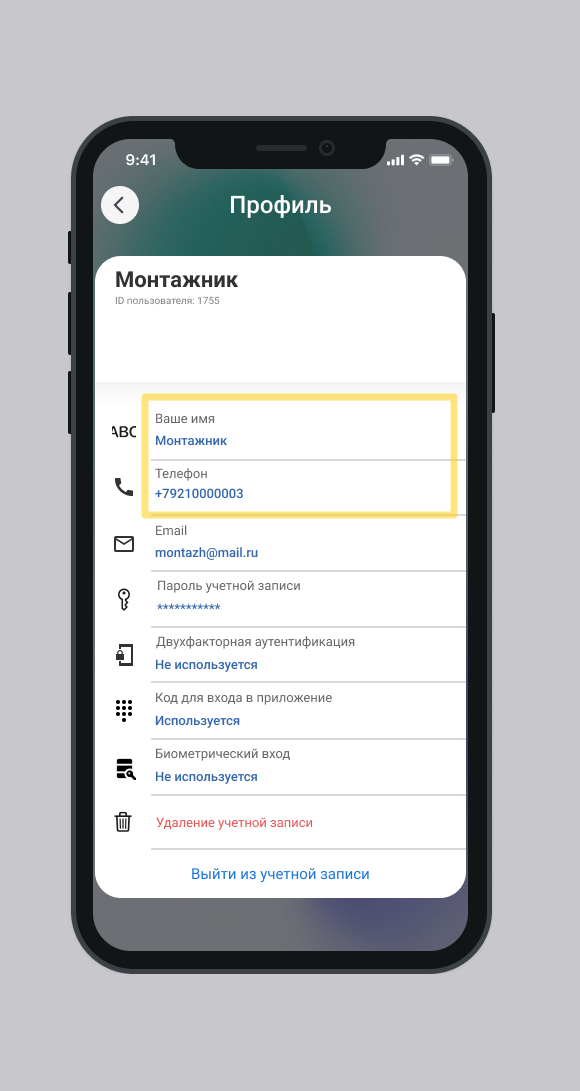
5. Expect an invitation to the house from the owner of the house (private security company employee). Learn more about how to invite a user to your home in the mobile application of a private security company employeesee. in section 1.3.1.
6. For more information about accepting an invitation see in section 1.4.
2.2. In the smartphone of a private security company employee
2.2.1. Inviting a new user to your home
1. On the main screen of the mobile application, select the desired house.
2. Go to home settings. Select  in the upper right corner of the screen.
3. Select the item  Home users.
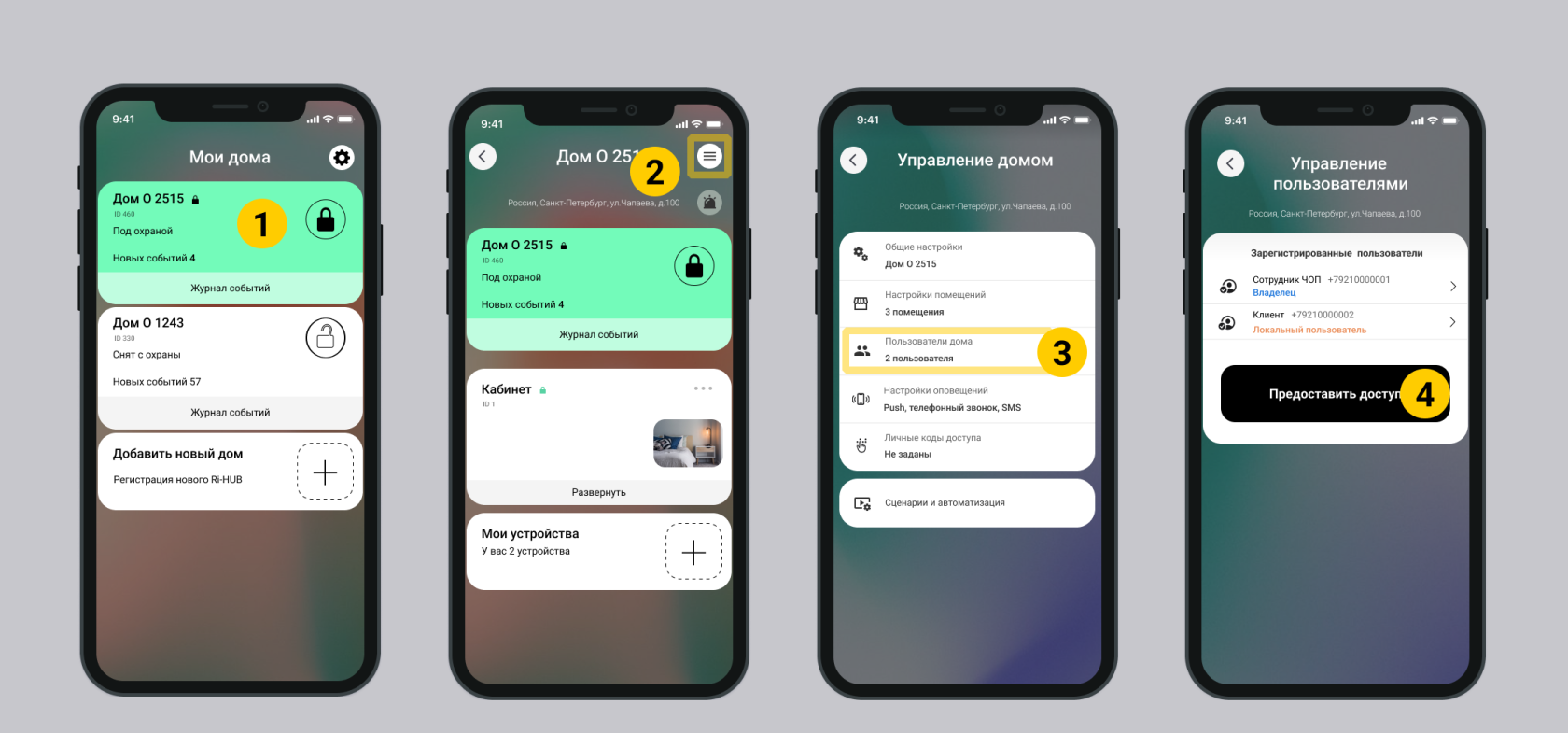
5. In the New user list, select the user type - mobile user.
**Mobile users** control the home through a mobile application. **Local users** control the house via key fob or keypad.
6. Enter the details of the new user - the installer:
- Name
- Email or phone number to receive notifications.
7. Click the Invite. button
8. Check the information about the invited user's account is correct and click the Confirm button if the email or phone number is correct. The invitation will be sent to the user via email, sms and push notification.
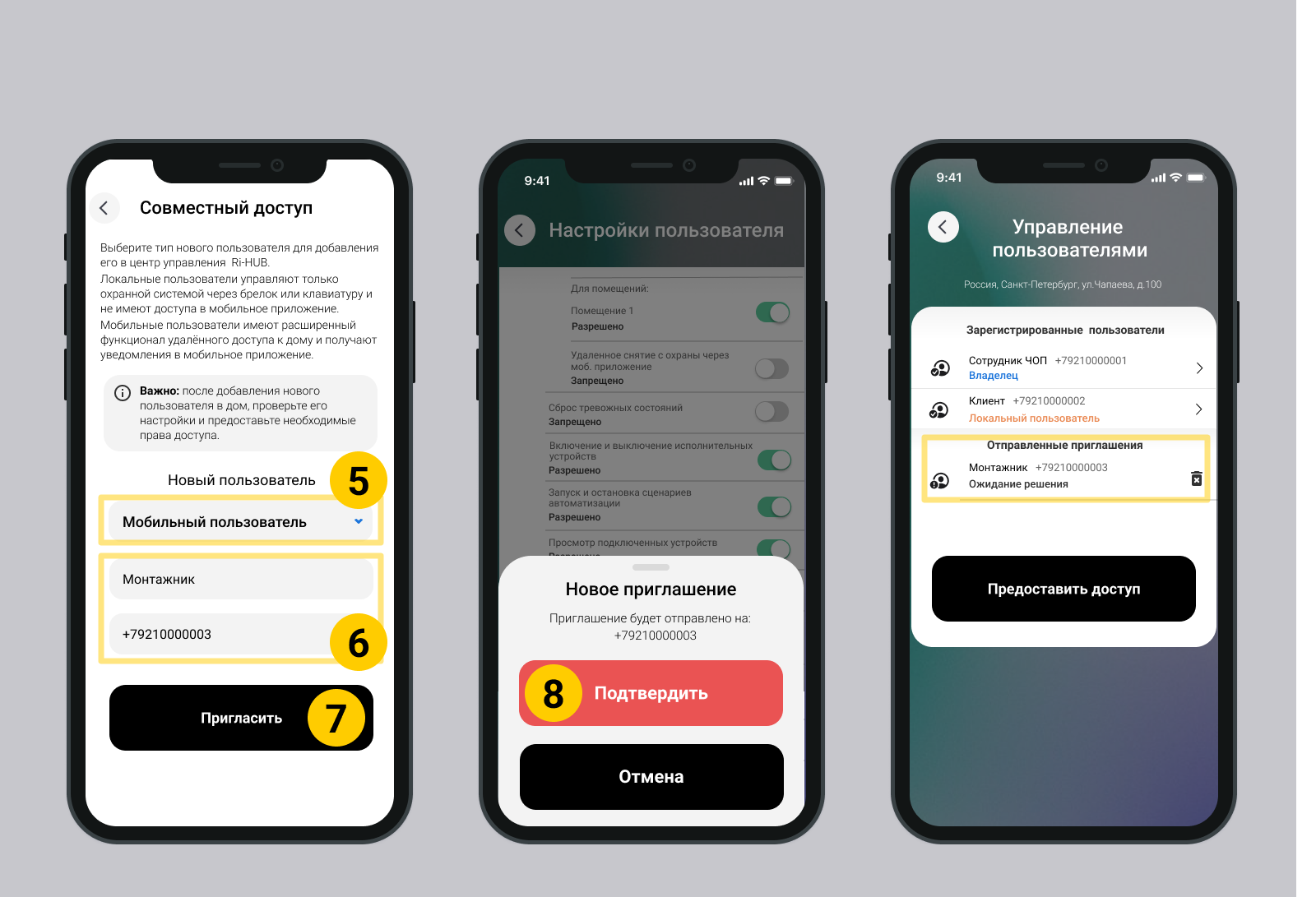
9. Return to the Manage Users screen and wait for the invited installer user to confirm the invitation. For more information about accepting an invitation see in section ....
11. If the invitation is successfully confirmed, the information about the installer user will be moved to the list Registered users and the status will change from Pending decision to Invited user.
Mobile screen applications: User management
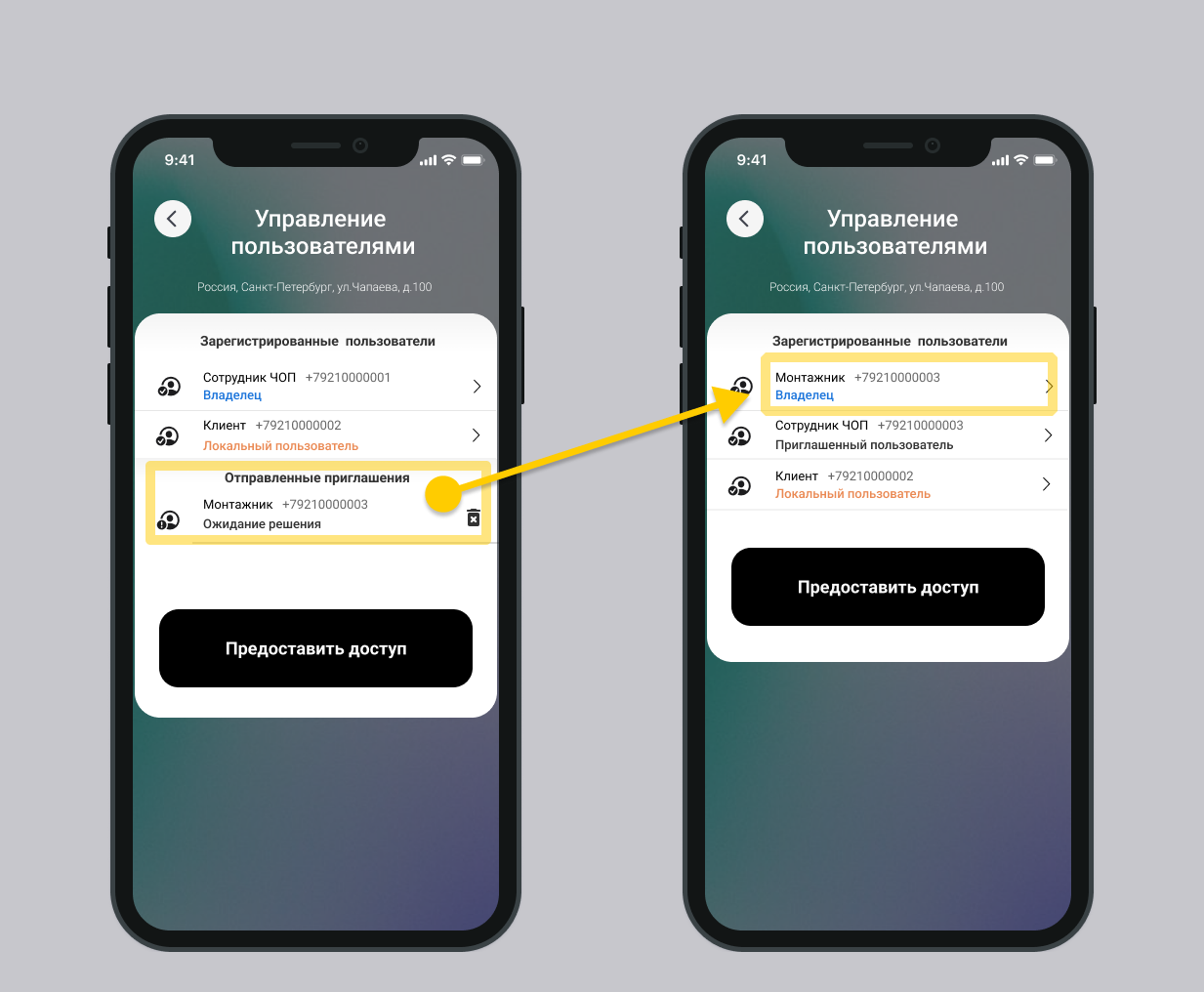
1. On the Manage Users screen, select the installer user in the Registered Users list.
2. At the bottom of the window User Settings click Transfer the right to control the house.
3. Click Confirm in the dialog window.
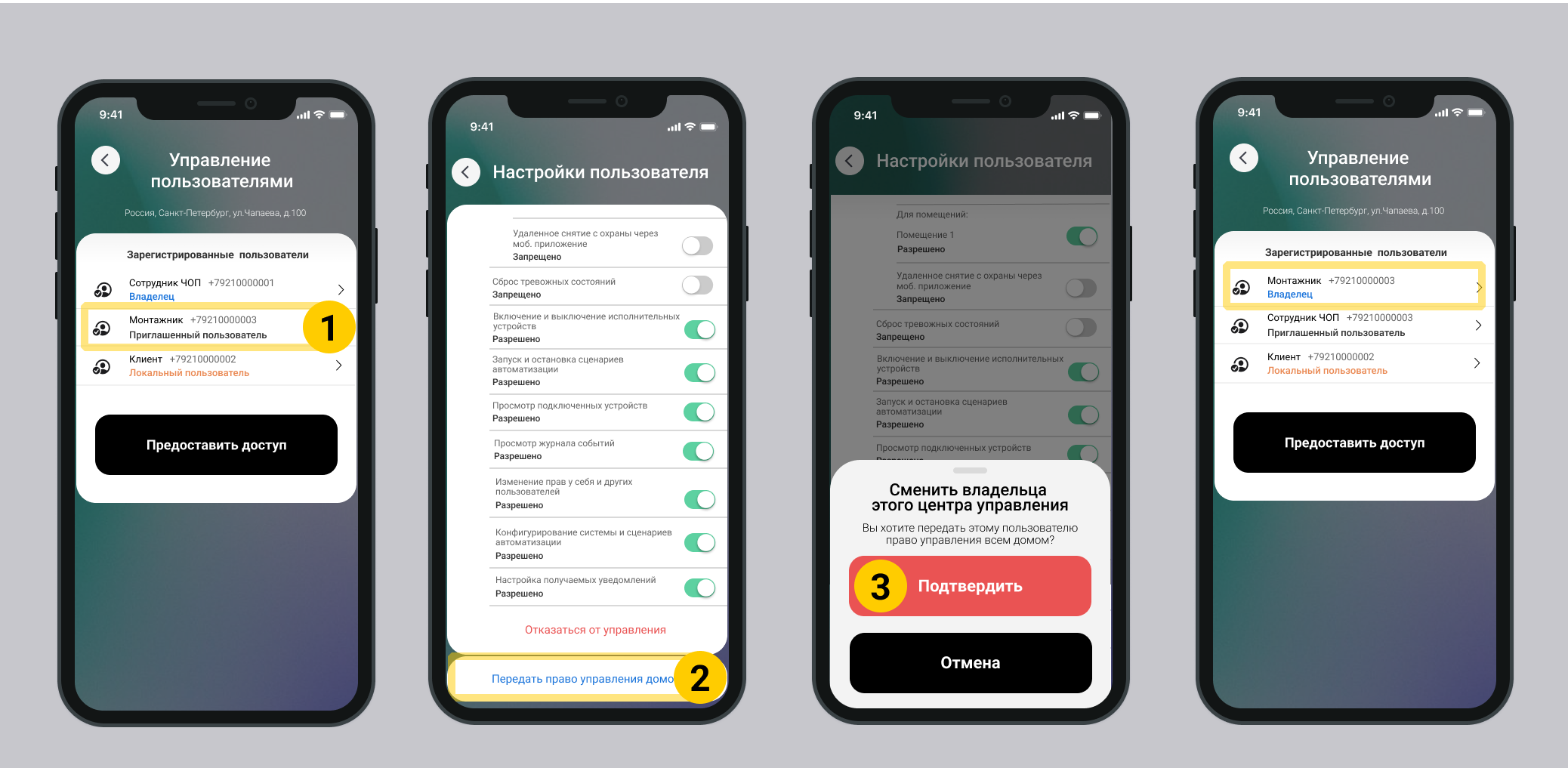
4. The installer user has become the owner of Ri-HUB and has no restrictions on the functionality of the mobile application.
The owner can:
- Add/remove/change equipment configurations and manage their settings.
- Connect other users to the object, assign or change access rights.
- Manage the services available to him through the Services Market (Services). What is it?
The private security company employee user becomes an invited user and has limited rights.
Rights and opportunities:
- Pviewing the settings of security sensors.
- Prohibition on changing the configuration of premises.
5. The installer can begin work on site.
After completing the work, the installer must transfer the Owner rights back to the user-employee of the private security company. More details...
2.3. Accepting an invitation on the installer’s smartphone
1. A block Invitation to a new home will appear on the main screen with the text: “User XXX wants to add you to XXXXX.” Click on this block.
Screen mobile application: Invitation
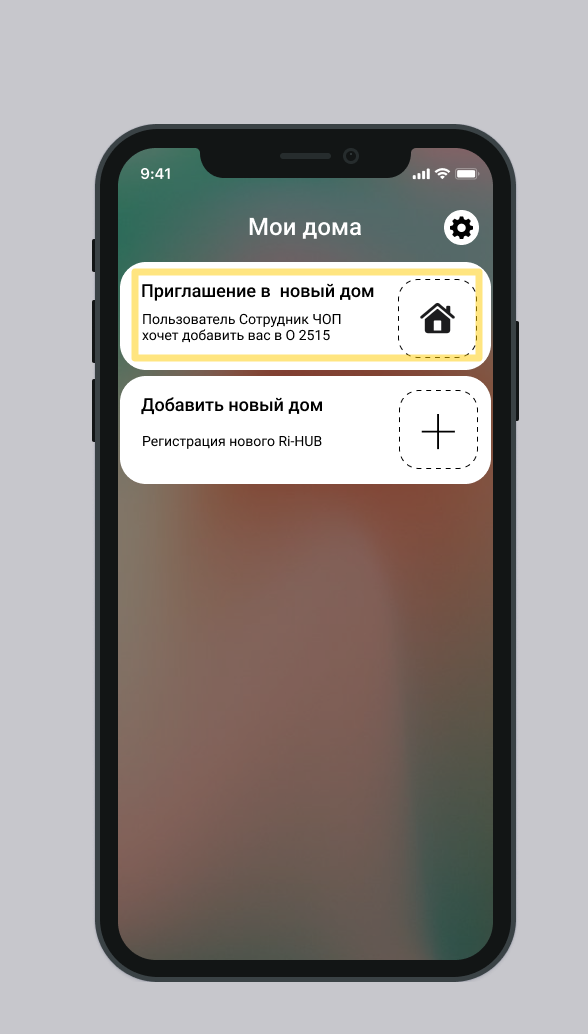
After the invited installer user has accepted the invitation, all users assigned to the house receive a notification that a new user has been added.
3. Wait until you receive a notification that the user-installer has become the owner of the house and begin the necessary work on the site.
2.4. Table of access rights in the mobile application
| **List of access rights** | **Role:** Owner | **Role:** Invited user |
| Changing the security mode | Allowed | Prohibited |
| Resetting alarm conditions | Allowed | Prohibited |
| Turning on and off actuators | Allowed | Prohibited |
| Start and stop automation scripts | Allowed | Prohibited |
| View connected devices | Allowed | Allowed |
| View the event log | Allowed | Allowed |
| Changing access rights for yourself and other users | Allowed | Prohibited |
| Configuring automation scripts | Allowed | Prohibited |
| Configuring the notifications you receive | Allowed | Allowed |
3. From the installer to the private security company employee
3.1. In the installer’s smartphone
3.1.2. Transfer of the right to manage the house
1. On the main screen of the mobile application, select the desired house.
2. Go to home settings. Select in the upper right corner of the screen.
3. Select the item Users.
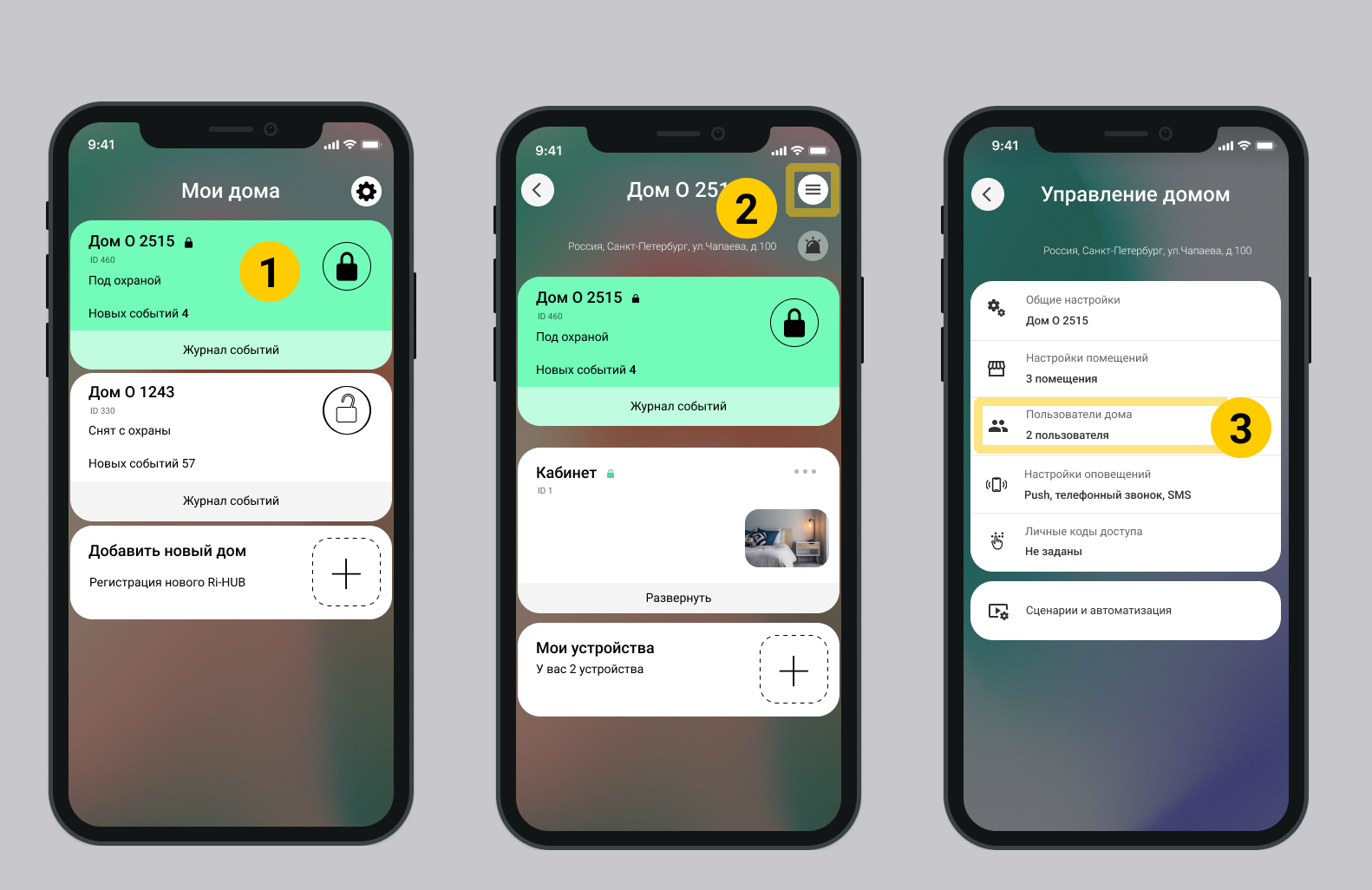
4. In the Registered users list, select the desired user with the Invited user role.
5. At the bottom of the screen User settings click Transfer control of the house.
6. Click Confirm in the dialog window.
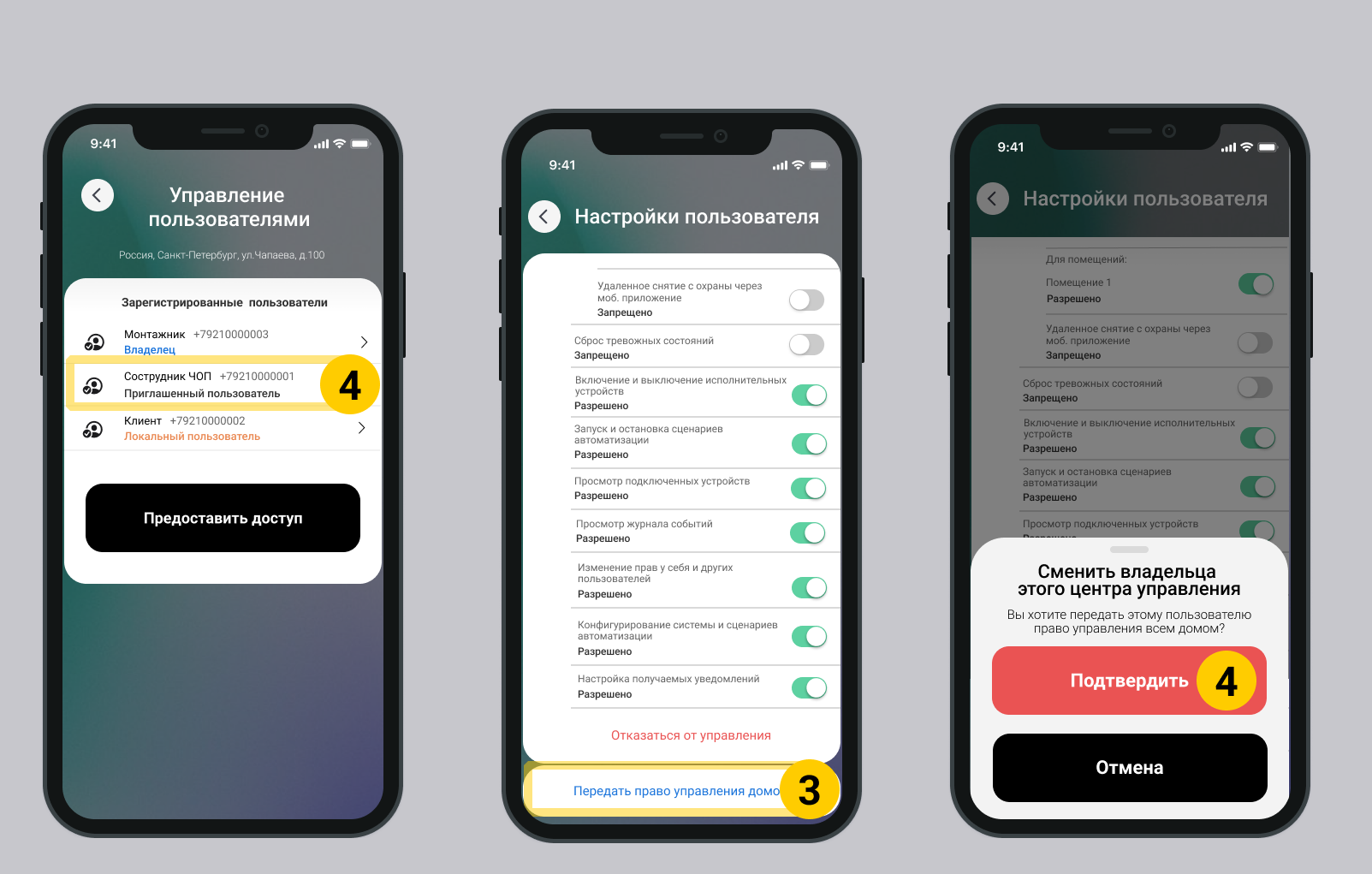
7. The private security company employee user became the owner of the house, and the installer user became an invited user.
3.1.3. Removing a house from an installer user account
1. Go to the Manage Users screen.
2. In the Registered users list, select the installer user with the invited user role.
3. At the bottom of the User Settings window, click Refuse control.
4. Confirm deleting the home from the installer user account.
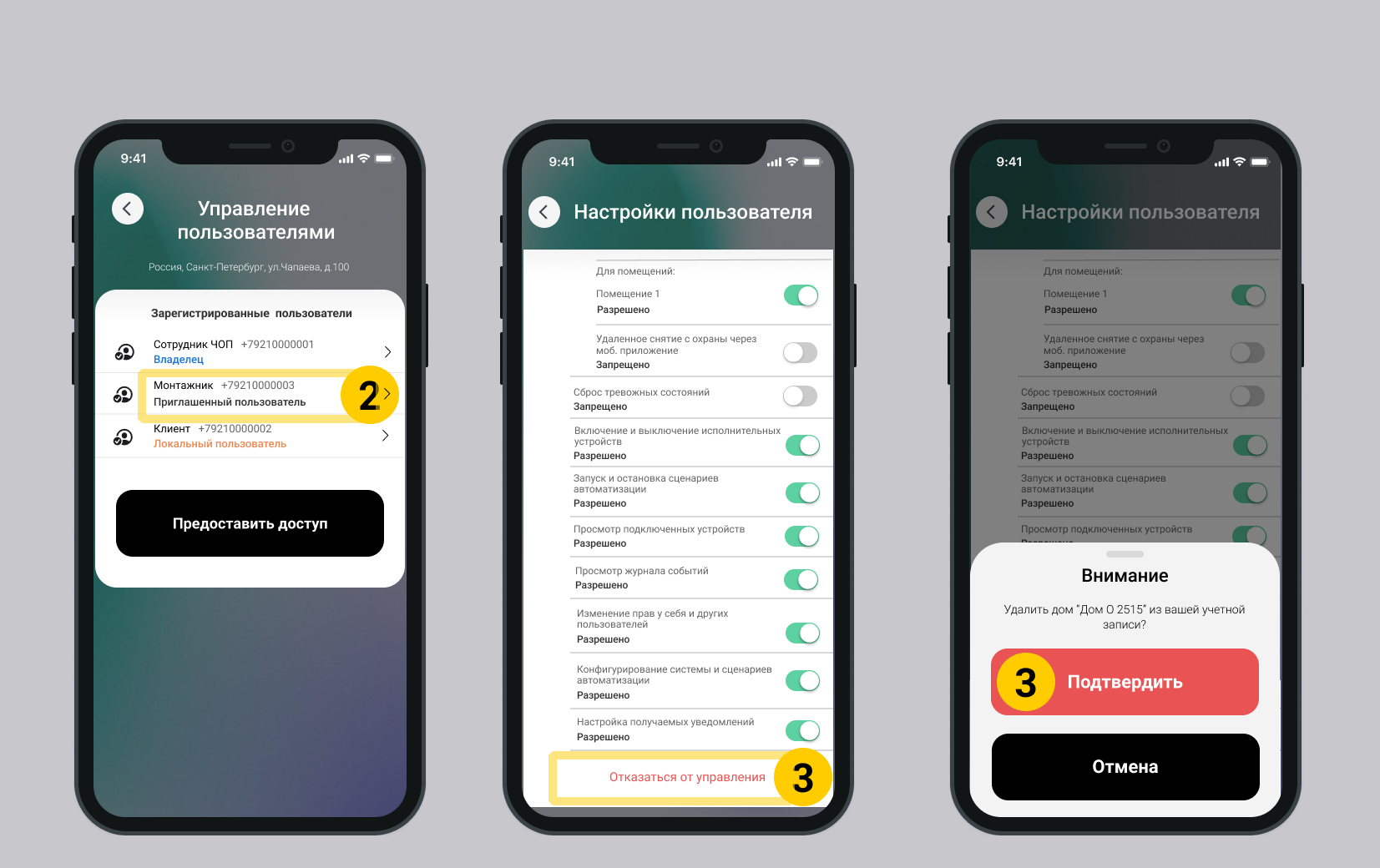
5. The installer user can no longer manage the owner's home.
3.2. In the smartphone of a private security company employee
3.2.1. Removing an invited user from home
1. On the main screen of the mobile application, select the desired house.
2. Go to home settings. Select in the upper right corner of the screen.
3. Select the item Users.
4. In the Registered users list, select the installer user (role: Invited user).
5. At the bottom of the User Settings window, click Delete User.
6. Click Confirm in the dialog window.
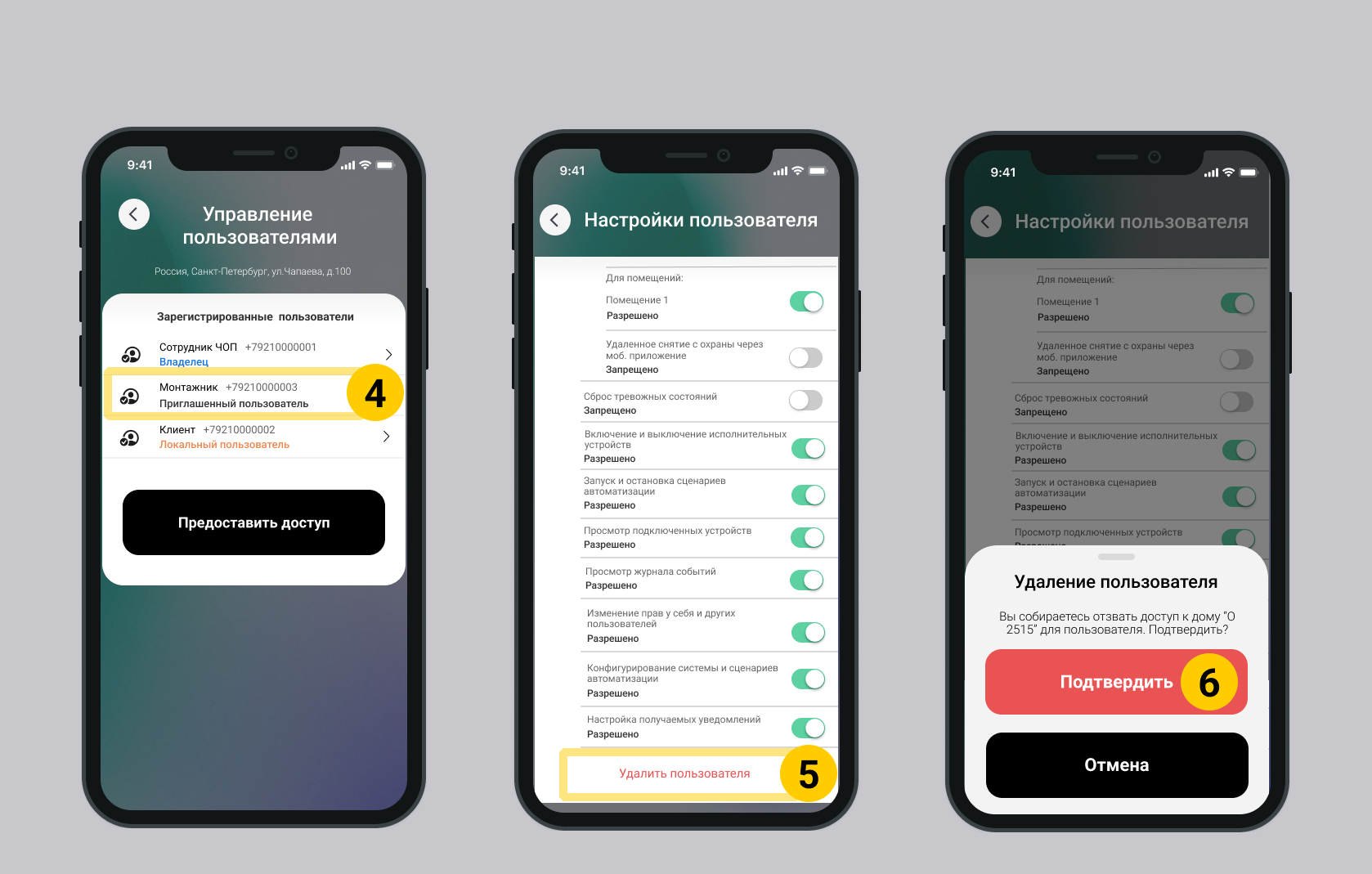
7. The installer user can no longer manage the owner's home.
Update date: 12/8/2025
Нет комментариев для отображения
Нет комментариев для отображения