
Dealing with faults when arming
Fault Analysis
For mobile user
1. Check out the list of faults:
- In the mobile application, if you have an account;
- In an SMS message.
Information about faults will be displayed in the event log. Users will receive SMS messages and push notifications about detected faults, without details.
2. Eliminate the malfunctions and re-arm the house/object.
For local user
Information about detected faults is not available to the local user.
Where to find the list of faults
Information about any malfunctions that have occurred is posted in the following sections of the mobile application:
- System status – a complete list of all faults in the house/facility and recommendations for eliminating them;
- Event log - a list of all events that occurred in the house/object.
A message about malfunctions detected as a result of an integrity check when arming a house/object is displayed in the My Homes section. Read more about integrity checking in article.
1. Fault reporting
Faults grouped by sensor type and room. Specific sensors are not specified. For the controller, all detected faults are displayed.
Message about malfunctions
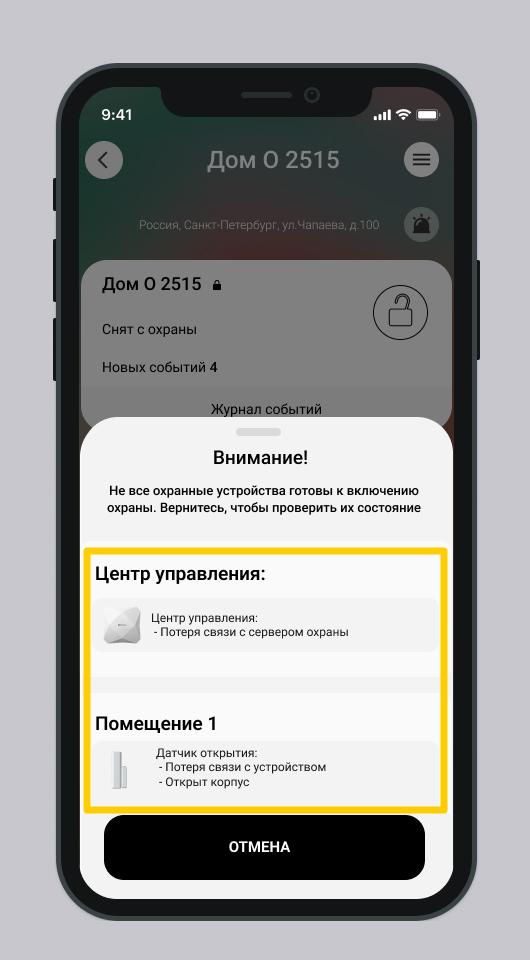
**Example:** If there are several opening sensors of the same type in one room (for example, “Sensor 1”, “Sensor 2”, “Sensor 3”) and all of them have a low battery, the system will display a common message: **Open sensor:** – Battery low
The message with a list of faults found during the integrity check disappears from the section My Homesas soon as you close the window or press one of the buttons Arm or Cancel.
Before adding a device, give sensors and rooms clear names. It is better to indicate exactly where they are located - for example, “Motion sensor by the window in the living room.” This will help you quickly find the device if it malfunctions.
How to find a specific sensor with a malfunction
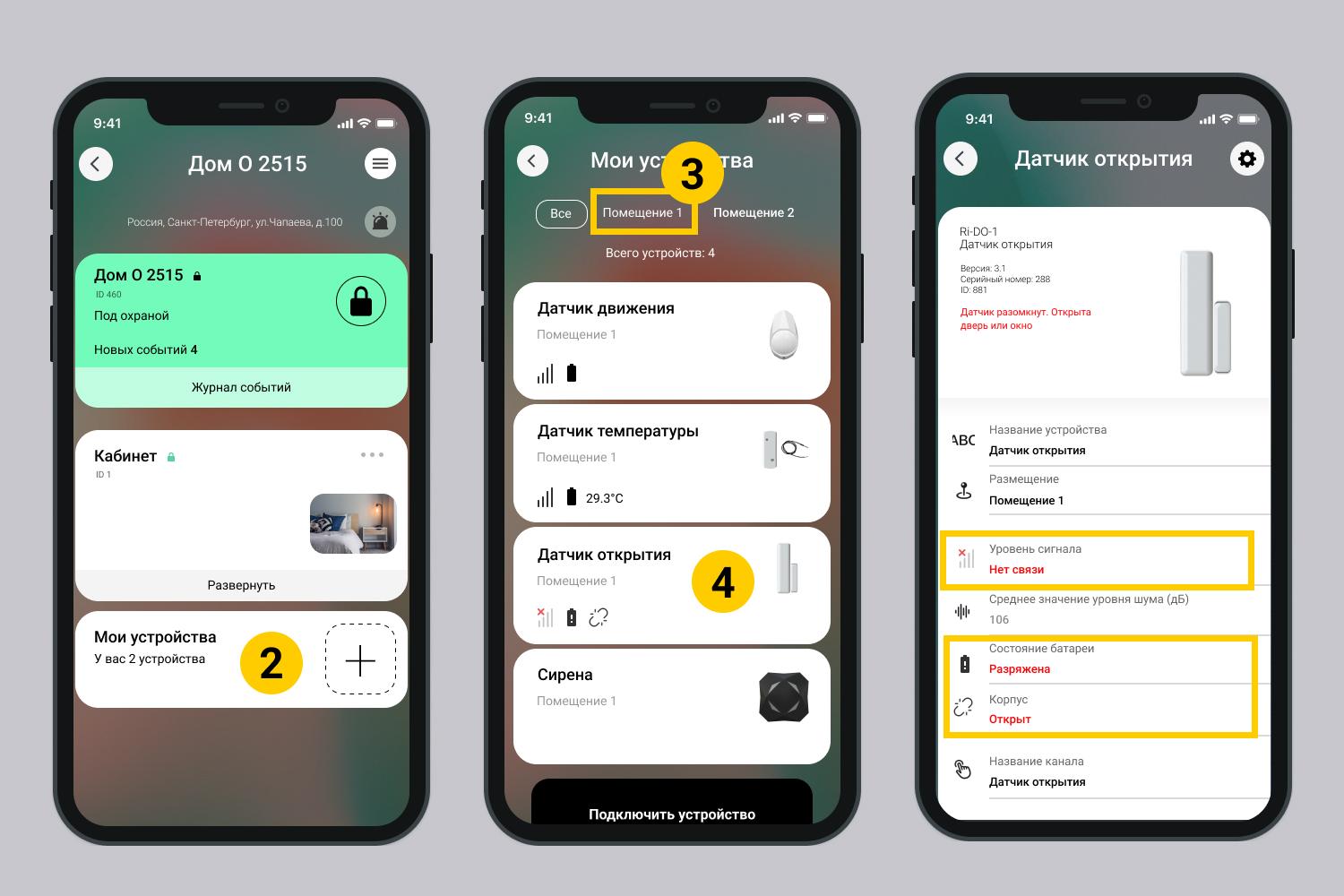
If there are several identical sensors in the room, and the message only indicates the type of fault, check each sensor manually in the list of devices connected to the house/facility.
1. Select the desired house in the section My houses.
2. Scroll down the screen and select My Devices.
3. Select the room where faults were detected. For convenience, use the room filter at the top of the screen.
The card of each sensor contains icons by which you can evaluate the status of the sensor (defective or defective)
| **No faults** | **There are malfunctions** | |
| Battery status | [](https://wiki.ridom.ru/uploads/images/gallery/2026-02/scaled-1680-/battery-ok.png) **OK** | [](https://wiki.ridom.ru/uploads/images/gallery/2026-02/scaled-1680-/battery-malfunction-discharged.png) **Discharged** |
| Case | Not displayed if normal. | [](https://wiki.ridom.ru/uploads/images/gallery/2026-02/scaled-1680-/frame-open.png) **Open** |
| Signal level | [](https://wiki.ridom.ru/uploads/images/gallery/2026-02/scaled-1680-/level-2.png) **There is a connection** | [](https://wiki.ridom.ru/uploads/images/gallery/2026-02/scaled-1680-/level-no-power.png) **No connection** |
4. Select the desired sensor with faults from the list.
5. The settings window for the desired sensor will open.
Screen Device settings
2. Events Widget
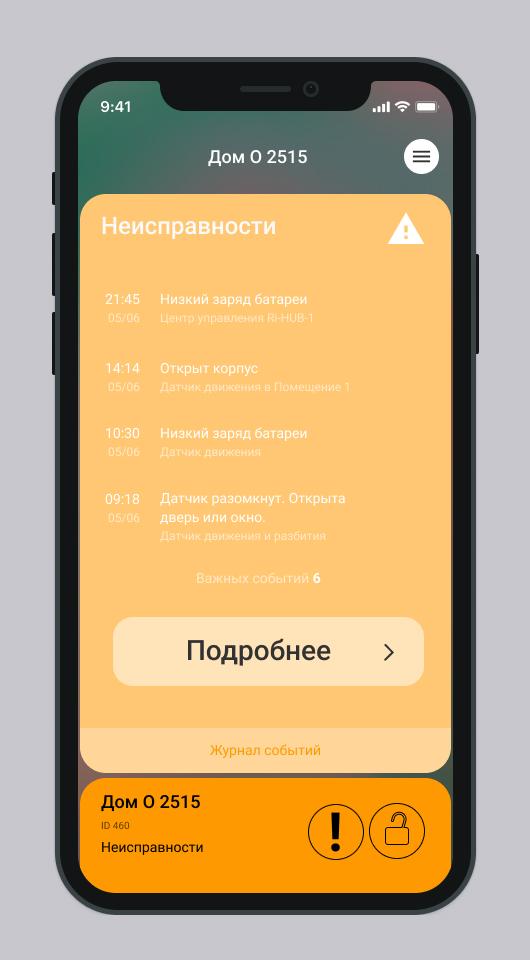
Fault events appear at the top of the screen in the home-specific section of the event widget. All events of the fault type are displayed from latest to oldest.
1. Select the desired house in the section My houses.
2. After going to the house/object, a fault event widget will appear.
Screen Events widget
4. After reviewing the list of faults, you can click Viewed, the events will disappear from the widget, but will be available for viewing in the log.
If the user does not have the rights to reset events, the message will appear **You do not have the rights to reset alarm events, contact the owner of the house**. In the user settings, in the User Management section, this right is configured. [More...](https://wiki.ridom.ru/books/frequently-asked-questions/page/how-to-set-permissions-for-users)
2. Section System Status
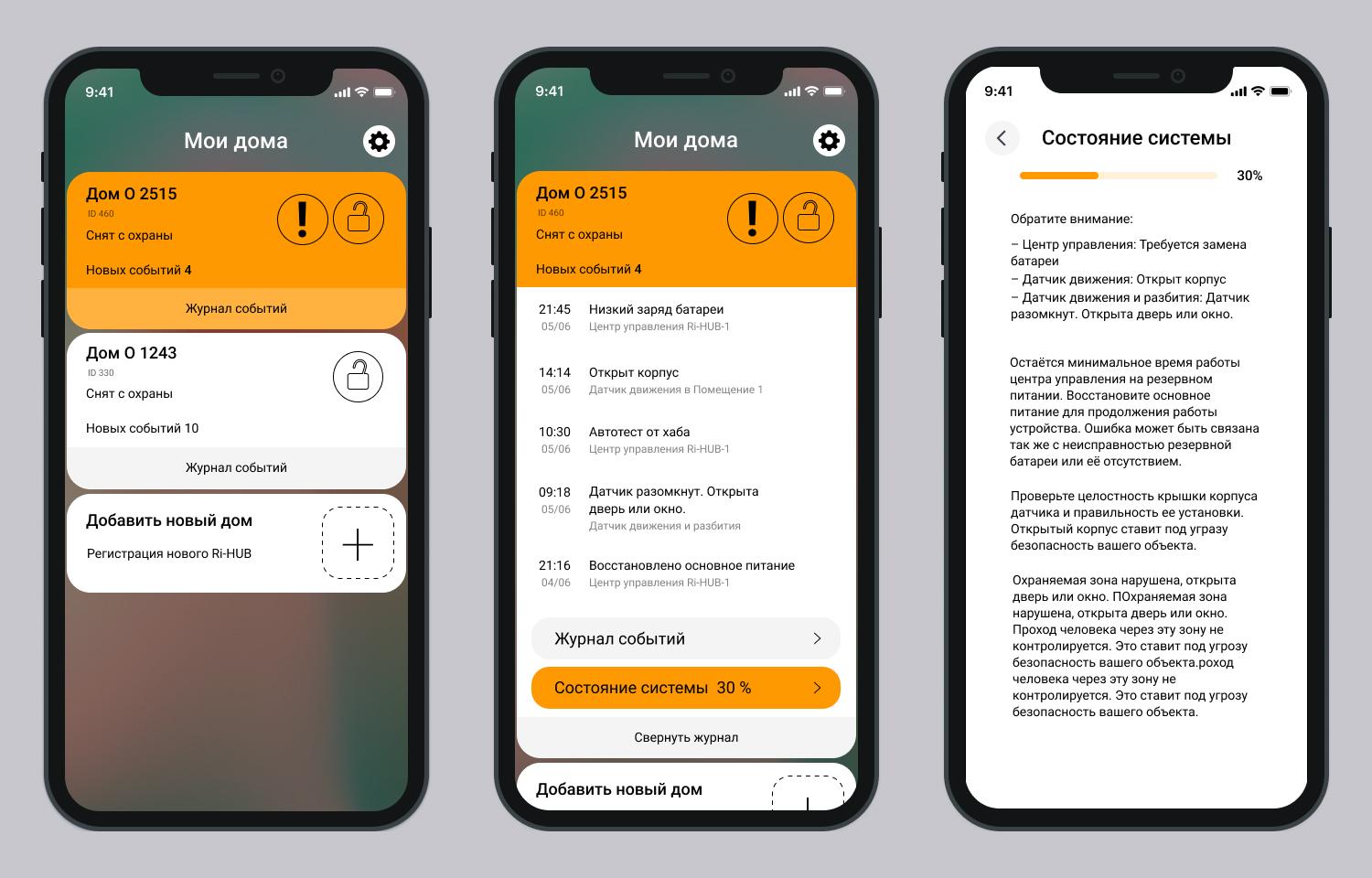
A list of all faults and recommendations for eliminating them can be found in the section System status.
1. Select the desired house in the section My houses.
2. Click Event Log.
3. At the bottom of the screen, click System Status.
4. Read the list of faults and recommendations for their elimination.
Screen System status. How to find?
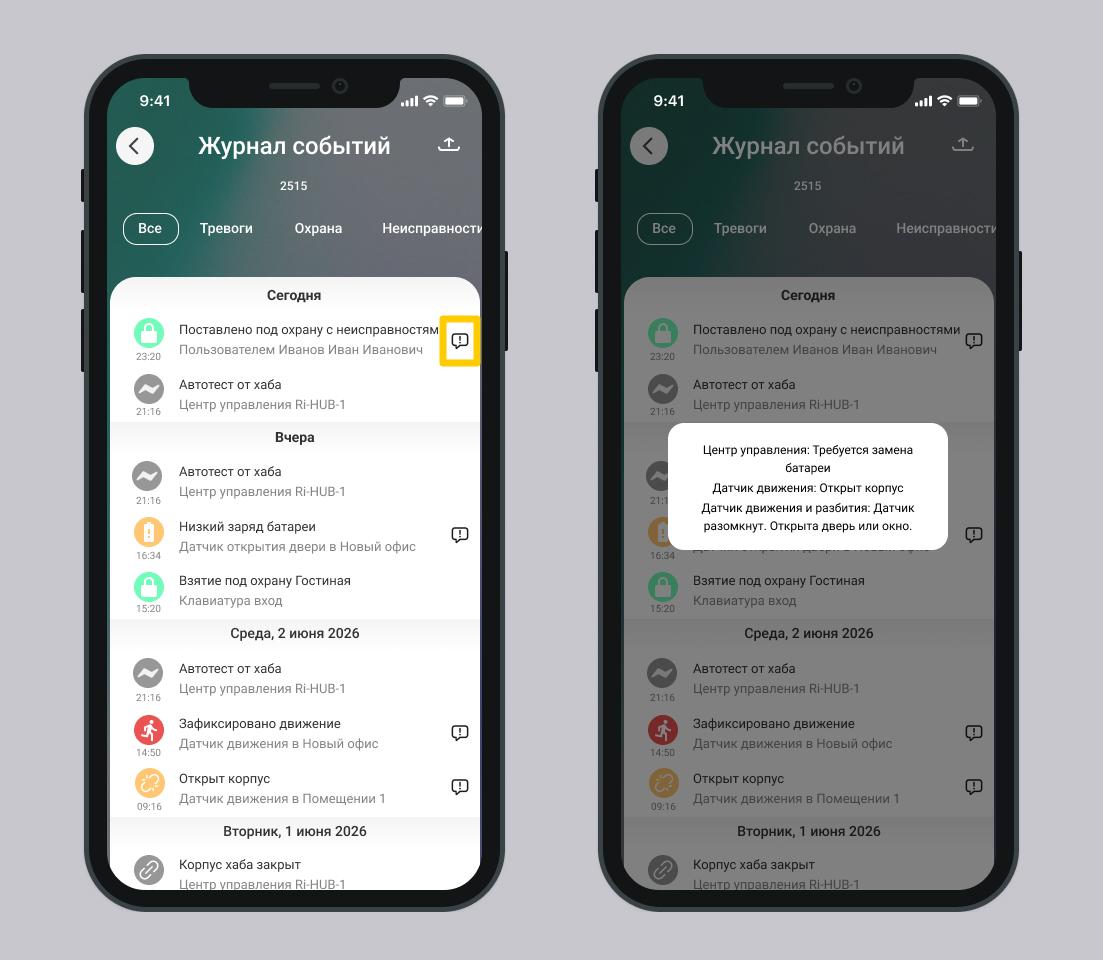
The event log records all significant events in the RiDom system: security management, device status, malfunctions and user interaction. This is the main tool for diagnosing and auditing home/facility security.
If a house/object or premises was armed with faults during an integrity check - mode Allowing, then the event is recorded in the event log - Armed with faults. The event line is supplemented with a hint  .
.
Click on – a list of all faults detected in the system during the integrity check appears.
Screen Event log. Where to find faults?
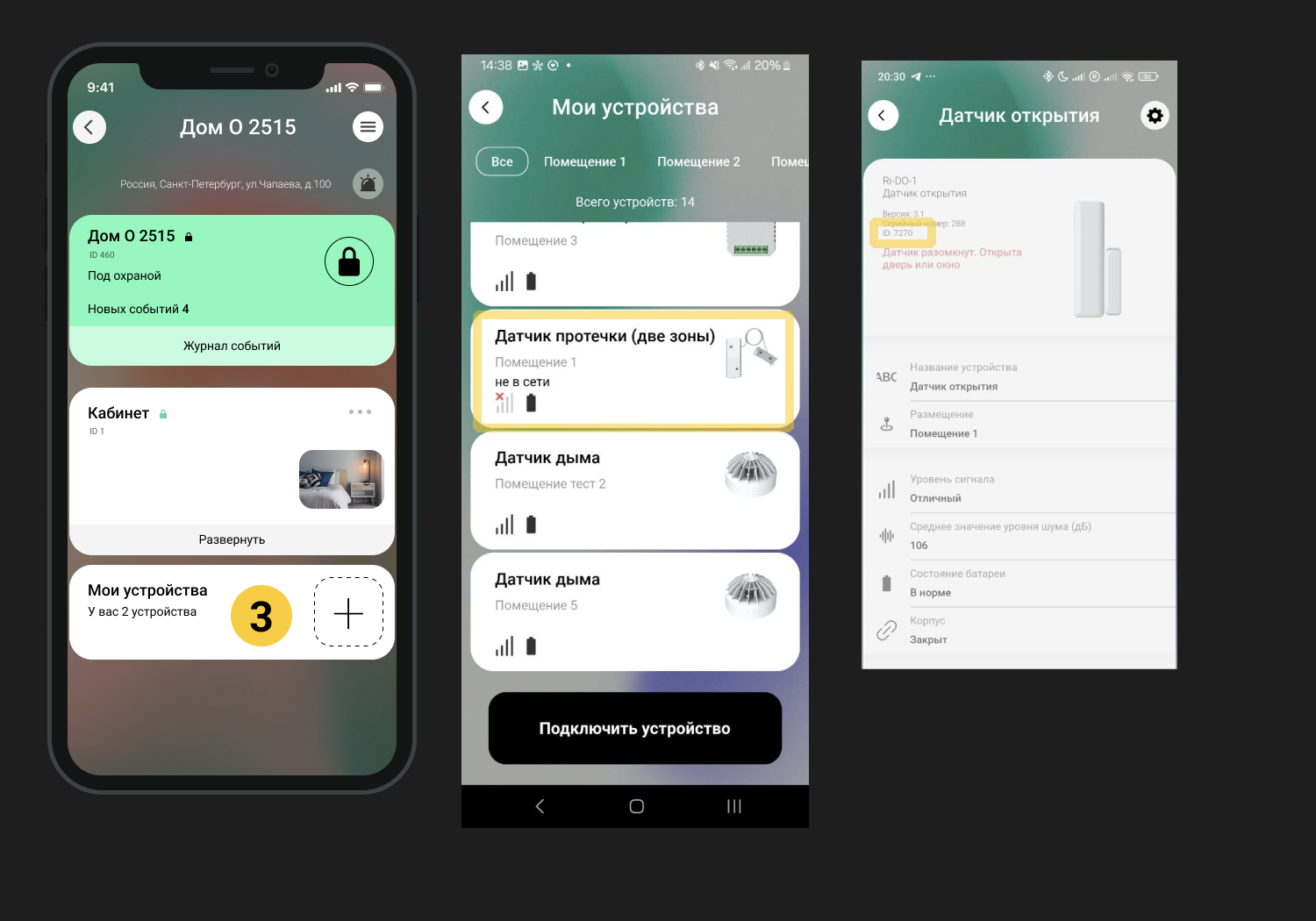
1. Go to the My Devices section.
2. Select the type of sensor you need from the list and click on its card.
3. The sensor description contains its ID.
Additionally, for smoke, motion, opening, breaking sensors, an information message about the malfunction is displayed next to the sensor image.
Update date: 03/26/2026
Нет комментариев для отображения
Нет комментариев для отображения