
Setting up log rotation in Docker
The article explains how to avoid disk fill and ensure stable Docker operation by limiting the size and number of RiCoder container log files. Describes step-by-step configuration of parameters in Docker (Linux) and Docker Desktop (Windows).
1. Introduction
Main reasons for log growth
The speed at which RiCoder container logs are filled depends on:
- Ri-HUB quantities,
- activity of each Ri-HUB (instability of communication channels - frequent connections and disconnections, frequency of autotests, what type of events come from Ri-HUB),
- number of sensors connected to control centers.
The largest load on logs is created by the eqgateway-1 container - receiving, processing, transmitting events from Ri-HUB to the queue.
Risks of unlimited logging
Without restrictions, container logs can grow indefinitely and fill the entire disk, which will lead to:
- stopping Docker,
- crash of other services,
- system instability.
How to set a log size limit in Docker
In the default Docker settings, RiCoder container logs are written to one file - messages are not ratified or replaced. Logging will work as long as there is space on your hard drive.
To limit the amount of disk space occupied by RiCoder logs, you need to configure the parameter log-opts in the configuration file daemon.json. Depending on the type of Docker installed, you can configure global settings in two ways:
If a small number of Ri-HUB control centers are connected to RiCoder, for example less than 10 units, then it is not necessary to configure the log-opts parameters.
Logs when updating RiCoder
When RiCoder is updated, the containers are reassembled and new logs begin to be recorded.
1. On Docker Desktop
1. Click  in the upper right corner of the screen and go to Docker settings.
2. Select Docker Engine. In the right pane you will see the current contents of the daemon.json file.
Docker Desktop Screen: Settings
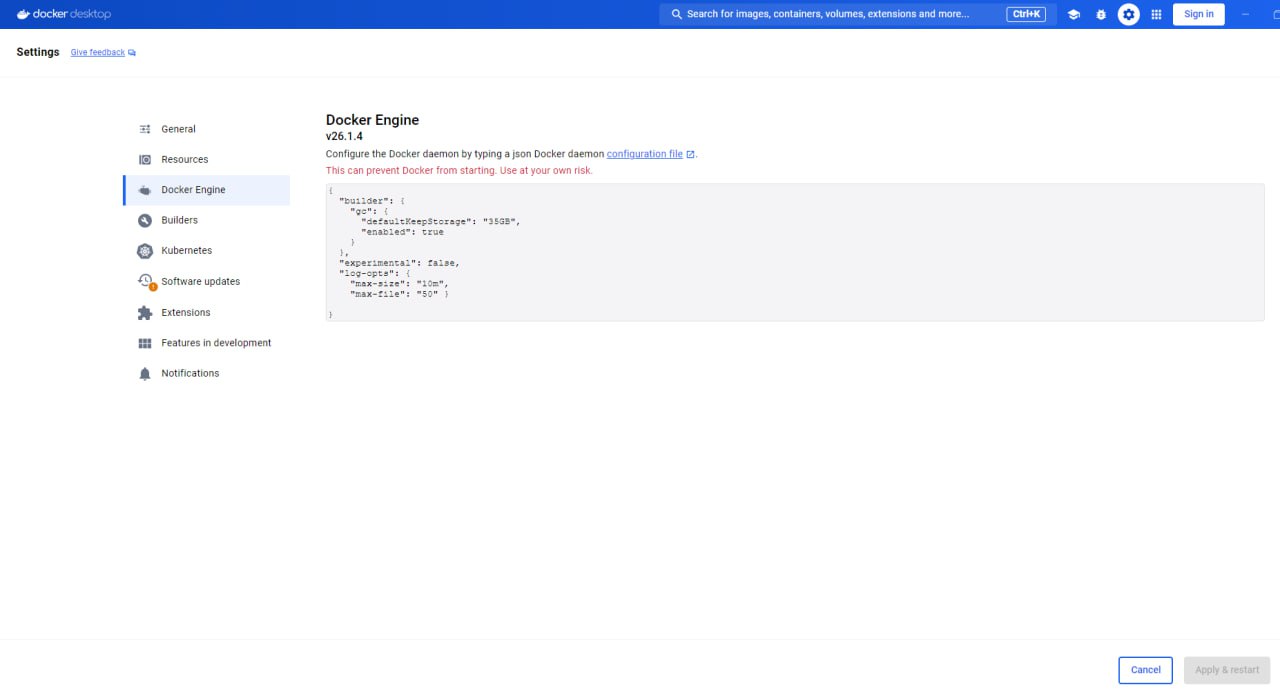
"log-opts": {
    "max-size": "10m",
    "max-file": "50"
  }
where
- max-size - maximum size of one log file (10 megabytes). When it is filled, a new one is created;
- max-file - maximum number of rotated log files (50 files). After reaching the maximum value, the oldest files are deleted.
These settings apply to all containers in Docker! You can configure logging for a specific container, more details in [Docker documentation](https://docs.docker.com/engine/logging/configure/).
4. Adjust the size and number of log files depending on the availability of free space on the server, the number of connected Ri-HUBs and the intensity of the flow of events from the control center.
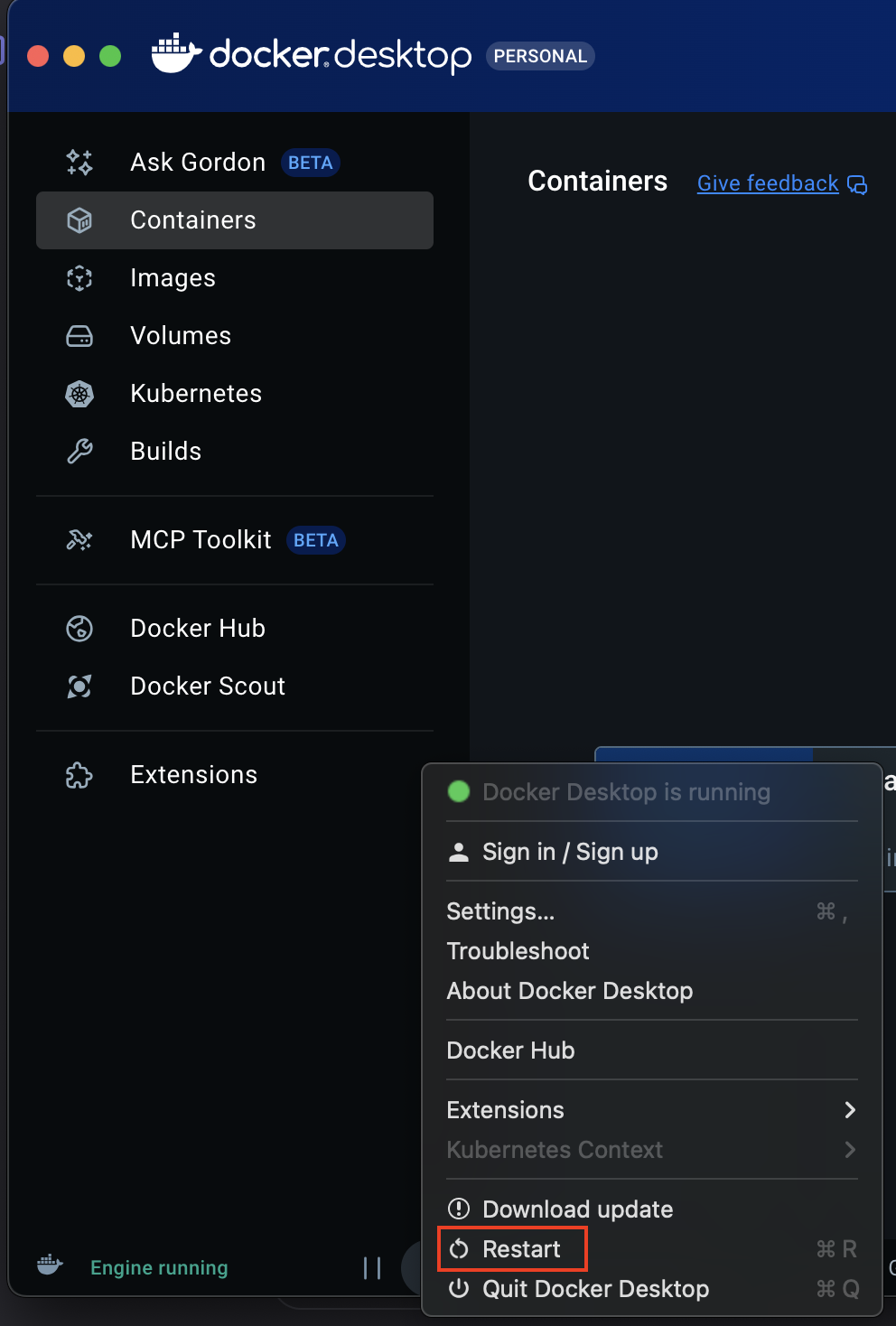
5. Restart the Docker engine for the changes to take effect. In the lower right corner, click on the menu  next to the Docker icon
  and select from the menu Restart.
Docker Screen: Home Page
There are 2 options to configure log-opts in the daemon.json file:
Find the daemon.json file. Enter the command:
ls /etc/docker/daemon.json
2.1. If daemon.json exists
1. View the contents of the file. Will help you understand if there are other important settings in the file. Read more about possible settings in daemon.json in Docker documentation.
touch /etc/docker/daemon.json
2. If there are no other settings, overwrite the file with the desired log-opts settings.
sudo tee /etc/docker/daemon.json <<EOF
{
  "log-opts": {
    "max-size": "10m",
    "max-file": "50"
  }
}
EOF
3. If there are other settings, copy them, add the log-opts settings and overwrite the file, or use the jq utility, if it is installed. More details about the method with jq.
# Write new configuration
sudo tee /etc/docker/daemon.json <<EOF
{
  <add existing settings>

  "log-opts": {
    "max-size": "10m",
    "max-file": "50"
  }
}
EOF
4. After editing daemon.json, you need to restart the Docker Engine.
sudo systemctl restart docker
5. Check that Docker has started and the settings have been applied.
# Check if Docker is running
sudo systemctl status docker
Must be Active: active (running)
6. Check the logs to see if the log-opts settings are recorded correctly.
# Checking logs
docker info | grep -A 2 "Log Config"
# Expected output
 Log Config:
  max-size=10m
  max-file=50
Using the jq utility
If you want to preserve existing settings in the daemon.json file, issue commands with the desired log-opts settings.
sudo jq '. += {"log-opts": {"max-size": "10m", "max-file": "50"}}' /etc/docker/daemon.json > /tmp/daemon.json && \
sudo mv /tmp/daemon.json /etc/docker/daemon.json && \
# Restart Docker
sudo systemctl restart docker
2.2. If daemon.json does not exist
If the file was not created automatically when you installed Docker, then you may have an old version of Docker installed.
If the daemon.json file does not exist, then you need to create it and write the log-opts parameters to it.
1. Create a directory in which to place the file if it does not exist.
mkdir /etc/docker
2. Create an empty file.
touch /etc/docker/daemon.json
3. Write the required log-opts settings to the daemon.json file.
sudo tee /etc/docker/daemon.json <<EOF
{
  "log-opts": {
    "max-size": "10m",
    "max-file": "50"
  }
}
EOF
4. Restart Docker Engine.
sudo systemctl restart docker
5. Check that Docker has started and the settings have been applied.
sudo systemctl status docker
Expected result: active (running).
6. Check the contents of the daemon.json file.
cat /etc/docker/daemon.json
Expected result:
"log-opts": {
    "max-size": "10m",
    "max-file": "50"
  }
Update date: 12/25/2025
Нет комментариев для отображения
Нет комментариев для отображения