
Security schedule
Setting up a security schedule prohibits disarming a house/object or premises from the keyboard outside the permitted time. This helps to avoid accidental or unauthorized disabling of the security system. The schedule does not affect the ability to arm any premises.
For example:
- For commercial use – provide employees with access only during business hours to reduce the risk of intruders entering at night;
- In private home — provide the ability to disarm the keypad and key fob only during periods when outsiders are expected to arrive (for example, for repairs, cleaning or maintenance) at an agreed time time.
The schedule does not apply to disarming a house/object through a mobile application.
Scheduled disarming
When trying to disarm a house/object/premises using the keypad and key fob during the scheduled ban period:
- Premises accessible by the code on the keyboard associated with the useru – not disarmed.
- An event is generated in the log - Attempt to disarm outside the schedule.
- Mobile users of the home/facility receive SMS messages and push notifications – Attempt to disarm outside the schedule. Message text: “Disarming is prohibited.”
- Controller, keyboard and siren - do not emit sound signals.
- If the object is connected to the monitoring of a security organization, the event is transmitted to the server of the security organization RiCoder.
How to set up a schedule
Only **Owner** of the house/object can set up a security schedule. All local users (keyboard, key fob) have a common schedule. You cannot set multiple disarming prohibition ranges on the same day. Setting available: one day - one range.
By default, scheduling is disabled in the mobile application.
1. Open the RiDom application.
2. Select the desired house in the My houses section.
3. Scroll down and select My Devices.
4. Select a controller and scroll down the settings screen.
5. Go to the section Setting up a security schedule.
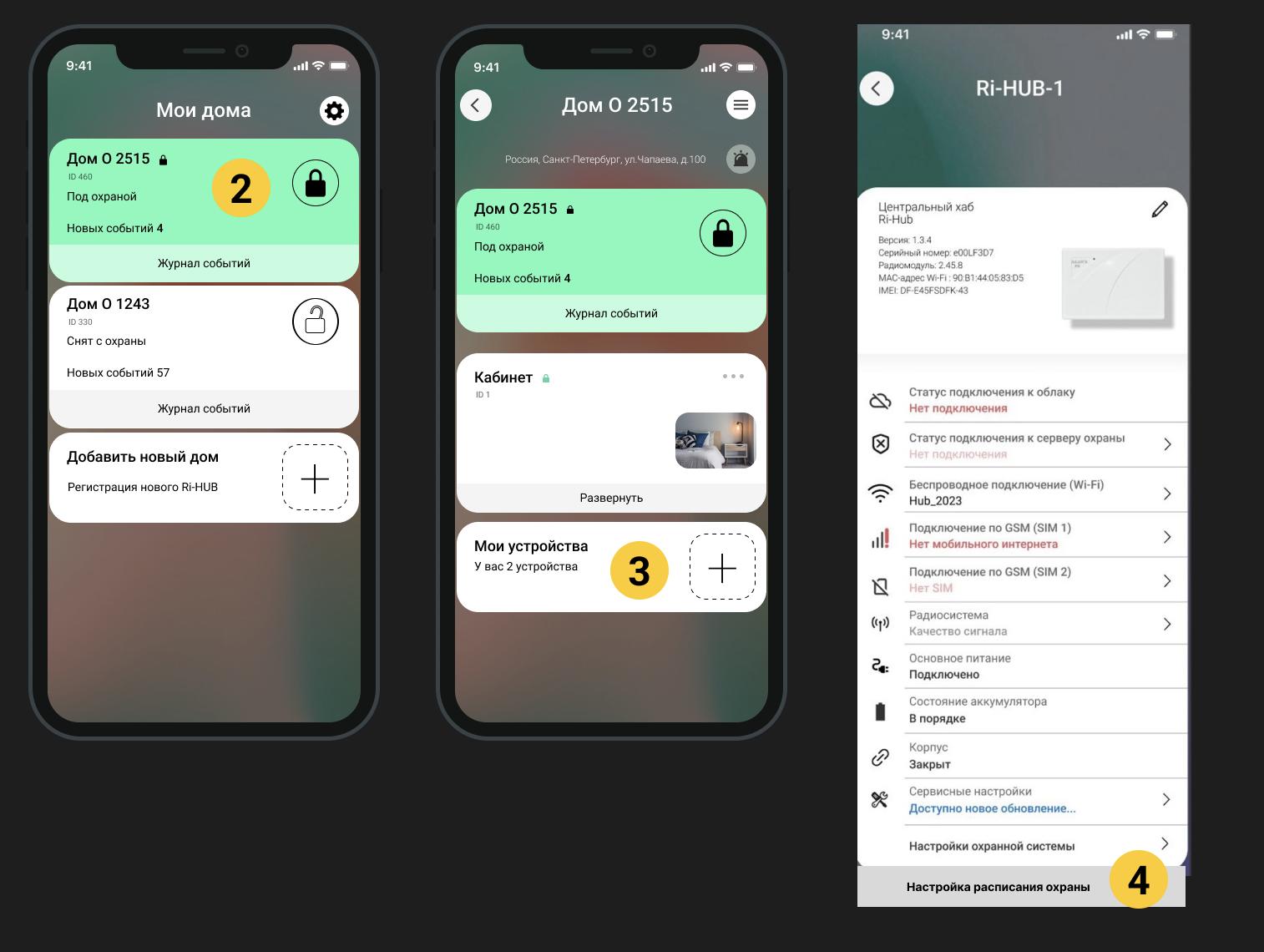
6. Set up a schedule for when keypad and key fob users are allowed to disarm a house/facility.
7. Select the desired day of the week and set the hour interval.
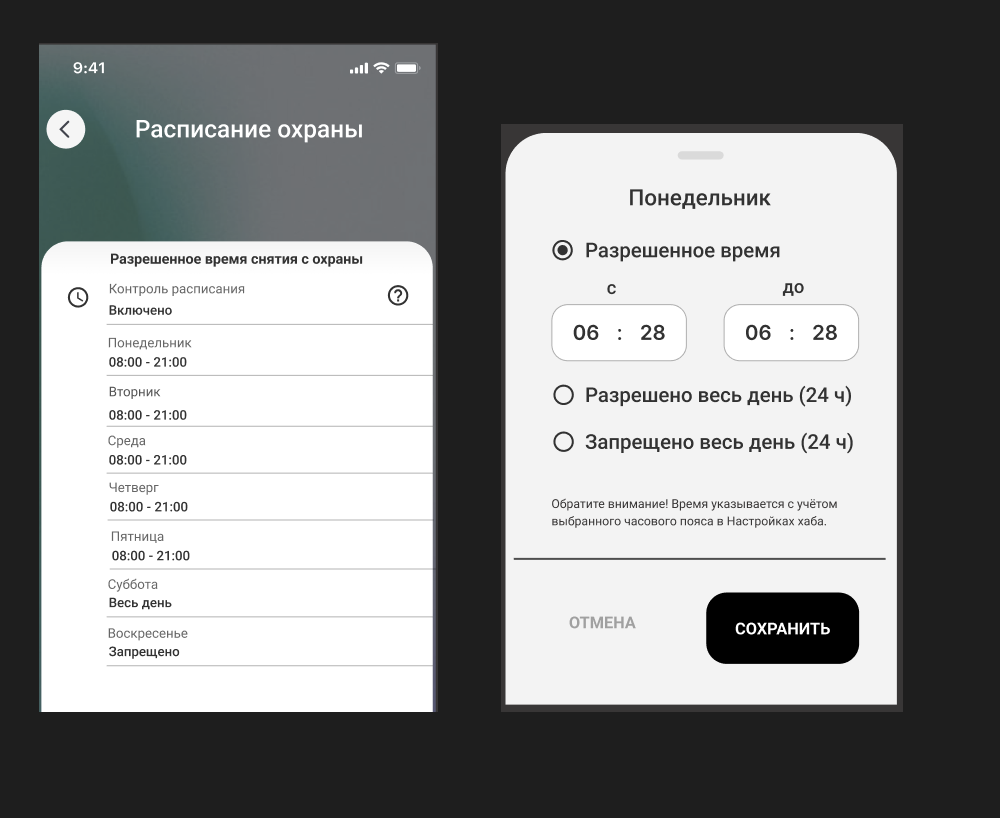
Recommendation! It is necessary to take into account holidays, the replacement of weekends and working days.
The time in the schedule is indicated taking into account the selected time zone of the controller. Before selecting the time, check the time zone in the controller settings. [More about time zone settings](https://wiki.ridom.ru/books/instructions-in-english/page/security-schedule).
How to check and change the time zone setting of the controller
1. In the Controller settings section, select Advanced settings.
2. In the Advanced settings section, select Time zone settings.
3. Select the time zone you want, scroll down and up, and click Apply.
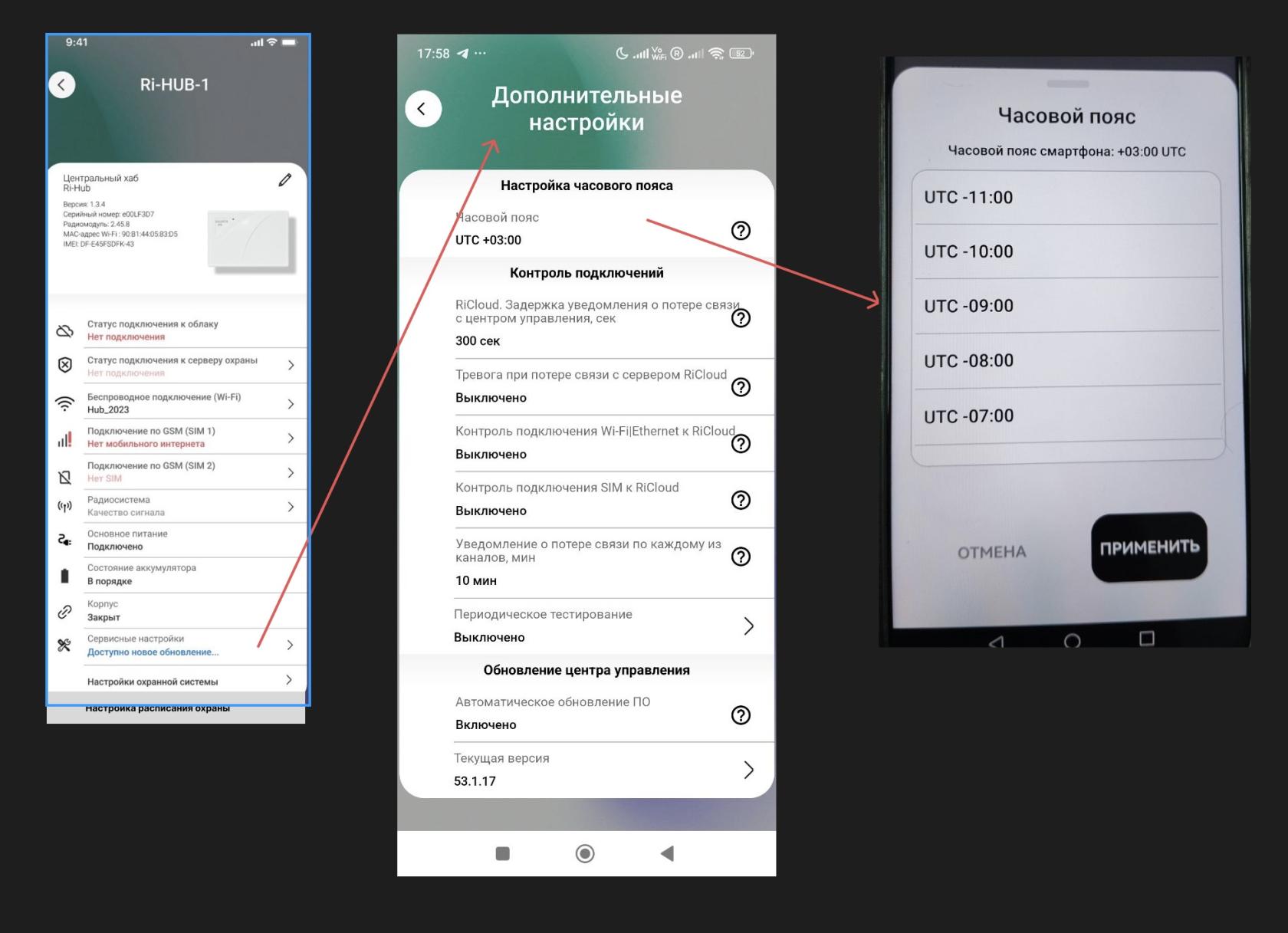
You can change the time zone of the controller only when it is connected - there is Internet and connected to the RiCloud cloud server.
How to disable scheduled disarming
1. In the Controller Settings section, scroll down the list of settings and click Security Schedules.
3. Select Schedule control – Disabled, the time settings will be hidden.
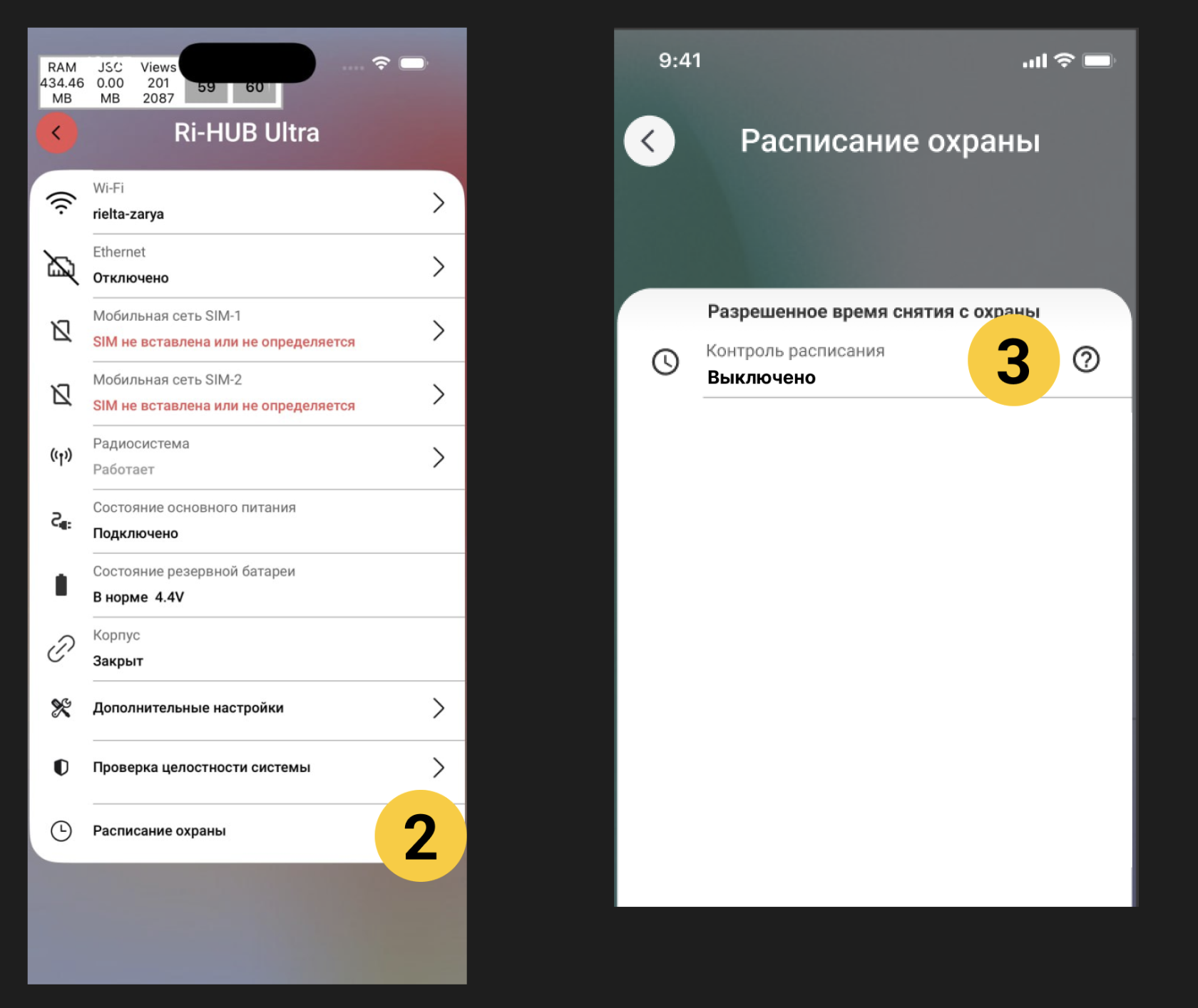
Update date: 03/26/2026
Нет комментариев для отображения
Нет комментариев для отображения