
Integration of RiCoder software with Security Center software (C-Nord)
The instructions describe how to set up broadcasts of events from RiCoder to the Security Center software using a TCP-COM port emulator "Virtual Serial Ports Emulator" (VSPE).
Preparing for integration
Before starting work, the software must be installed on the organization's server(s):
- RiCoder software;
- Software “Security Center” (module “Event Manager”).
Before creating a broadcast of events from RiCoder to the Security Center software, you need to install and configure a TCP-COM port emulator - VSPE. You can use any other TCP-COM converter/emulator if VSPE is not suitable for you and configure it in the same way as VSPE.
RiCoder transmits events via a TCP port, and the event source of the Security Center software can only be configured to the COM port. To integrate, you must use a TCP-COM converter/emulator and configure TCP-COM conversion in it.
Installing the VSPE COM port emulator
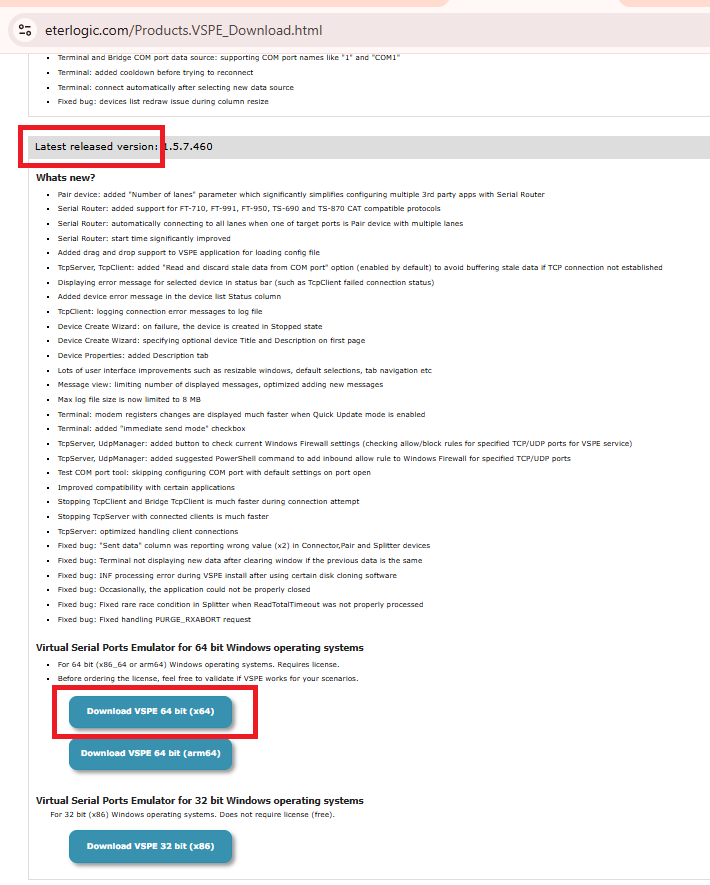
1. Download the latest version of the VSPE release from the official website eterlogic.com.
Page official website VSPE
3. Pfollow the VSPE installation steps.
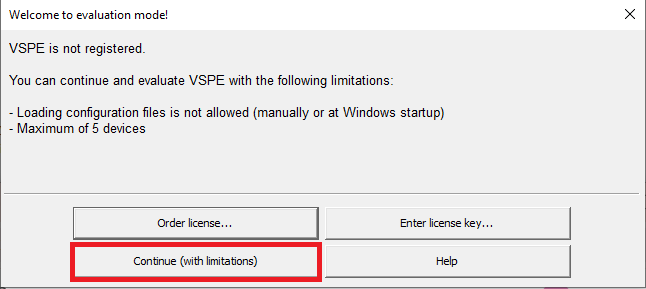
4. Launch VSPE. A welcome window will appear asking you to register a license. To continue, select Continue (with limitation).
Screen VSPE: Greetings
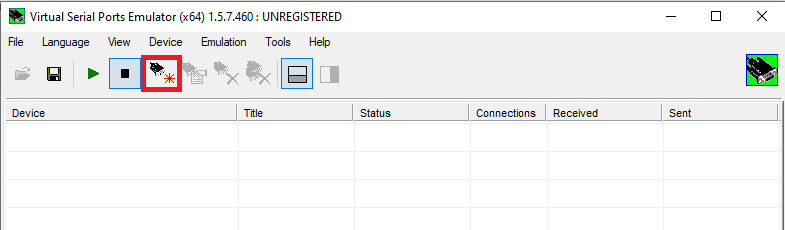
1. Ccreate a new device. Click Create new device... in the toolbar.
Screen VSPE: Workspace
VSPE Screen: Device Creation
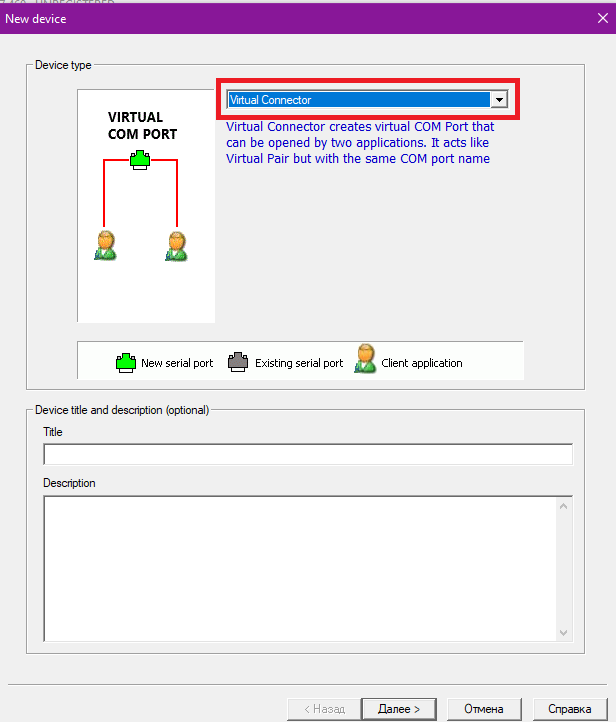
VSPE screen: Creating a COM port
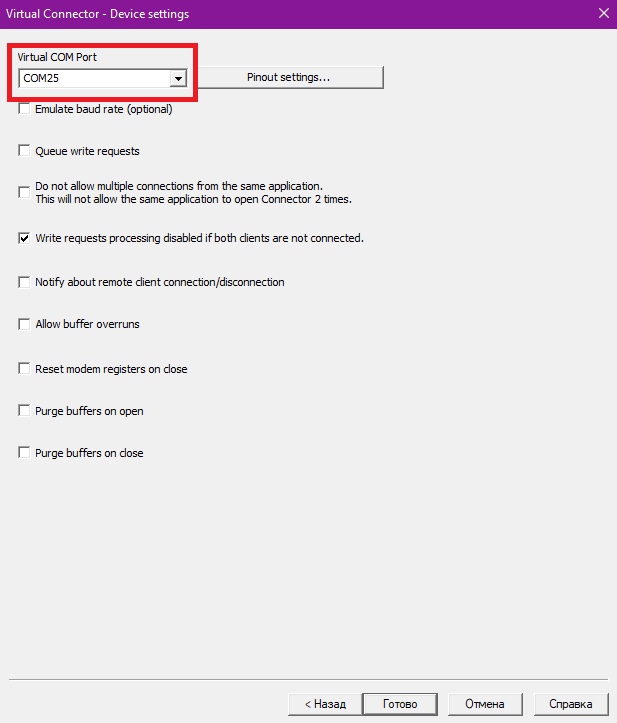
5. select the device type - TCP server. Click Next. The TCP server will open a TCP port to communicate with the existing COM port.
VSPE Screen: TCP Configuration
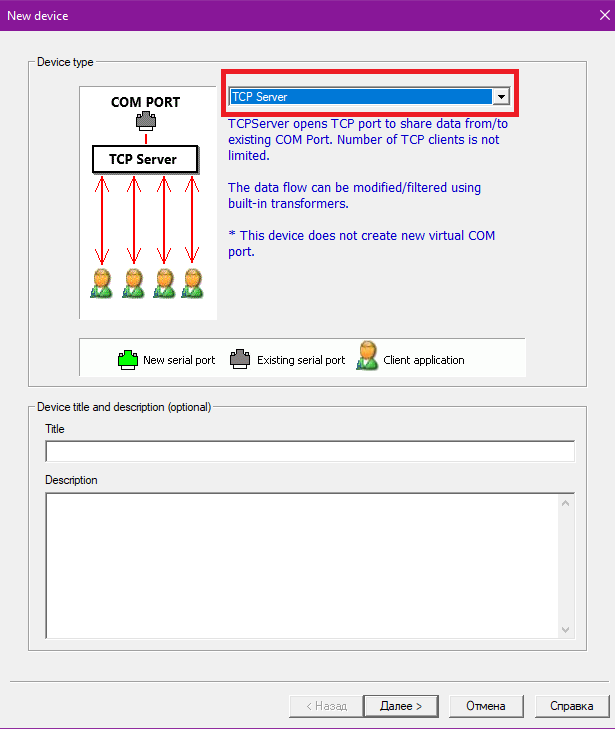
7. Enter the TCP port number that the Security Center software will listen to when transmitting events from RiCoder, for example 10004.
8. Uncheck DTR/RTS registers depends on connection status. This action will prevent false disconnections due to automatic control signals.
VSPE screen: COM port configuration
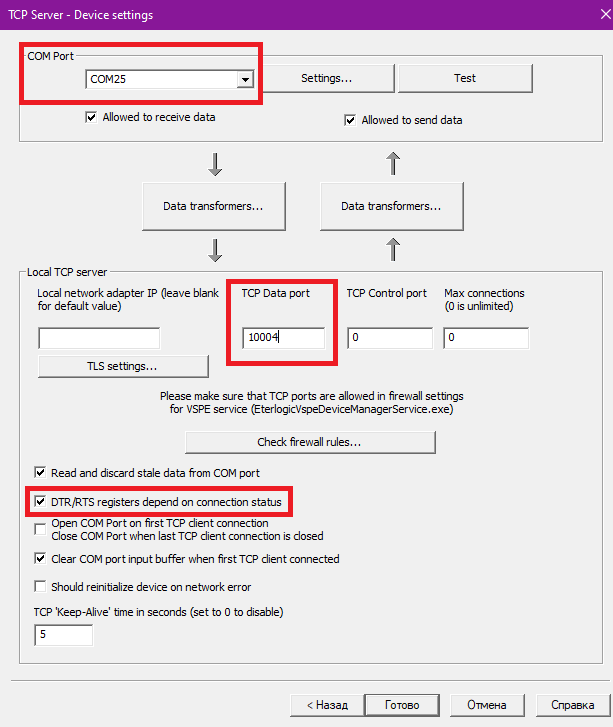
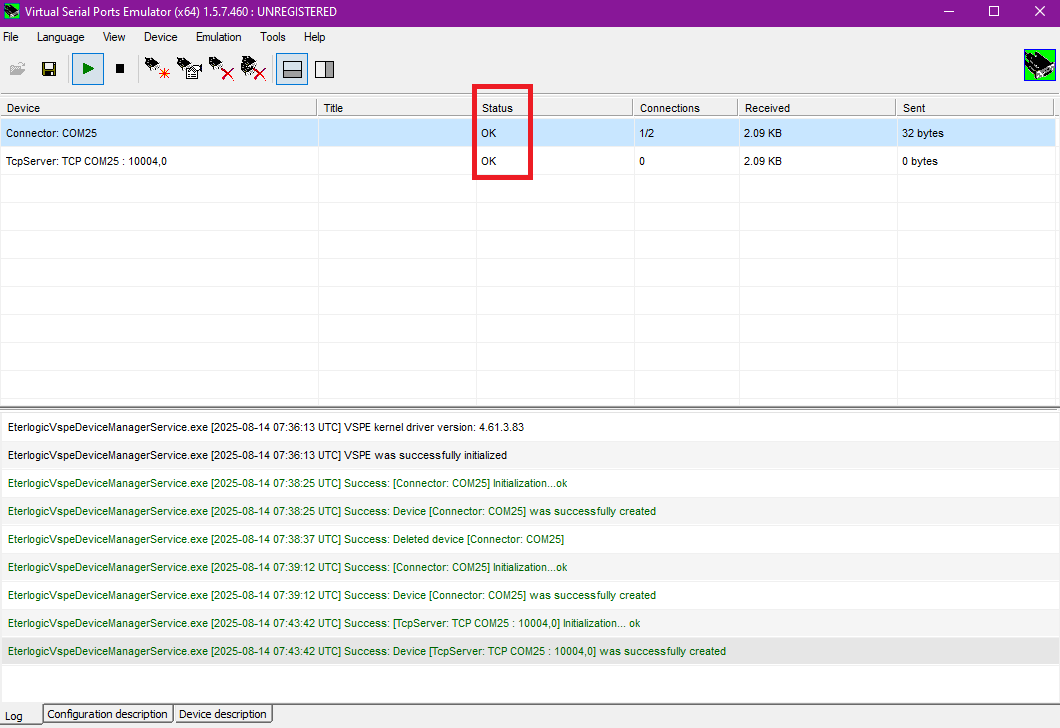
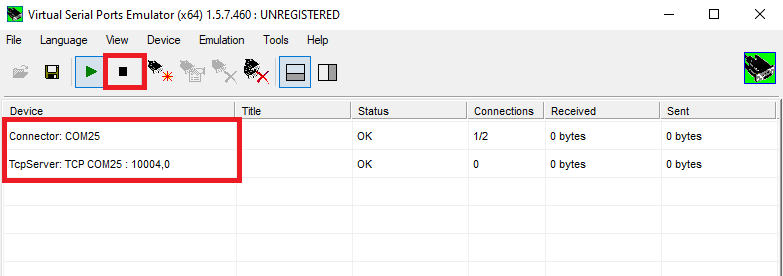
10. Make sure the created devices are working. In the column Status - OK.
VSPE Screen: Device List
The port specified in the VSPE emulator for communication with the Security Center **NOT** must match: - with the port of the server on which RiCoder is installed, which is used to connect Ri-HUB control centers in the organization’s local network; - with a local port that Docker uses to manage RiCoder containers.
The port specified in the VSPE emulator for communication with the Security Center must be specified when creating a broadcast in RiCoder.
11. Inconfigure the COM and TCP port in the Security Center software. More details in the section Configuring the COM port in the “Event Manager” module of the “Security Center” software.
Changing COM port settings in VSPE
When changing the COM port settings, make sure that the same COM port and TCP port are specified in the Security Center and RiCoder software as in the VSPE emulator.
1. OOpen VSPE.
2. In the toolbar, click Stop emulation ( ) to stop devices.
VSPE screen: Stop emulation
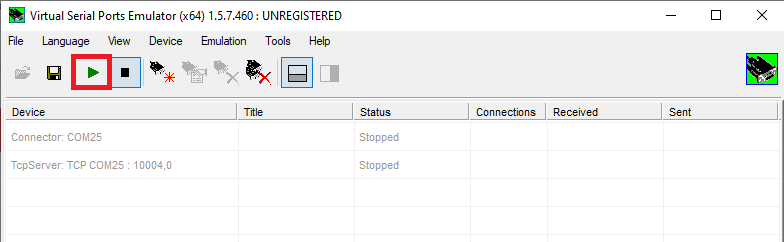
4. In the toolbar, click Start emulation ( ) to start emulation. Make sure that the devices are working in the column Status - OK.
VSPE screen: Starting emulation
1. Run the Event Manager. In Windows taskbar click Start find Security Center.
2. In the Windows system tray, right-click on the Event Manager icon and select Event Sources.
3. Click Add. Select Event Source from Sur-Gard and click OK.
4. Ddouble-click on the line with the event source and make the settings.
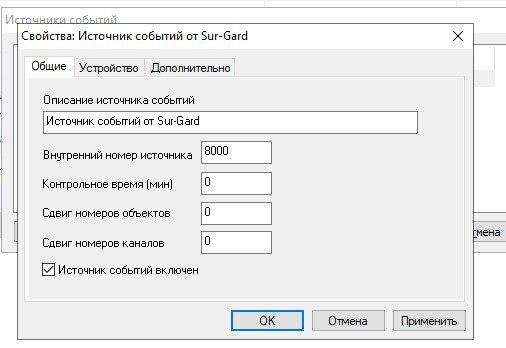
Screen "Event Manager": Event Source Properties
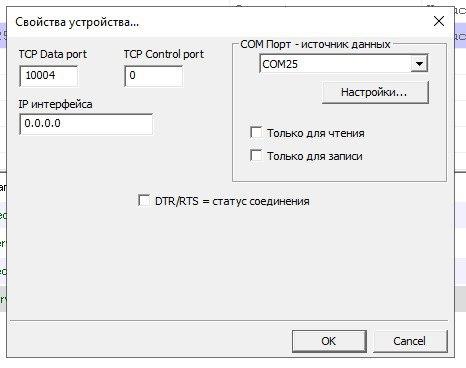
Screen "Event Manager": Device Properties
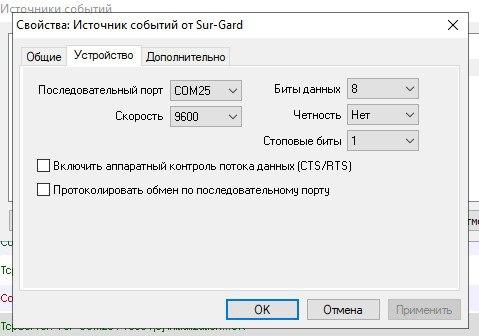
Screen "Event Manager": General Properties
1. OOpen the RiCoder admin web panel.
2. Select in the left menu Organization profile.
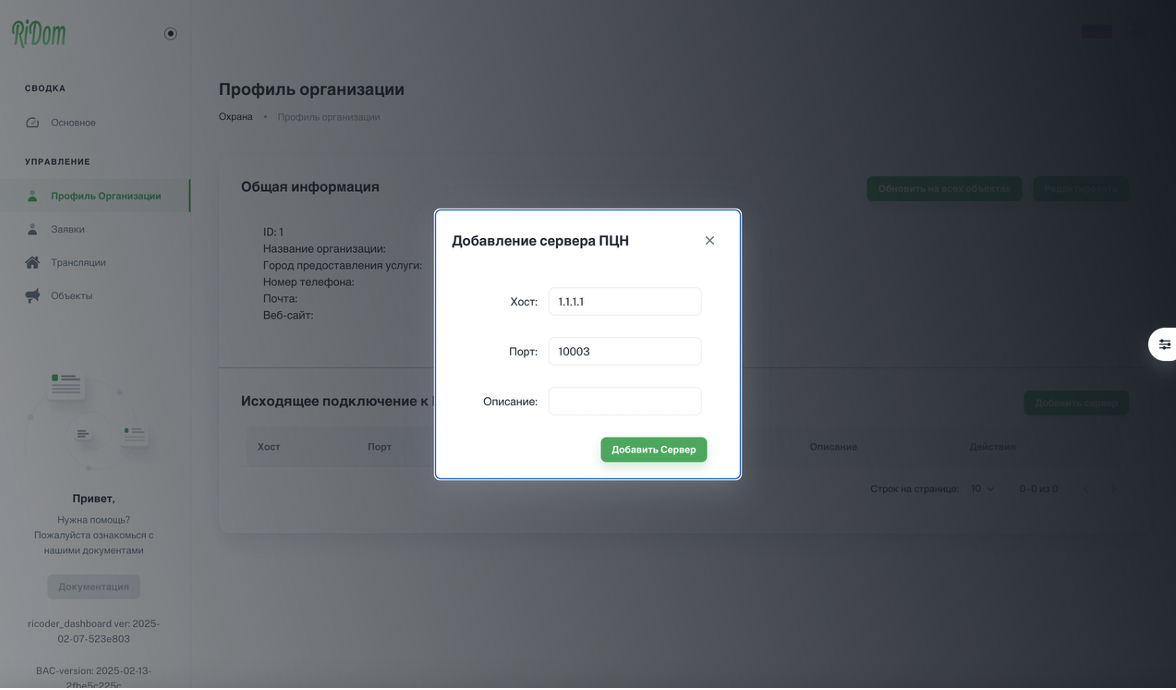
3. In the block Outgoing connection to the monitoring station select Add server.
4. Enter Host and Port server on which the Security Center software is installed. This server will receive events from RiCoder. Click Add Server.
RiCoder screen: Adding a monitoring station server
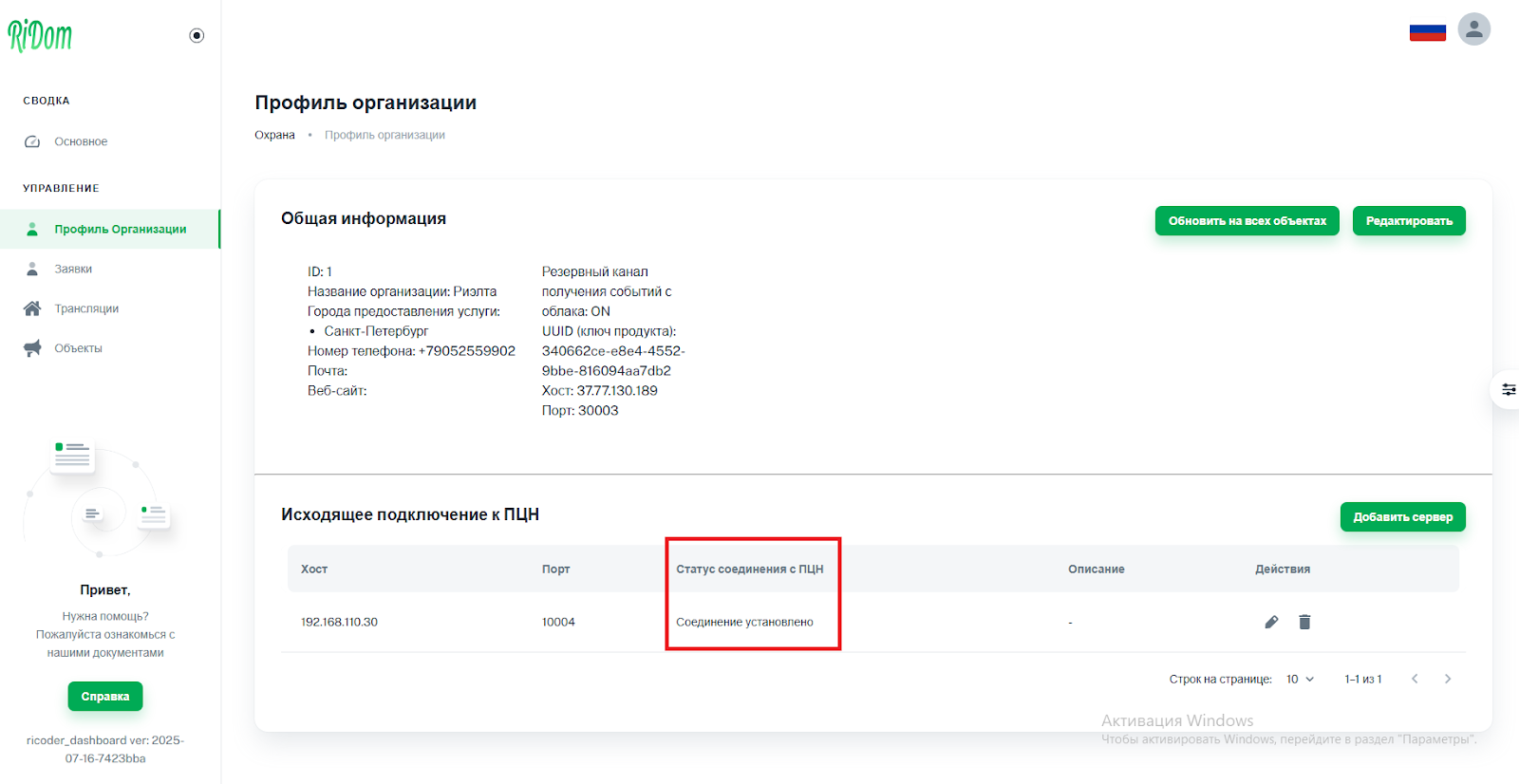
- The line with information about the server with the “Security Center” software is displayed in the list Outgoing connection to the monitoring station.
- Port (TCP port) in RiCoder, the Event Manager module, and the VSPE emulator are the same.
- In the column Connection status with monitoring station is displayed status Connection established.
RiCoder screen: Checking connection status
Additional information
- Instructions for working with VSPE (C-Nord)
- Integration of “Security Center” software with third-party software (C-Nord)
Update date: 09/17/2025
Нет комментариев для отображения
Нет комментариев для отображения