
Checking the integrity of the security system
System integrity check is a built-in function of the RiDom security system, which automatically diagnoses the condition of the controller and security sensors before the house/object is armed. Its purpose is to prevent false alarms and ensure that the system works correctly when the security system is activated.
In this article you will learn how to enable or disable the test, select fault response modes (strict or permissive), configure specific types of tests for the controller and sensors.
1. Types of checks and types of security sensors
The system integrity check includes several types of checks performed for the controller and security sensors. Depending on the severity of the use of the RiDom security system, the types of checks are configured as necessary.
Types of checks involved in the configuration:
Controller states:
- Battery charge
- Availability of external power supply
- Case condition
- Connection to the RiCloud server
- Connection to the RiCoder security server
Sensor status:
- Battery charge
- Opening the device case
- Communication with the device
Participates in integrity checking only security sensors (movements, breaking, opening and combined with movement zone).
1.1. Types of security sensors
By default, the list of sensors presented in the table are considered security.
| **sensor type** | **examples of sensors** |
| Movements | [Ri-MD-1](https://ridom.ru/catalog/datchiki/ri-md-1/) |
| Discoveries
(magnetic contact sensors) | [Ri-DO-1 ](https://ridom.ru/catalog/datchiki/ri-do-1/) |
| Splits | [Ri-GBD-1](https://ridom.ru/catalog/datchiki/ri-gbd-1/) |
| Combined
with security part by traffic zone | [Ri-MGBD-1](https://ridom.ru/catalog/datchiki/ri-mgbd-1/) |
The siren is not a security sensor and does not participate in checking the integrity of the security system.
2. Setting up integrity check
Only a user with the role **Owner** can manage the integrity of the security system and configure checks. - All other **mobile users** can view existing settings in the mobile application. - **Local users** using a key fob or keyboard cannot view system integrity settings because they do not have access rights to the mobile application.
More about user roles in the mobile application
1. Go to the window Checking System Integrity and make the settings.
Screen "Checking system integrity"
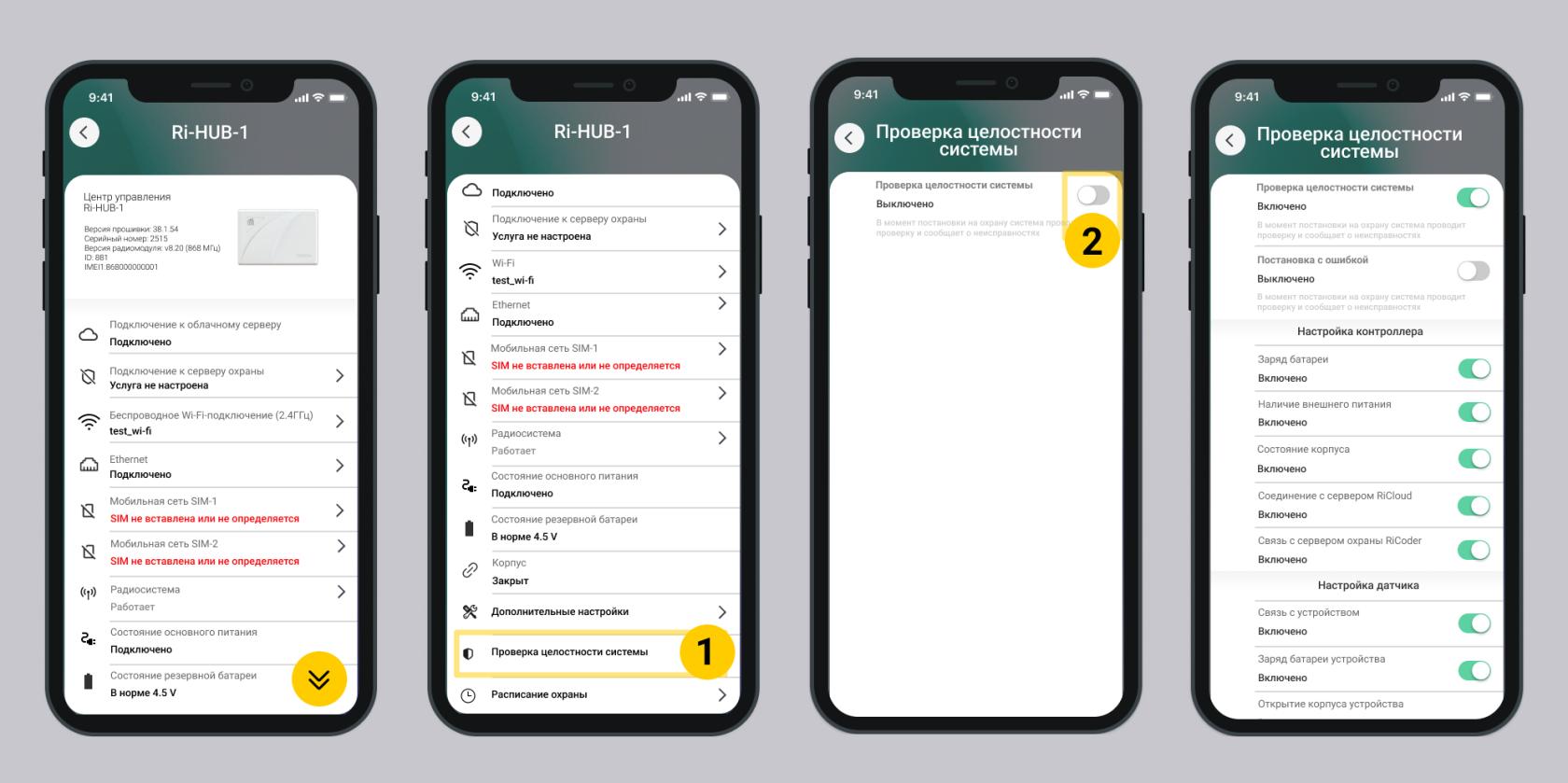
By default, integrity checking is disabled.
3. Select Staging with error:
- Disabled – strict mode, an integrity check is being performed, you will not be able to arm the house/object until the faults are resolved.
- Enabled – permissive mode, integrity check is performed, you can install the house/object is protected, even if there are faults. You can arm the house even if there is a fault.
**Setting with error** – **Enabled** this is a required setting if the house/object is under monitoring by a security organization.
**Fault** —any violation identified by the enabled checks from the list above. If the check is disabled, the corresponding problem **does not participate** in the decision to place under security.
4. Select the types of checks for the controller and sensors that must be considered during the system integrity check process before arming. By default, all settings for the controller and sensors are enabled. More details about each check in table.
5. Click the Back button – the settings are saved.
6. Arm the house in test mode to check how the integrity check will work. Read more about arming a house/object.
2.1. Table with explanations of settings
| **Switches** | **Description** |
| Checking system integrity | **Enabled**. At the time of arming, the system checks the status of the security sensors and controller, reports malfunctions, and prohibits arming a house/object with detected malfunctions. [More about security sensors](https://wiki.ridom.ru/books/texpodderzka/page/proverka-celostnosti-sistemy#bkmrk-1.1.-%D0%92%D0%B8%D0%B4%D1%8B-%D0%BE%D1%85%D1%80%D0%B0%D0%BD%D0%BD%D1%8B%D1%85-%D0%B4).
Disabled. At the time of arming, the system checks the status of all sensors and the controller, reports malfunctions, and allows the house/object to be armed with detected malfunctions. In the enabled state, at least one parameter from the list of controllers and sensors must be selected. If no option is selected, a warning message will appear - Enable at least one setting. |
| Production with error | The setting is available when integrity checking is enabled. Included. A house/object can be armed with faults when checking the integrity. Off. A house/object cannot be armed if there are faults in the integrity check. Default Disabled, if integrity check is selected. |
| **Controller settings** | |
| Battery charge | Checking the controller battery charge.
Insufficient charge - less than 3.8 V. With such a charge, the controller cannot ensure stable operation of the security system.
|
| External power supply | Checking the connection of the controller to the main 220V power supply network.
For stable operation of the security system, it is necessary that the controller has a reliable, uninterruptible power supply, especially when arming for a long period. |
| Case condition | Two states are checked: the controller body is open or closed, depending on the position of the tamper sensor. |
| Connection to the RiCloud server | Connection testing is under development. When you turn checking on or off in the mobile application, it is ignored by the security system. |
| Connection with the RiCoder security server | Checking the presence of communication between the controller and the RiCoder security server via two communication channels (Ethernet/Wi-Fi and GSM). If there is no connection, the security system cannot transmit events to the security company’s console.
If the house/object is not connected to the monitoring of a security organization, this check can be turned off. |
| **Setting the sensor** | The selected types of checks are applied to each sensor participating in the security system. |
| Device connection | Checking the connection between the security sensor and the controller. |
| Device battery charge | Checking the device battery charge.
The rate at which the device’s battery drains depends on how often it communicates with the controller and sends events. |
| Opening the device case | Two states are checked: the sensor body is open or closed. |
3. Arming modes
The RiDom system implements 3 modes of arming a house/object, where
integrity check in progress:
- Strict – you cannot arm a house/object with faults;
- Permission – you can arm a house/object with faults;
integrity check not performed:
3. Without integrity check - you can arm a house/object with faults.
3.1. Strict
In this mode, you cannot arm a house/object with faults in the security equipment (controller and security sensors). When arming, the RiDom system will notify you of any malfunctions detected as a result of the check.
**Important!** When monitoring a house/object by a security organization: - mandatory use of strict regime; - all proposed checks for the controller and sensors must be selected.
3.1.1. Mode setting
Go to the screen System integrity check and complete the settings. More...
| **PSC monitoring** | **Private use** | |
| System integrity check | **Enabled** | **Enabled** |
| Staging with errors | **Disabled** | **Disabled** |
| **Controller states:** | ||
| Battery charge | **Enabled** | **Enabled** (\*) |
| External power supply | **Enabled** | **Enabled** (\*) |
| Case condition | **Enabled** | **Enabled** (\*) |
| Connection to the RiCloud server | **Enabled** | **Enabled** (\*) |
| **Sensor status:** | ||
| Connection to the RiCoder security server | **Enabled** | **Enabled** (\*) |
| Battery charge | **Enabled** | **Enabled** (\*) |
| Opening the device case | **Enabled** | **Enabled** (\*) |
(*) - the type of inspection is selected by The owner of the house/object at his own discretion. At least one check type must be selected.
When monitoring house/object by a security organization: - all checks of the controller and sensors must be included in the check. When using the RiDom system privately: - settings for the controller and sensor states can be turned on or off at the discretion of the home owner, depending on his needs.
Screen "Checking system integrity"
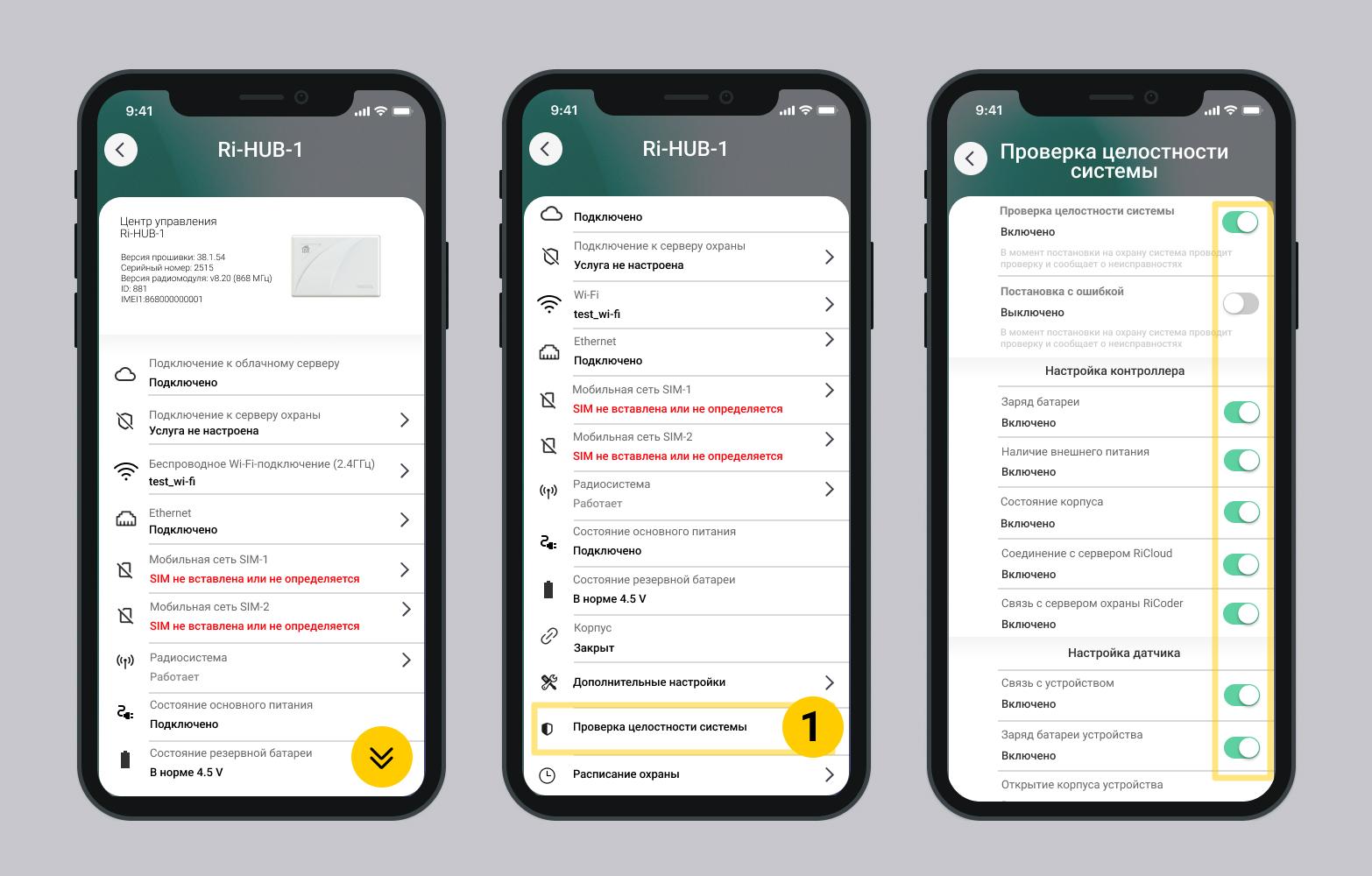
1. Place the house/object or individual premises under security. More...
2. Check according to the settings in p 3.1.1. will show whether there are faults or not.
3.1.2.1. No faults
The check was completed successfully, the house/object or premises was taken under protection.  is placed near the house/object and premises.
- An event is generated in the log - Armed.
- Home/facility users receive SMS messages and push notifications – Armed.
- Kthe keyboard emits a sound signal -a single “beep” sound. The signal may arrive with a slight delay.
- Controller and siren – do not emit sound signals.
- If the object is connected to the monitoring of a security organization, the event is transmitted to the server of the security organization RiCoder.
3.1.2.2. There are faults
As a result of the inspection, malfunctions were identified. A fault warning window appears.
Window with a list of faults
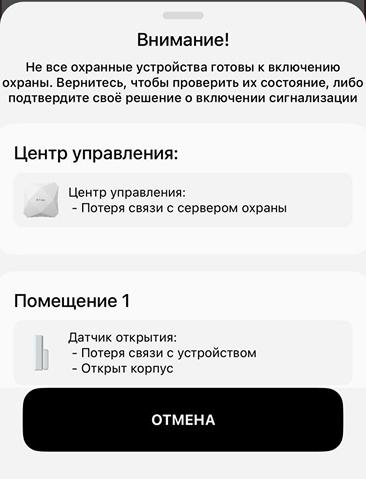
- The event is not generated in the log.
- Notifications are not received to users of the home/facility.
- Controller, keyboard and siren – do not emit sound signals.
1. Review the list of faults in the house/facility or premises in the window that appears. Scroll to the very end to see all controller and sensor faults.
The list shows all faulty sensors in each armed room.
2. Close the warning window - click Cancel.
3. Troubleshoot. More details in the article Dealing with faults.
4. Re-secure the house/object.
3.1.3. Arming from a key fob or keypad
For strict mode, the process of arming from a key fob or keypad is the same, regardless of whether the system integrity check is enabled. More details for the key fob and keyboard
3.2. Allowing
In this mode, you can arm a house/object with faults in the security equipment (controller and security sensors) according to the settings made in the mobile application. When arming, the mobile application will notify you of any malfunctions detected as a result of the check.
The mode is used for private use of RiDom security equipment.
3.2.1. Mode setting
Go to the window System integrity check and complete the settings. More...
| **Enabled** | |
| **Enabled** (\*) | |
| **Enabled** (\*) | |
| **Enabled** (\*) | |
| Connection to the RiCloud server | **Enabled** (\*) |
| **Enabled** (\*) | |
| **Enabled** (\*) | |
| Opening the device body | **Enabled** (\*) |
(*) - the type of inspection is selected by The owner of the house/object at his own discretion. At least one check type must be selected.
When monitoring a house/object by a security organization, the mode** is not used.** When using the RiDom system privately: - settings for the controller and sensor states can be turned on or off at the discretion of the home owner, depending on his needs.
Screen "Checking system integrity"
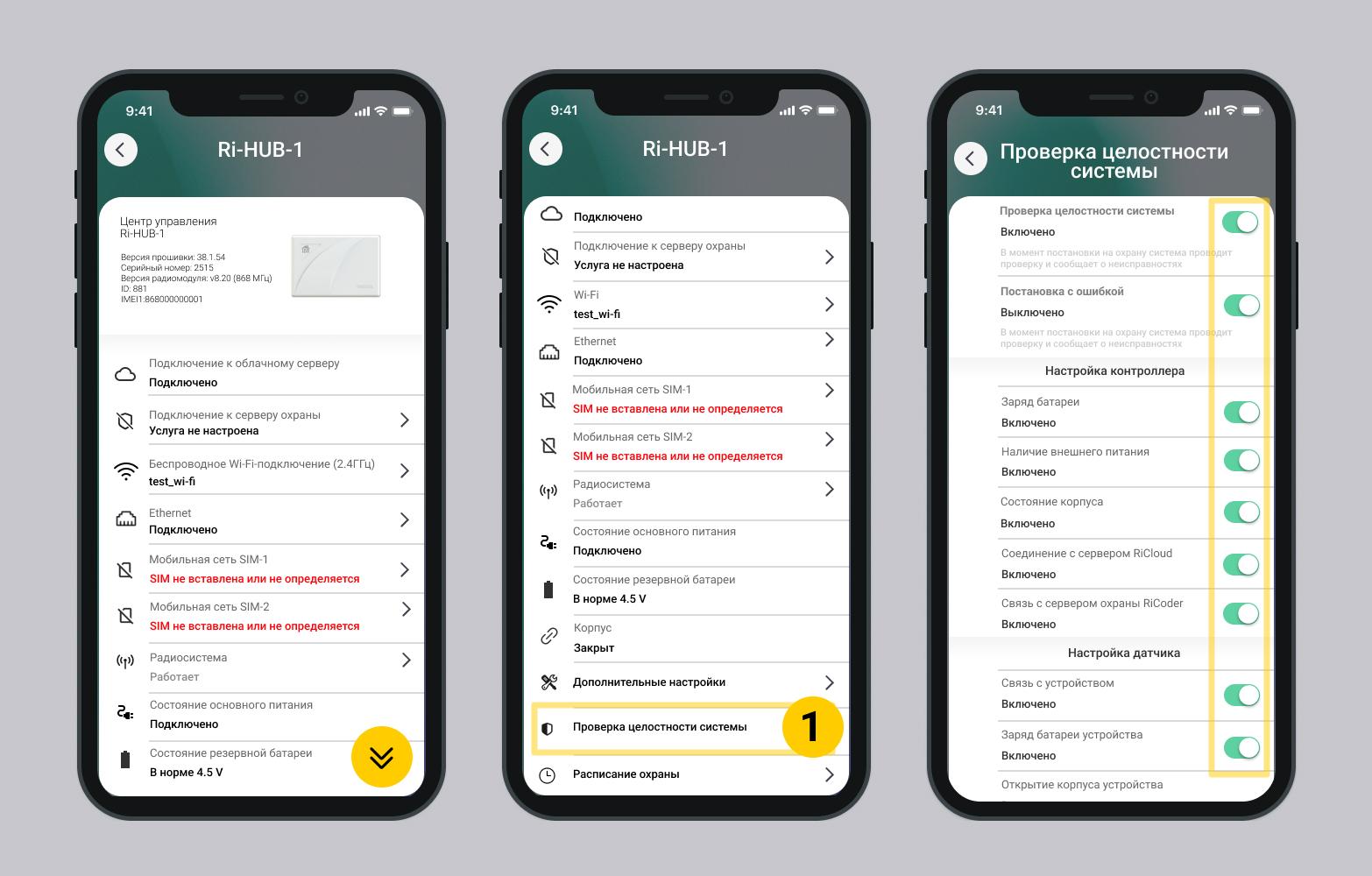
1. Place the house/object or individual premises under security. More...
2. As a result of checking the controller and sensors according to the settings in p 3.2.1. two situations are possible: there are faults or there are none.
3.2.2.1. No faults
The check was completed successfully, the house/object or premises was taken under protection. is placed near the house/object and premises.
- An event is generated in the log - Armed.
- Home/facility users receive SMS messages and push notifications – Armed.
- Kthe keyboard emits a sound signal -a single “beep” sound. The signal may arrive with a slight delay.
- Controller and siren – do not emit sound signals.
3.2.2.2. There are faults
As a result of the check, malfunctions were identified. A window appears warning about malfunctions.
< summary malfunctions
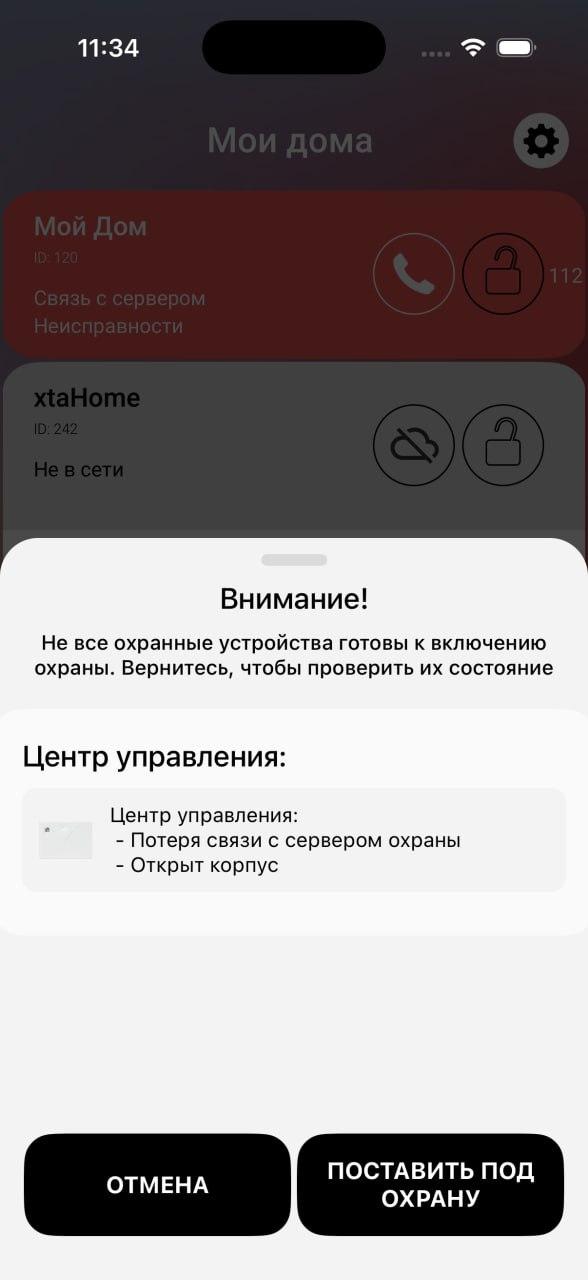
- Click Cancel if you will not arm the house with faults.
- Press Arm if you want to ignore faults.
2. If Cancel is selected – troubleshoot. More details in the article Dealing with faults.
3. Arm the house/object again.
4. If you select Armed – the house/object or premises are armed with detected faults. is placed near the house/object and premises.
3.2.3. Arming from a key fob or keypad
For strict mode, the process of arming from a key fob or keypad is the same, regardless of whether the system integrity check is enabled. More details for key fob and keyboard
Description of the software operation is relevant for versions:
- RiDom application - v. 1.1.273
- iCloud cloud service - v. 2026-03-05-8fd1236
- Controller firmware - v. XX.1.70
Update date: 03/26/2026
Нет комментариев для отображения
Нет комментариев для отображения