
Installing Docker on Linux OS
You can install one of 2 Docker options:
- Docker (Docker Engine and necessary components) - command line interface (CLI). Recommended for servers and operating systems without a graphical interface.
- Docker Desktop - all the functionality of the Docker Engine and components + convenient graphical interface (GUI).
If Docker is already installed on the server, launch Docker and go to section [Working with the RiCoder installation wizard](https://wiki.ridom.ru/books/instructions-in-english/page/working-with-the-ricoder-installation-wizard).
Installing Docker and Docker Desktop on various Linux platforms
This section will provide instructions for installing Docker on the platform Ubuntu. Below are links to official instructions on other Linux platforms.
Links to instructions for various Linux platforms
| Docker Desktop | [Debian](https://docs.docker.com/desktop/setup/install/linux/debian/) | [RHEL](https://docs.docker.com/desktop/setup/install/linux/rhel/) | [Fedora](https://docs.docker.com/desktop/setup/install/linux/fedora/) | [Arch-based platforms](https://docs.docker.com/desktop/setup/install/linux/archlinux/) |
| Docker Engine and components | [Debian](https://docs.docker.com/engine/install/debian/) | [RHEL](https://docs.docker.com/engine/install/rhel/) | [Fedora](https://docs.docker.com/engine/install/fedora/) | [CentOS](https://docs.docker.com/engine/install/centos/) |
Installing Docker (CLI interface) on Ubuntu OS
The installation of Docker (Docker Engine and other components) on the Ubuntu OS using the package manager - APT is described below.
- Before installing Docker, be sure to take into account security factors and incompatibility with firewalls. - Before installing Docker Engine, you must remove all conflicting packages. More details in [official documentation](https://docs.docker.com/engine/install/ubuntu/).
Docker for Ubuntu can be installed in several ways:
- Manually, following the step-by-step instructions below. This method gives complete control over the process and is recommended for familiarization and configuration in production environments.
- Using installation script, an automated version of the same steps described in the instructions. The script is supplied with the RiCoder release, it is located in the /CHOP_DEPLOY/ folder.
Using the official Docker installation scriptavailable from link. The Docker developer does not recommend using this script in production environments. The script has limitations and features, they can be found in official documentation.
Installing Docker using APT repository.
1. Open a terminal and update the system. All installed packages in the OS will be updated.
sudo apt update && sudo apt upgrade -y
2. Remove old versions of Docker (if any) to avoid conflicts.
sudo apt remove docker docker-engine docker.io containerd runc
3. Install dependencies. A set of important system utilities and libraries will be installed, which are often required for the safe and correct installation of third-party software, such as Docker.
sudo apt install -y ca-certificates curl gnupg lsb-release
4. Add the official Docker GPG key to the system to prepare the system to securely add the official Docker repository.
sudo mkdir -p /etc/apt/keyrings
curl -fsSL https://download.docker.com/linux/ubuntu/gpg | sudo gpg --dearmor -o /etc/apt/keyrings/docker.gpg
5. Add the official Docker repository to your system so that Ubuntu can safely download and update Docker from a trusted source.
echo \

  "deb [arch=$(dpkg --print-architecture) signed-by=/etc/apt/keyrings/docker.gpg] https://download.docker.com/linux/ubuntu \

  $(lsb_release -cs) stable" | sudo tee /etc/apt/sources.list.d/docker.list > /dev/null
6. Update the list of available packages from all connected repositories, including the official Docker repository.
sudo apt update
7. Install Docker Engine and related components, including the Docker CLI and Docker Compose, to manage containers and run multi-container applications.
sudo apt update
sudo apt install -y docker-ce docker-ce-cli
containerd.io docker-buildx-plugin docker-compose-plugin
8. After installing Docker, make sure that:
- Command docker available in terminal.
- The expected version is installed: current and stable.
- The user (or system) has access to Docker.
sudo docker --version
docker compose version
Expected result
Docker version 24.0.7, build afdd53b
Docker Compose version v2.26.1
9. Run a test container to check if Docker is working.
sudo docker run hello-world
If a welcome message appears, Docker and its components are installed correctly.
10. To run Docker without using sudo, add a user to the docker group. The group docker has privileged access to the system. Add to the group docker only those users you completely trust.
sudo usermod -aG docker $USER
11. If necessary, configure autostart when the OS boots. Run the command:
sudo systemctl enable docker
Docker is fully installed and ready to use.
Installing Docker using a script
1. Open a terminal, download and save the script file.
curl -L -o <script file name> <script url>
2. Set permissions to execute the script after downloading.
chmod +x <script file name>
3. After Docker installation is complete, check that the settings are correct:
- Command docker available in terminal.
- The expected version is installed: current and stable.
- The user (or system) has access to Docker.
sudo docker --version
docker compose version
Expected result:
Docker version 24.0.7, build afdd53b
Docker Compose version v2.26.1
4. Run a test container to check if Docker is working.
sudo docker run hello-world
If a welcome message appears, Docker and its components are installed correctly.
5. To run Docker without using sudo, add a user to the docker group. The group docker has privileged access to the system. Add to the group docker only those users you completely trust.
sudo usermod -aG docker $USER
Docker is fully installed and ready to use.
Installing Docker Desktop (GUI interface) on Ubuntu OS
Docker Desktop for Linux is a GUI on top of Docker Engine designed to make working with containers easier. Installing it on Ubuntu is possible, but has some special features. Follow the instructions below.
Before installation, make sure that:
- You have a supported version of Ubuntu installed (for example, 20.04, 22.04, 24.04).
- You have sudo or administrator access.
- A graphical interface (GUI) is installed, for example, GNOME.
Read more about the limitations in the official Docker Desktop documentation.
1. Open a terminal and remove old versions of Docker (if any).
sudo apt remove docker docker-engine docker.io containerd runc
2. Install dependencies. A set of important system utilities and libraries will be installed, which are often required for the safe and correct installation of third-party software, such as Docker.
sudo apt update
sudo apt install -y ca-certificates curl gnupg lsb-release
3. Add the official Docker GPG key to your system. The commands below prepare the system to safely add the official Docker repository.
sudo mkdir -p /etc/apt/keyrings
curl -fsSL https://download.docker.com/linux/ubuntu/gpg | sudo gpg --dearmor -o /etc/apt/keyrings/docker.gpg
4. Add the official Docker repository to your system so that Ubuntu can safely download and update Docker from a trusted source.
echo \

  "deb [arch=$(dpkg --print-architecture) signed-by=/etc/apt/keyrings/docker.gpg] https://download.docker.com/linux/ubuntu \

  $(lsb_release -cs) stable" | sudo tee /etc/apt/sources.list.d/docker.list > /dev/null
6. Update the list of available packages from all connected repositories, including the official Docker repository.
sudo apt update
7. Install Docker Engine and related components, including the Docker CLI and Docker Compose, to manage containers and run multi-container applications. Required for Docker Desktop.
sudo apt update
sudo apt install -y docker-ce docker-ce-cli
containerd.io docker-buildx-plugin docker-compose-plugin
8. Add a user to the docker group to run Docker without sudo. It is recommended to add to the group dockeronly trusted users.
sudo usermod -aG docker $USER
Restart your computer or run newgrp docker for the changes to take effect.
9. Docker Desktopnot available via apt. Download Docker Desktop .deb-package with official website. Replace with the current one.
wget https://desktop.docker.com/linux/main/amd64/docker-desktop-<версия>.deb -O docker-desktop.deb
Or download manually via browser.
10. Install .deb-package.
sudo apt install ./docker-desktop.deb
Launch Docker Desktop
1. After installation, follow these steps:
Open Activities (or application menu) → search Docker Desktop → run the application.
When starting for the first time, you may need to confirm rights and run in the background.
Test your installation after running Docker Desktop. In the terminal, run the commands:
docker --version
docker run hello-world
The expected result is a greeting from Docker.
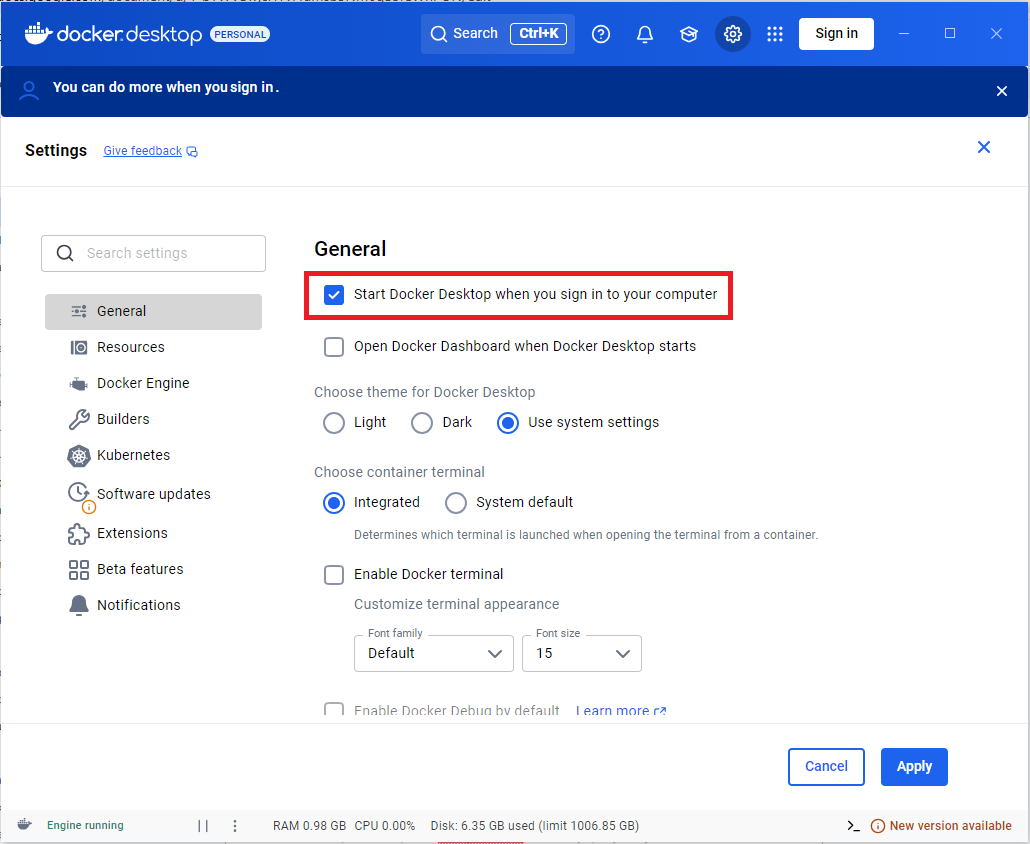
1. If necessary, configure Docker Desktop to autostart when you log in to your system for stable operation of RiCoder. In the settings Docker Desktop → General → enable Start Docker Desktop when you sign in.
Docker Desktop settings screen
Run the command in the terminal to configure autoload.
sudo systemctl enable docker
Docker Desktop is running and ready to install RiCoder containers.
Update date: 09/12/2025
Нет комментариев для отображения
Нет комментариев для отображения