
Setting up a house/object under protection
The RiDom system provides several ways to arm a house/object, depending on the user’s role.
For mobile users (has access to the mobile application):
For local users (without access to the mobile application) using:
More details about user roles in the RiDom system are in article.
1. Via mobile application
The mobile user must have permission to disarm and arm. Learn more about [how to set up permissions for users](https://wiki.ridom.ru/books/frequently-asked-questions/page/where-to-configure-system-integrity-check).
1. In the section My Homes select the desired house and click on the icon  .
.
2. Select premises for security:
- All premises – click Arm all premises
 . All switches will turn green.
 - One or more rooms - turn on the switch
 for the desired room.
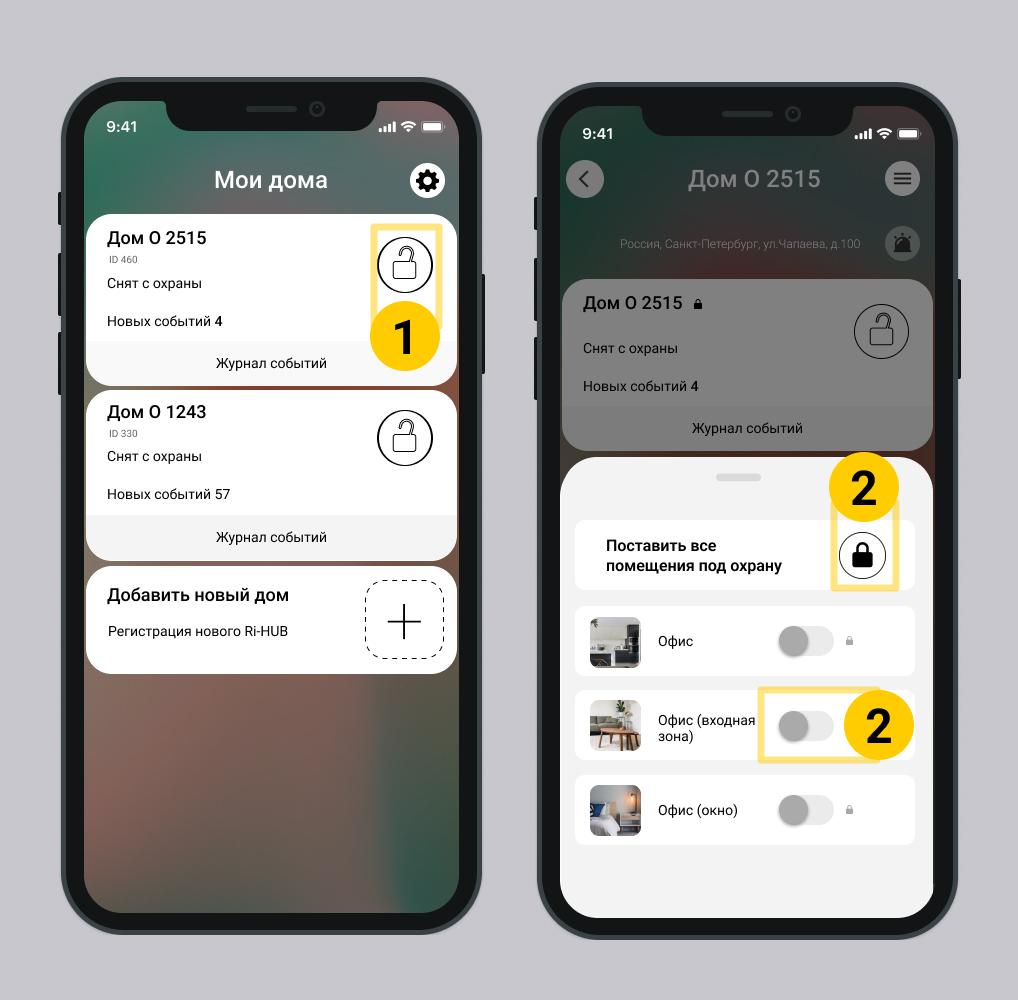
3. After clicking on for all rooms or enable  for selected rooms, the system will check depending on the settings System integrity checks. More on how to set up verification.
By default, **System integrity checks** is disabled.
- If checking is Enabled – the controller and sensors will be checked according to the specified rules.
- If the check is Off – the system will check the sensors and controller, generate a list of faults and immediately proceed to arming the house/object.
- Opening sensors are always checked. If a window or door is open, the house/object or premises will not be protected.
When integrity checkis disabled pwhen arming a house/object, two results are possible:
1.1. Successful arming
The house/object is successfully armed when:
- all rooms in the house/facility or individual ones have a sign

- on the screen My houses – the house card is displayed in green and the sign
Sign successful arming in the interface
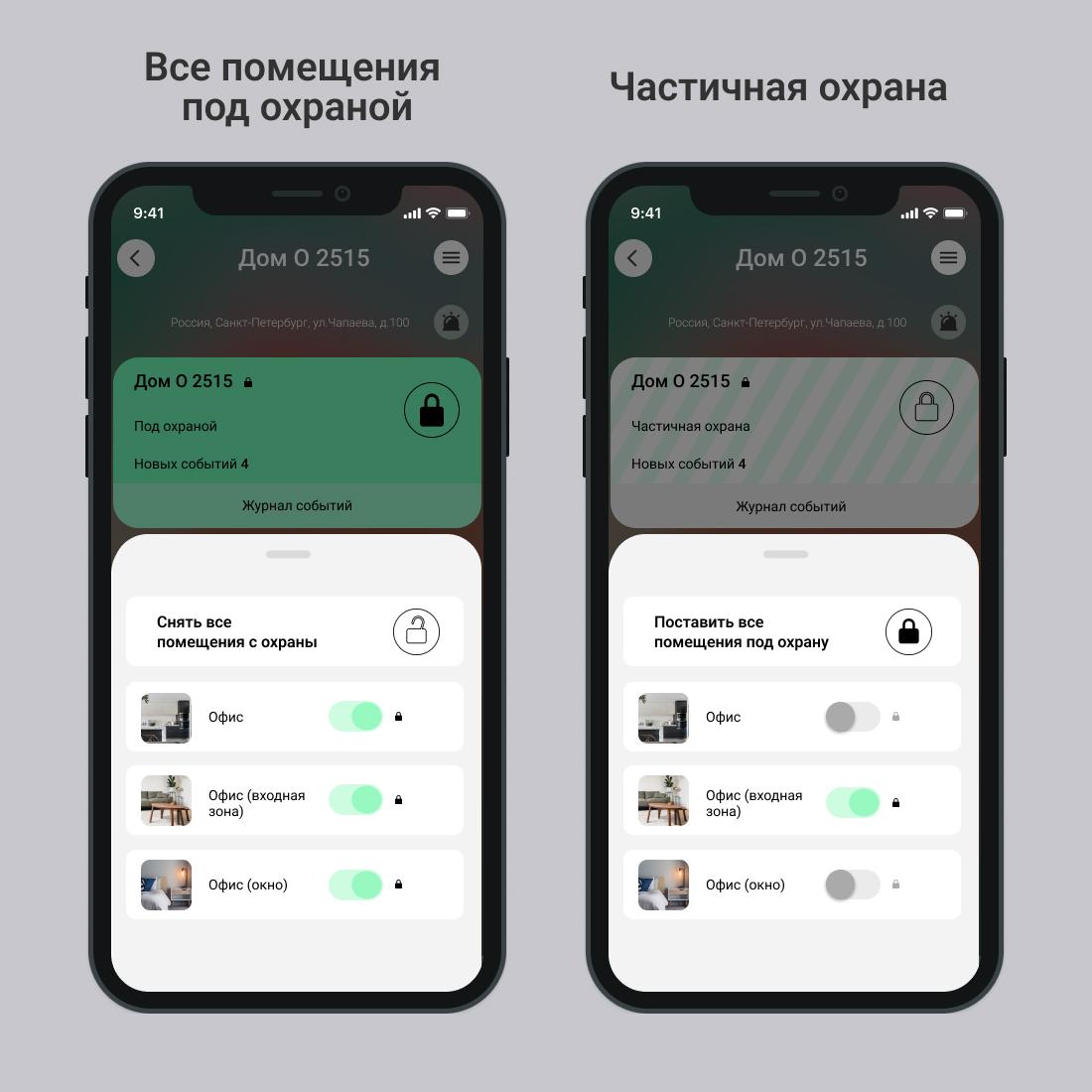
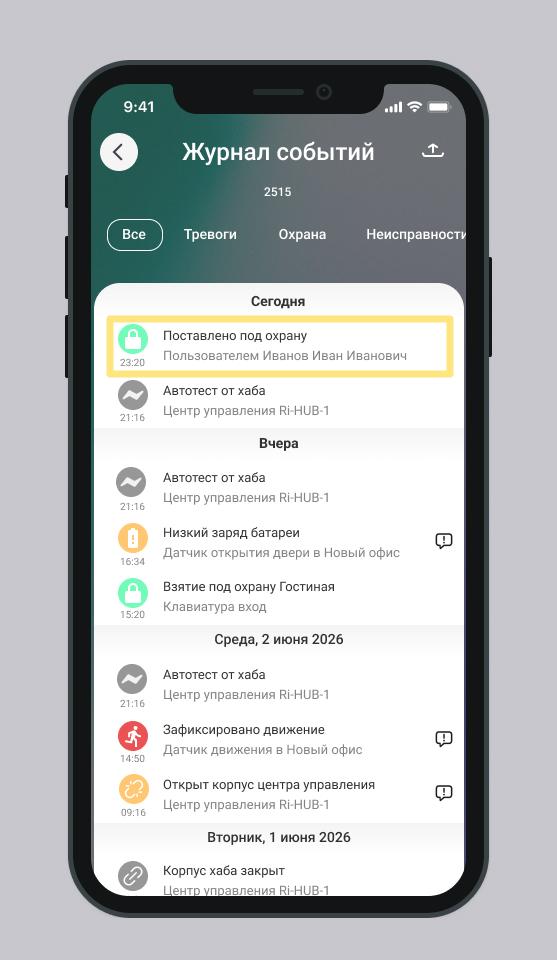
Upon successful arming, the system records the event Armed in the log and sends notifications to users - if the settings allowed.
If, as a result of the arming check, malfunctions are identified, the system records the event Armed with malfunctions.
If malfunctions were detected during the security sensor check, you can view the list in [section System status](https://wiki.ridom.ru/books/instructions-in-english/page/dealing-with-faults-when-arming) or [event log](https://wiki.ridom.ru/books/instructions-in-english/page/dealing-with-faults-when-arming). Detected malfunctions do not affect arming in any way since the integrity check of the security system is disabled.
Screen Event log
Notifications to mobile users
The user, including the initiator of arming, receives an SMS message and/or push notification – Armed.
If **a mobile user** has SMS notifications, push notifications disabled in their profile settings, or viewing the event log is not available, then they will not receive notifications.
The owner or invited user with the right **Manage users** can enable or disable the receipt of SMS messages for each local user.
Notifications to local users
Local users do not receive SMS messages.
If the user of the home/object, in addition to a local account in the RiDom system, has access to the mobile application, then he will receive an SMS message and/or push notification in accordance with the settings for this user.
1.1.2. Indication on the controller and actuators
When arming is successful, the controller and siren do not make sounds. The keyboard beeps - a single beep. The signal may arrive with a slight delay. The devices do not have color indication.
The sound signal from the keyboard may be delayed, since the keyboard does not communicate with the controller constantly, but at time intervals. The duration of the pause depends on the quality of communication with the controller and the settings - the period of broadcasting. This setting is specified in the firmware and does not change. The maximum pause duration is 2 minutes.
1.2. Unsuccessful arming
House/object NOT is protected due to the lack of rights of the user to arm the house/object.
- Nothing appears in the event log.
- Users will not receive any notifications.
- There is no sound indication on the controller and actuators.
2. From key fob or keyboard
2.1. Keychain: features of use
A user can only have one key fob associated with him. Any mobile user can have one key fob.
The key fob turns on security in all premises that are authorized for the user of the key fob.
Configuring access rights to premises is performed in the mobile application in User Settings. More...
Several key fobs can control one room. If you first armed the room with key fob 1, and then with key fob 2, the controller does not arm the security again. The event **Re-arming** will appear in the log. This is not an error - the security is working correctly.
2.2. Keyboard: features of use
The codes on the keyboard for executing arming commands are linked to the user. Each user (mobile or local) is assigned a specific code in the mobile application and premises available for arming.
Only a mobile user can configure codes for the keyboard: either the owner or another user with the appropriate rights in the mobile application in User Settings.
2.3. How to arm
1. To set premises that are allowed to be armed by key fob and keypad users, follow these steps.
| [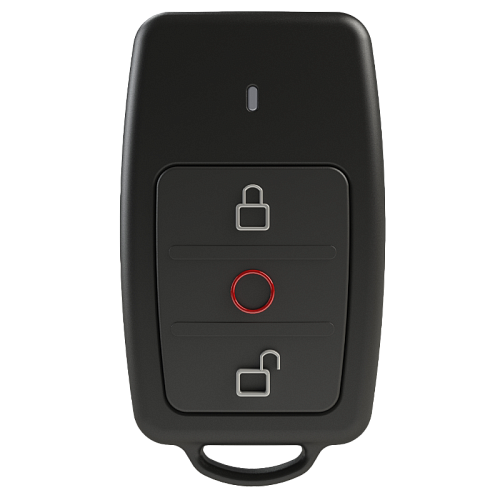](https://wiki.ridom.ru/uploads/images/gallery/2026-01/scaled-1680-/ri-key-1-1.png) | [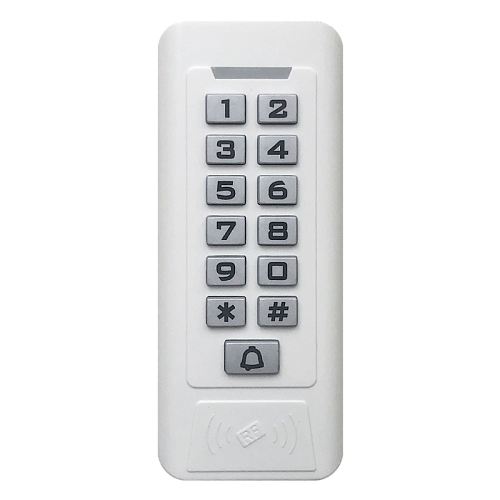](https://wiki.ridom.ru/uploads/images/gallery/2026-01/scaled-1680-/ri-kb-1-800-a.png) | |
| Arming | Click the button [](https://wiki.ridom.ru/uploads/images/gallery/2026-01/scaled-1680-/lock-enable.png)
In the key fob settings in the mobile application, each button is assigned a corresponding command. | Enter the code **ХХХХ**, corresponding to the command **Arming** and press the key [](https://wiki.ridom.ru/uploads/images/gallery/2026-02/scaled-1680-/free-icon-bell-ring-alarm-70084.png) |
| Indication immediately after pressing the buttons | The indicator light turns on briefly in green. | The keyboard flashes for 60 seconds. green after entering the code. |
2. After pressing the key fob button and entering the code on the keyboard, the countdown starts exit delay.
The delay time is set in the settings of the security device (motion and opening sensors).
3. The security system waits until the initiator of arming leaves the premises.
2.3.1. Successful arming
1. Arm your house/object or individual premises using a key fob or keypad.
2. After pressing the key fob button and entering the code on the keyboard, the countdown starts exit delay.
3. The security system waits until the initiator of arming leaves the premises.
When exit time expires:
- The system will arm only those premises that are allowed for the entered code or assigned to the user of the relay.
- Users of the house/facility receive SMS messages, push notifications - Armed.
- An event is generated in the log - Armed.
- The keyboard emits a beep - single "beep" sound. The signal may arrive with a slight delay.
- The key fob indicator light turns green for 3 s.
- Controller, keyboard and siren – do not emit sound signals.
If the security sensor is triggered while the exit time is counting down, thenthe security sensor does not send an alarm to the controller.
If the initiator of arming did not have time to leave the premises, the alarm will sound.
- An event is generated in the log - Alarm.
- Users of the home/facility receive SMS messages and push notifications about alarms.
- The siren emits a sound depending on the settings made in the mobile application.
- Controller, keyboard - do not emit sound signals.
If for a mobile user SMS notifications, push notifications are disabled in the profile settings or viewing the event log is not available, then he will not receive any notifications.
2.3.2. Unsuccessful arming
Unsuccessful arming is possible in the following situations:
For keyboard
- The code entered from the keyboard was incorrect.
- The user does not have the right to put the house/object or premises under protection.
- There is a ban on disarming a house/object outside of the schedule.
- There is no connection between the keyboard and the controller.
Possible reasons for lack of connection: 1. The battery of the keyboard is low, it cannot communicate with the controller. 2. The controller has no power or is faulty.
For keychain
- The user does not have the right to put a house/object or premises under protection.
- There is no connection between the key fob and the controller.
If there is no connection between the controller and the key fob, the indicator light alternates between red and green for 3 seconds after pressing the button.
House/object NOT is armed.
- The event is not generated in the log.
- Home users do not receive notifications.
- The keyboard flashes green and red.
- The key fob does not have a light indication.
- The controller and siren do not emit a sound signal.
Description of the software operation is relevant for versions:
- RiDom application - v. 1.1.273
- iCloud cloud service - v. 2026-03-05-8fd1236
- Controller firmware - v. XX.1.70
Update date: 03/26/2026
Нет комментариев для отображения
Нет комментариев для отображения